Minutes Ago is a menu bar app that keeps recording your Mac’s microphone and holds on to the last stretch of audio, for the time you set (Keep the last), on this Mac. After a meeting, you pick the part you need and save it as audio and a transcript, or keep it in the app as a saved recording. Audio and transcripts older than that are deleted automatically unless you save them.
The screenshots in this guide show an English demo meeting. Finder, the Shortcuts app, System Settings and the date in the menu bar appear in Japanese, the language of the Mac they were taken on.
Requirements
- macOS 27 or later on a Mac with Apple silicon.
- Meeting minutes on this Mac need Apple Intelligence. Without it, recording, transcription, export and speaker identification still work (and minutes can be written by a provider you set up; see Speakers and Minutes).
- Transcription uses Apple’s speech recognition on this Mac. macOS downloads the language model once.
- The first time you identify speakers, Minutes Ago downloads the speaker model (about 200 MB). You can also download or delete it in Settings › Models.
- Other transcription models (Whisper large-v3-turbo and its Compact version, Parakeet TDT (Japanese), Cohere Transcribe (Beta)) are optional downloads in Settings › Models, from 619.1 MB to 2.19 GB each. They run on this Mac and are used only when you transcribe something again with them; recording always uses Apple’s speech recognition (Transcription and Models).
- There is no account to create.
Install
Minutes Ago will be distributed on the Mac App Store (coming soon). Installation steps will be added to this page once it is published. The app is a free download; Minutes Ago Pro is a one-time in-app purchase (pricing, what is free).
The first-run guide (5 pages)
The first time you open Minutes Ago, the “Welcome to Minutes Ago” window walks you through five pages. Use Continue and Back to move between them.
- Always recording, only on this Mac — once you start, Minutes Ago keeps the last 90 minutes (Keep the last; you can change how long) of microphone audio in this Mac’s memory as live audio. When it quits, it writes that audio to its container once, so it is there after a restart; a crash loses it. Older audio and its transcript are deleted automatically unless you save them. Also on this page: how to read the menu bar icon, what is free, and the reminder “Tell people you are recording”.
- Microphone — Allow Microphone… asks for microphone access (see below). Another microphone can be chosen later in Settings › Recording.
- How meetings are recorded — choose the meeting app whose sound is recorded as a second track (App audio (other participants)) and the language spoken in your meetings (Spoken language). Both can be changed at any time from the menu. The first time you choose an app, macOS asks for the “System audio recording” permission (App Audio).
- Meeting minutes with Apple Intelligence — shows whether Apple Intelligence is ready on this Mac. Under “Cloud providers ask first”: OpenAI, Anthropic, Google Gemini or another OpenAI-compatible server can be used with your own API key, and Minutes Ago asks before sending the transcript text.
- Everything else is in Settings — Open Settings… opens the Settings window. “Agent access is off” says it stays off until you turn it on in Settings › Agents (Agents and Shortcuts). Finally, click Start Recording.
Recording starts only when you click Start Recording. Later closes the guide without recording, and the guide opens again at the next launch. You can reopen it at any time with Setup guide… in Settings › General › Advanced.
Microphone permission
Clicking Allow Microphone… on page 2 makes macOS ask once whether Minutes Ago may use the microphone. If you skip it there, you can allow it when you click Start Recording.
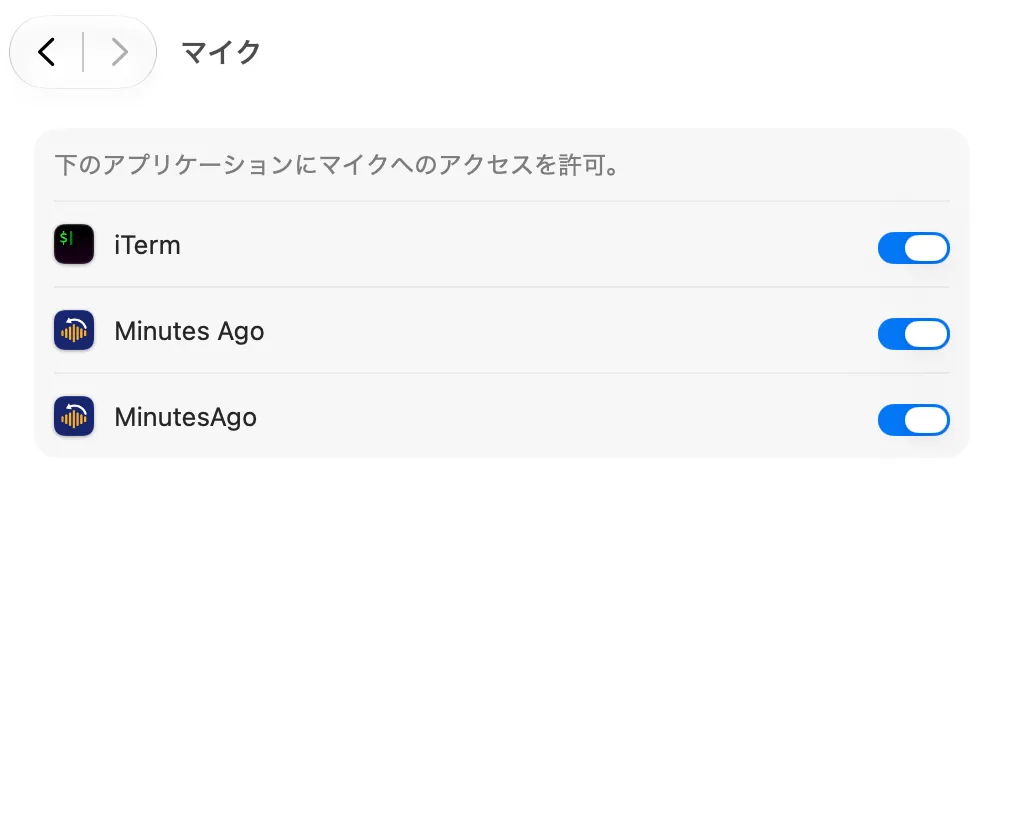
If access is denied, the page shows “Microphone access is off.” with an Open Privacy Settings… button, and the menu shows the orange line “Microphone access is off – open Privacy settings…”. You can change it at any time in System Settings › Privacy & Security › Microphone.
Start recording
Clicking Start Recording starts recording and closes the guide. Transcription starts at the same time.
- The first time, macOS may need to download the language model for the spoken language. While the menu shows “Downloading Japanese · 40%” (or “Preparing Japanese…”), recording continues.
- The spoken language is the one you chose on page 3. Change it with Spoken Language ▸ in the menu (up to five pinned languages, ⌘1–⌘5 while the menu is open, and Other Languages… for the full list) or in Settings › Transcription. The language of menus and windows is separate (see Troubleshooting).
- Start at login is off by default. Turn it on in Settings › General if you want recording to start when you log in.
Reading the menu bar
The menu bar icon shows waveform bars under a back arrow.
- Solid bars — recording. macOS also shows its microphone indicator.
- Faint bars — paused or stopped.
- A pause symbol (two bars in a circle) — a meeting is paused (Meetings). Pausing outside a meeting keeps the faint bars.
- A triangle — the microphone could not start. The menu says why and tries again by itself (below).
- A red dot at the top right — screenshots are being taken during a meeting (Screenshots).
- A flag for 1.5 seconds — a marker was added. A camera for 1.5 seconds — a screenshot was added with Add Screenshot. No sound is played for either.
Click the icon to open the menu. The first lines show the state.
| Line | Example | Meaning |
|---|---|---|
| 1st | “Recording · 1:29:40 kept” | Recording, and how far back you can go. “Paused · … kept” while paused (“Paused · Resumes at 14:35 · 12:03 left” for a pause with a set time), “Not recording” when stopped. During a meeting: “● Weekly sync · 23:15 · 📷 42” (its name, how long it has run and the number of screenshots); while the meeting is paused, “‖ Weekly sync · 23:15 · Paused” with its clock stopped |
| 2nd | “Heard: “…”” | The last transcribed line (long lines are cut short). “Nothing heard yet” before anything is heard, “Preparing Japanese…” or “Downloading Japanese · 40%” while the language model gets ready. For 10 minutes after a meeting is saved: “Saved “Weekly sync” · Open”, which opens that recording |
| Orange lines (⚠︎) | “Zoom is open · Record Its Audio” | Only when something needs you: for example a meeting app (Zoom, Teams, Webex) is open while App Audio is None, no sound has come from the app for 30 seconds during a meeting, both the microphone and App Audio are None, microphone access is off, the Mac’s default input has become a Bluetooth microphone (“System default input is now …” with Use …; see Microphone), or transcription has stopped (Resume Transcription). Clicking the line does what it says |
| Orange line (⚠︎) | “The microphone could not start (…) · Try Again” | The microphone failed to start, for example right after the Mac wakes from sleep. Minutes Ago tries again by itself (after 15 seconds, 30 seconds and 1 minute, then up to every 5 minutes, and at once when an input device changes); “Trying again in n s” below it counts down, and Try Again starts the microphone now. App audio is still recorded meanwhile. The same line appears in the meeting bar of the Recordings & Minutes window |
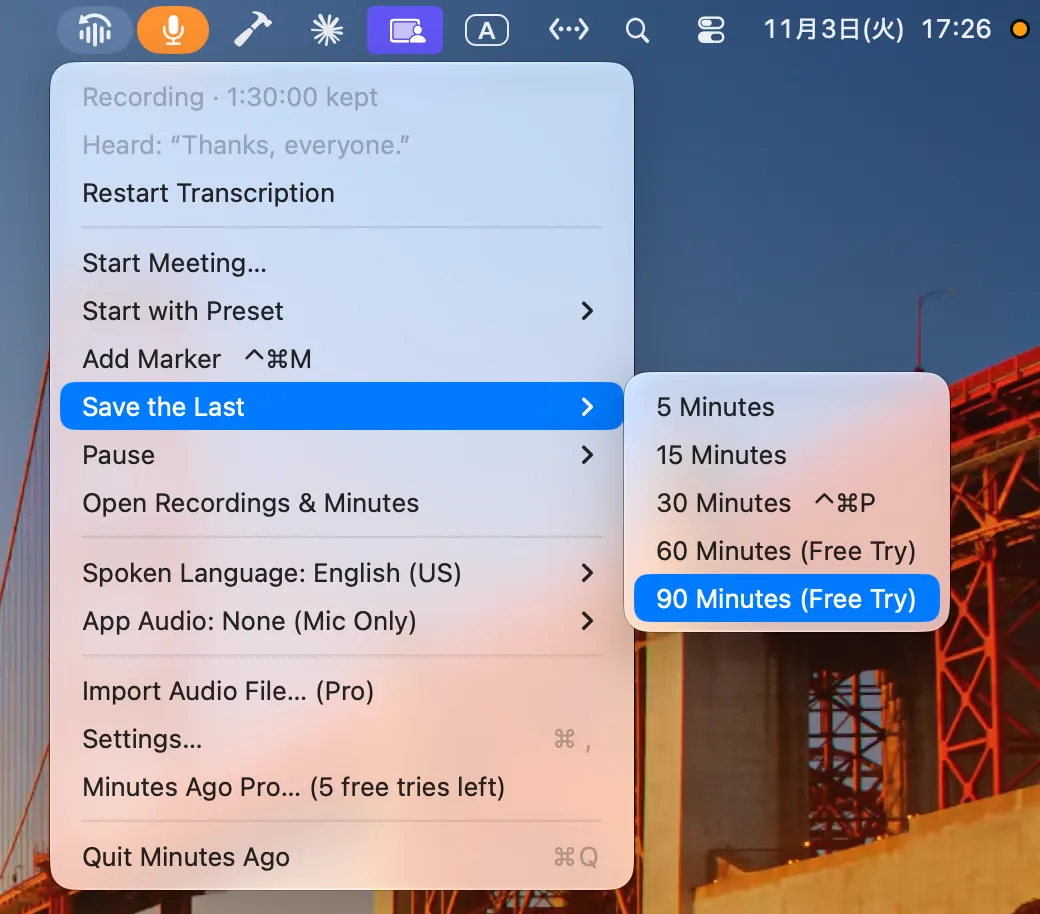
Below them are the actions (about 15 lines in all):
- Start Meeting… (with ⌥: Start Meeting, at once with the last settings), and Start with Preset ▸ when you have presets. During a meeting: Stop & Save Meeting (with ⌥: Discard Meeting…) — Meetings
- Add Marker (with ⌥: Add Marker with Name…), only while recording — Markers. Add Screenshot, only during a meeting with screenshots — Screenshots
- Save the Last ▸, Pause ▸ (Until I Resume, For 5, 10 or 30 Minutes, For 1 Hour, Custom…; Erase Live Audio… is at its end), Open Recordings & Minutes — Saving, Recordings & Minutes. While paused, Resume Recording takes the place of Pause ▸; during a meeting, Pause Meeting (or Resume Meeting) does
- Restart Transcription, while recording — makes the live transcription of both tracks again now, without a gap in the recording (Transcription and Models)
- Spoken Language: … ▸ — the language spoken in your meetings (above)
- App Audio: … ▸ — the meeting app recorded as a second track, and whether its sound is arriving — App Audio
- Import Audio File… — makes a saved recording from an audio or video file and transcribes it — Importing Audio Files (Minutes Ago Pro; before you buy, it reads Import Audio File… (Pro), or (License) in the direct version)
- Settings… (⌘,) — the Settings window
- Minutes Ago Pro… (n free tries left) — only until you buy Pro (pricing)
- Quit Minutes Ago
When you set a key for an action in Settings › Keyboard, the menu shows it next to the item (Agents and Shortcuts).
The Dock icon
Minutes Ago also shows in the Dock and in ⌘Tab (Show in Dock in Settings › General, on by default).
- Clicking the Dock icon opens the Recordings & Minutes window. Opening the app from the Finder or Launchpad does the same; starting at login does not open it.
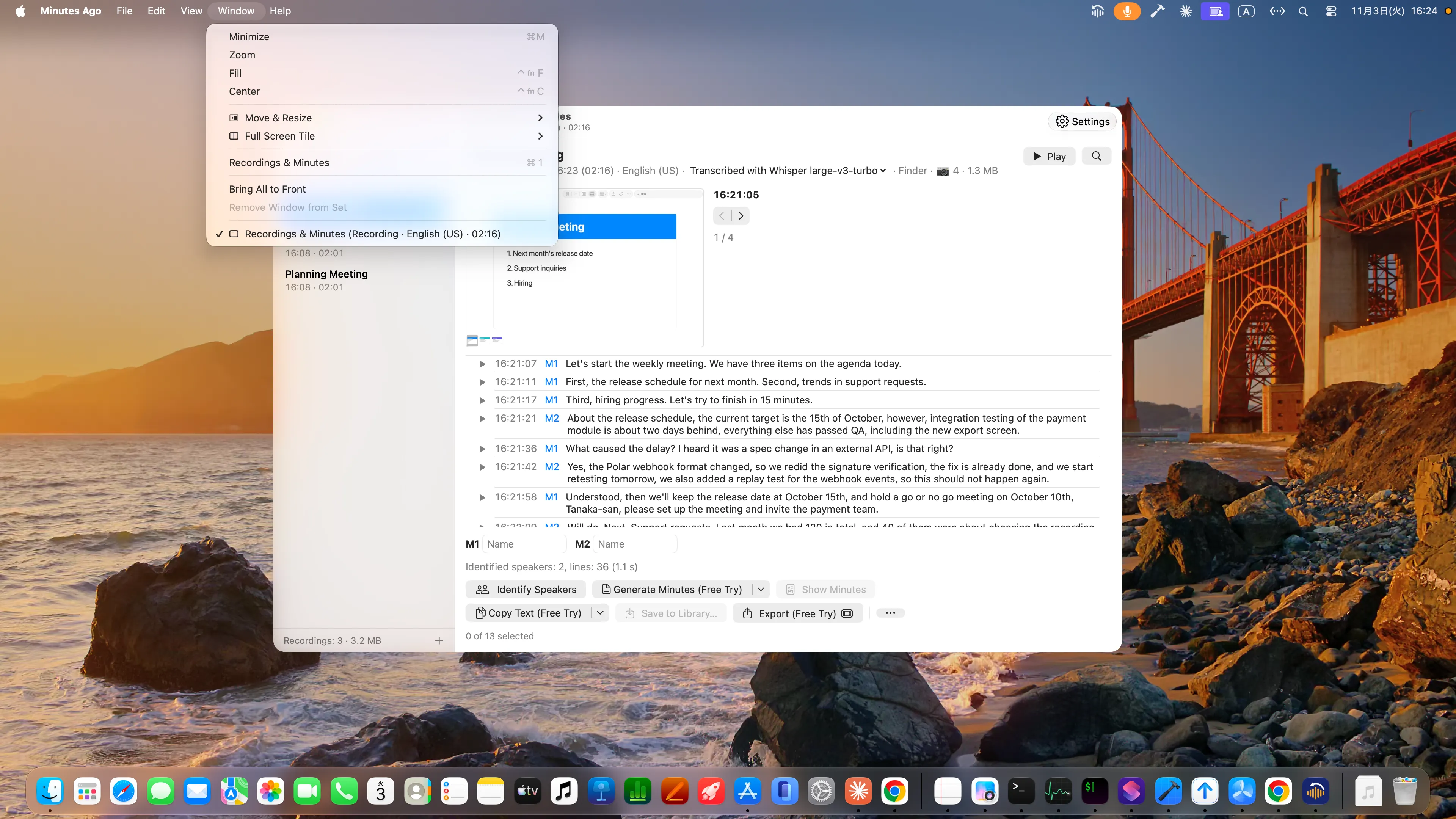
- While Minutes Ago is in front, the menu bar at the top of the screen has its menus. The File menu has Import Audio File… (⌘O) and Export…, Export Transcript…, Show in Finder and Delete… for the pane you are looking at (The File menu). The Window menu has Recordings & Minutes (⌘1); in the direct version, the Minutes Ago menu has Check for Updates… under About Minutes Ago.
- With Show in Dock off there is no menu bar, but the keys still work while the window is in front (⌘O, ⌘E), and everything in the File menu is also elsewhere: in the window and its right-click menus, the menu bar icon’s menu, or Settings › Library.
- Recording itself stays in the menu bar icon’s menu, which shows the state.
- Prefer the menu bar only? Turn off Show in Dock, and Minutes Ago is in the menu bar only, as before.
The Settings window
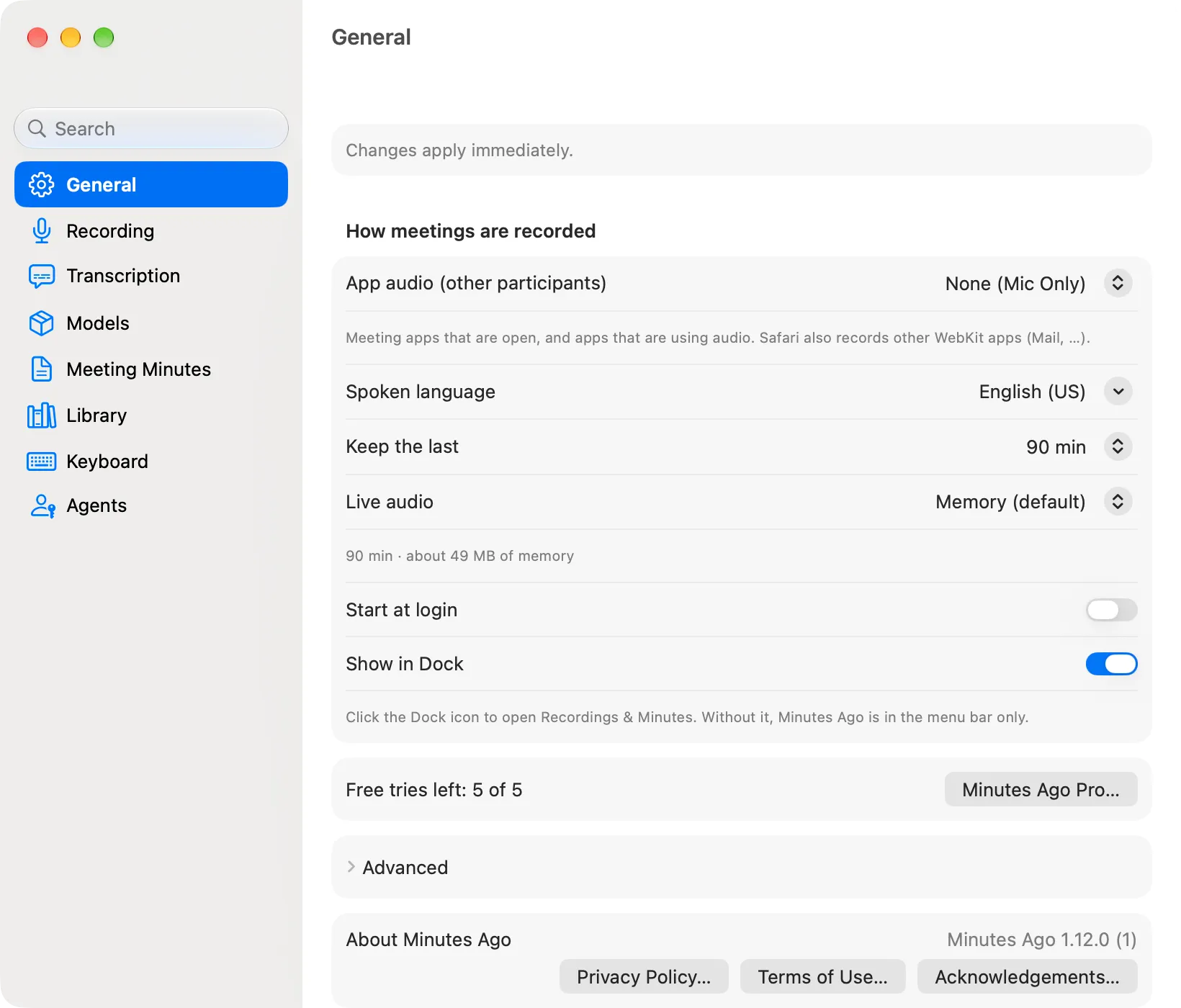
Settings… in the menu (or ⌘, while a Minutes Ago window is in front) opens the settings window. Changes apply immediately (“Changes apply immediately.”). The search field above the sidebar finds a setting by its name, in English or Japanese, or by its command-line and MCP name, and jumps to it.
| Pane | What is there |
|---|---|
| General | How meetings are recorded: App audio (other participants), Spoken language, Keep the last (how far back you can go), Live audio (where unsaved audio is kept: Memory or SSD), Start at login, Show in Dock. Minutes Ago Pro and the free tries left. Advanced: App language, Setup guide…. About Minutes Ago: the version, Privacy Policy…, Terms of Use… and Acknowledgements… (the third-party licenses, including the models) |
| Recording | Input device (System Default, a microphone, or None). Meeting screenshots: Take screenshots, App, Interval, Skip identical screenshots. Presets for meetings |
| Transcription | Transcribe while recording, Always transcribe during meetings, Speech detection, Spoken language, Languages in the menu (up to five), Replacements (Transcription and Models) |
| Models | Transcription models: Apple (On Device), managed by macOS (Languages…), and Whisper large-v3-turbo, Whisper large-v3-turbo (Compact), Parakeet TDT (Japanese) and Cohere Transcribe (Beta), each with its size, state and Download… / Cancel / Delete…. Speaker model. Advanced: Run Whisper on (Downloading models) |
| Meeting Minutes | Minutes Presets (named prompts), Providers (where minutes are written), Include screenshots. Advanced: Show send warnings again |
| Library | Export folder (Choose…, and Show in Finder once a folder is set), Include markers, the number and size of saved recordings, Delete All Saved Recordings… |
| Keyboard | Keys from Any App (eight actions you can give a key) and the list of keys in Minutes Ago |
| Agents | Allow AI agents (MCP on this Mac), Copy configuration for Claude, Copy Claude Code command, Install shortcuts…. Advanced (direct version only): Regenerate token |
In the direct version, About Minutes Ago in Settings › General also has Check for Updates…, Check for Updates Automatically and Receive Beta Versions. With Receive Beta Versions on, beta versions (new features before they are finished) also come through Check for Updates… and the automatic check. Turning it off keeps the version you have until the next regular version replaces it. The App Store version has no beta setting.
Tell people you are recording
Some countries and regions require the consent of everyone in a conversation before it is recorded. Before you record, let the other participants know, and follow the rules that apply to you and your organization. The app shows the same reminder on the first page of the guide and, once, before your first export (audio and text, or saving minutes).
If you take screenshots during a meeting, they can show the participants’ faces and names, chat, shared documents and notifications. Tell the other participants that the screen is being captured too.
See Terms of Use, Article 3 (Your Responsibilities When Recording).