AI agents on this Mac (such as Claude) and Shortcuts can read the transcript of live audio (the audio not saved yet), the transcript with speakers, the audio and minutes, start, pause, resume and stop meetings, save recordings and read them, and add markers and screenshots. This is a feature for advanced users.
Off by default
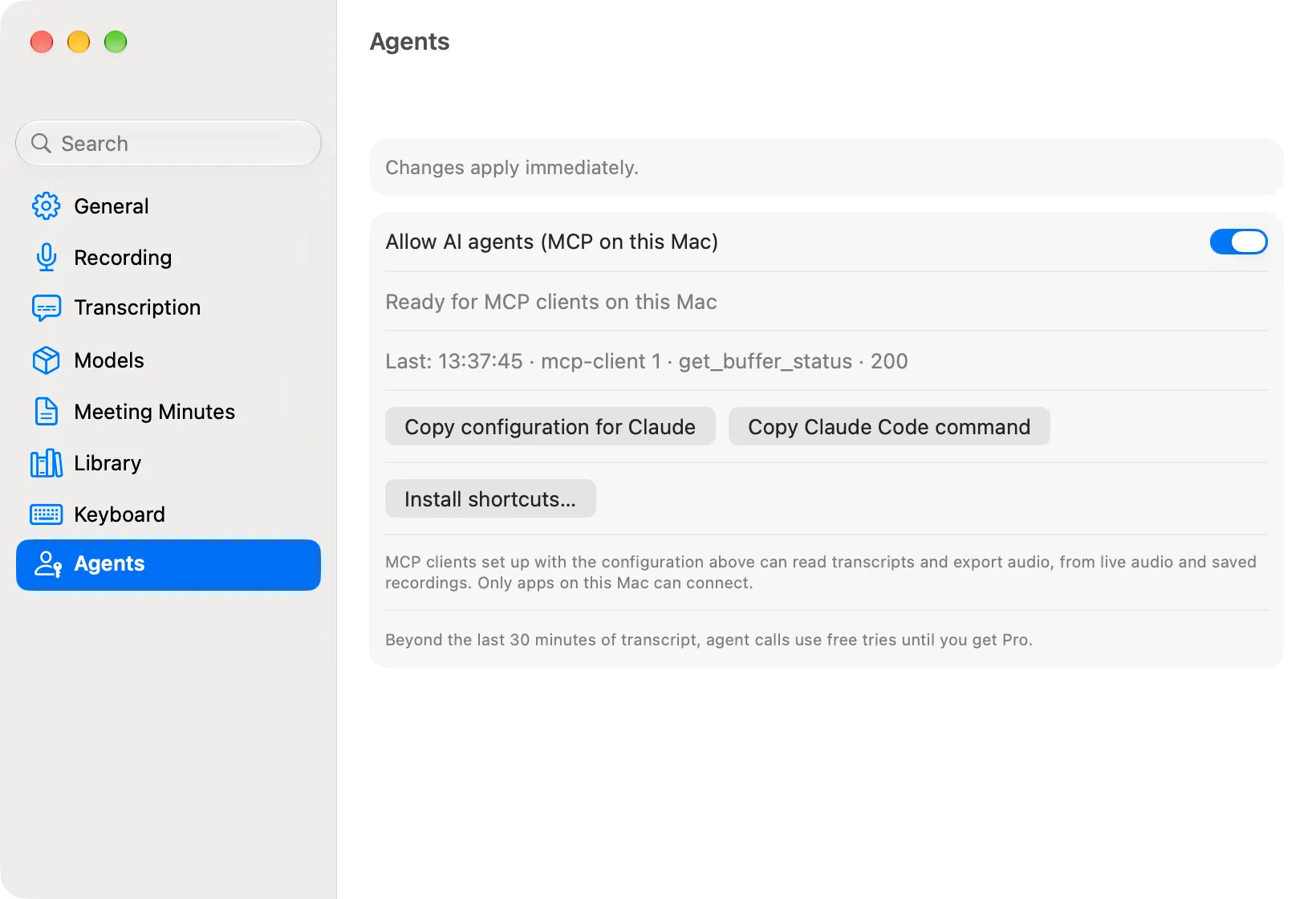
Agent access runs only when you turn on Allow AI agents (MCP on this Mac) in Settings › Agents. The setting stays on across restarts. Before you buy, the first time you turn it on, the app explains once how agent requests use free tries.
How an agent connects depends on the version. The Mac App Store version doesn’t listen on the network: the agent starts Minutes Ago’s own executable as its MCP server. The direct version, downloaded from this website, runs an HTTP MCP server on 127.0.0.1 with a token. The copy buttons in Settings › Agents always copy the configuration for the version you have.
What turning it on does
App Store version
- Minutes Ago doesn’t listen on any network port. An MCP client such as Claude Code or Claude Desktop starts Minutes Ago’s own executable with the argument
mcp(/Applications/MinutesAgo.app/Contents/MacOS/MinutesAgo mcp) as a stdio MCP server (server nameminutes-ago). It shows no window and records nothing: it passes each request on to Minutes Ago and ends when the client closes it. - It reaches Minutes Ago through a connection point (a socket) inside the app’s container,
~/Library/Containers/com.kurokoto.minutesago/Data/mcp.sock. The connection point exists only while agent access is on, and is removed when you turn it off or quit Minutes Ago. It accepts requests only from programs of the same user on this Mac that hold the token. The executable reads the token from this Mac’s Keychain itself, so the token never appears in the configuration. Only apps on this Mac can connect. - The status line in Settings › Agents reads “Ready for MCP clients on this Mac”. When it is off, it reads “Off”; when the connection point can’t be opened, “Unavailable: …” (for example on a Mac whose user name, the name of the home folder, is 40 bytes or more in UTF-8: the path of the connection point would exceed the macOS limit).
- While agent access is off, every request is answered with the error “Agent access is off. Turn on “Allow AI agents” in Minutes Ago › Settings › Agents.“ Turn it on, and the next request goes through; the client doesn’t need to restart.
- If Minutes Ago isn’t running, the first request opens it (without bringing it to the front) and waits up to 15 seconds for it.
Direct version
- An MCP server (Streamable HTTP, server name
minutes-ago) listens on port 48151 of this Mac’s127.0.0.1. The endpoint ishttp://127.0.0.1:48151/mcp. Other machines can’t connect. - If 48151 is taken by another app, it tries 48152 to 48160 in turn. The status line in Settings › Agents (“Listening on 127.0.0.1:48151”) shows the actual port. When it is off, it reads “Off”; when it can’t listen, “Unavailable: …”.
- Connecting requires a token. The token is created the first time you turn agent access on and stored in this Mac’s Keychain.
- The Host and Origin of each request are checked; anything not addressed to
127.0.0.1orlocalhoston this port is refused (HTTP 403). A missing or wrong token is also 403.
Both versions
- Settings › Agents shows the latest connection (“Last: time · client · tool · status”), or “No connections yet”.
Minutes Ago itself sends nothing off the Mac. An agent you connect, however, may send that data to outside services. You decide which agents to connect.
Registering with Claude (App Store version)
First turn on agent access in Settings › Agents and check that the status reads “Ready for MCP clients on this Mac”. No token is needed.
Claude Code
- Click Copy Claude Code command in Settings › Agents.
- Run the copied command in Terminal. It looks like this:
claude mcp add minutes-ago -- "/Applications/MinutesAgo.app/Contents/MacOS/MinutesAgo" mcp- By default it is registered for the current project only. Add
-s userto use it in all projects. - In Claude Code, open
/mcpand check thatminutes-agois connected and shows fourteen tools.
Claude Desktop
- Click Copy configuration for Claude in Settings › Agents. This JSON is copied:
{
  "mcpServers" : {
    "minutes-ago" : {
      "args" : [ "mcp" ],
      "command" : "/Applications/MinutesAgo.app/Contents/MacOS/MinutesAgo"
    }
  }
}- In Claude Desktop, open
claude_desktop_config.jsonwith Settings › Developer › Edit Config, and add theminutes-agoentry tomcpServers. - Restart Claude Desktop and check that the Minutes Ago tools appear in the tool list.
- The path is where Minutes Ago was when you copied it (usually
/Applications/MinutesAgo.app). If you move the app, copy the configuration again and re-register. - Claude’s custom connectors (added by URL) can’t start a program on this Mac. Register through the config file instead.
- The JSON uses the same
mcpServersshape as Claude Code’s.mcp.jsonandclaude mcp add-json.
Registering with Claude (direct version)
First turn on agent access in Settings › Agents and check that the status reads “Listening on 127.0.0.1:48151”. The direct version can also register its command-line tool instead (below).
Claude Code
- Click Copy Claude Code command in Settings › Agents.
- Run the copied command in Terminal. It looks like this (
<token>is your actual token):
claude mcp add --transport http minutes-ago http://127.0.0.1:48151/mcp --header "Authorization: Bearer <token>"- By default it is registered for the current project only. Add
-s userto use it in all projects. - In Claude Code, open
/mcpand check thatminutes-agois connected and shows fourteen tools.
Claude Desktop
- Click Copy configuration for Claude in Settings › Agents. This JSON is copied:
{
  "mcpServers" : {
    "minutes-ago" : {
      "headers" : { "Authorization" : "Bearer <token>" },
      "type" : "http",
      "url" : "http://127.0.0.1:48151/mcp"
    }
  }
}- In Claude Desktop, open
claude_desktop_config.jsonwith Settings › Developer › Edit Config, and add theminutes-agoentry tomcpServers. - Restart Claude Desktop and check that the Minutes Ago tools appear in the tool list.
- Some versions of Claude Desktop may not accept an HTTP server in the config file. In that case, use a bridge between stdio and HTTP (for example
mcp-remote, which needs Node.js). - Claude’s custom connectors (added by URL) connect from the cloud, so they are not expected to reach
127.0.0.1on this Mac. Register through the config file instead. - The JSON uses the same
mcpServersshape as Claude Code’s.mcp.jsonandclaude mcp add-json.
An example request: “Use minutes-ago to get the transcript with speakers for the last 30 minutes and write the minutes.”
The tools of the MCP server have been tested with the developer’s own MCP client. Connecting from Claude Desktop and Claude Code has not been tested yet.
The fourteen tools
Five tools read live audio (the audio not saved yet), eight handle meetings, saved recordings and markers, and one adds a screenshot.
For the tools that take a range, give it in one of two ways. Giving both, or neither, is an error.
last_minutes— the last N minutes (more than 0, up to 1440).start(ISO 8601, with a UTC offset) and an optionalend(defaults to now). A range longer than 24 hours, or one that ends before it starts, is an error.
The range is trimmed to the live audio kept; if it doesn’t overlap it at all, that is an error. track is both (default; both tracks merged in time order), microphone or app. Unknown arguments are errors.
Live audio
| Tool | Arguments | Returns |
|---|---|---|
get_buffer_status |
none | The range of live audio kept, recording state, tracks (microphone device, the App Audio app) and their transcription state, number of lines, spoken language, export folder, minutes engine and why it can’t be used, the meeting in progress (with paused, paused_seconds and active_seconds), where live audio is kept (liveAudioStorage: memory or disk) and the license line (free tries left) |
get_transcript |
range, track |
The timestamped transcript ([HH:mm:ss] speaker: text), with the replacement dictionary applied — the same as Copy Text and exports. When an app is recorded, lines without a speaker are “Me” and “Others” |
get_speaker_transcript |
range, track, format (markdown default / json / text / vtt / srt), refresh |
The transcript with speaker labels: S1, S2, … for app audio, M1, M2, … for the microphone, or the names you gave. Every track with lines is identified on its own. Runs speaker identification first when many lines have no speaker, when unlabeled lines remain at the end of the range, or when refresh is true |
export_audio |
range, track, format (m4a default / wav) |
Absolute paths of the files written to the export folder. With app audio, … mic.m4a and … app.m4a |
generate_minutes |
range | The minutes in Markdown, with the default provider and minutes preset in Settings › Meeting Minutes |
Meetings, saved recordings and markers
| Tool | Arguments | Returns |
|---|---|---|
start_meeting |
name, screenshot_interval (3 / 5 / 10 / 20 / 30 / 60 seconds; omitted or 0 = no screenshots), screenshot_app (the bundle ID of the app to capture; defaults to the App Audio app), and for this meeting only: language (BCP 47, such as en-US), app_audio (a bundle ID or none), microphone (the device’s name or none), preset (a name from Settings › Recording › Presets). All optional |
The meeting that started, its spoken language, app audio and microphone, and a warning if something is missing. Never asks for the Screen Recording permission: without it, the meeting starts without screenshots and says so |
stop_meeting |
discard (default false) |
Saves the meeting as a recording and returns its id, folder and files. With discard, ends it without saving |
pause_meeting |
none | Pauses the meeting in progress: nothing is recorded and the meeting’s clock stops until resume_meeting. Returns the meeting, in the same shape as in get_buffer_status. An error when there is no meeting, it is already paused or it is being saved |
resume_meeting |
none | Resumes the paused meeting: recording starts again and its clock goes on. Returns the meeting, with the time paused in all. An error when the meeting is not paused |
save_recording |
range, name, track (both / microphone) |
Saves a range of live audio as a recording (not in the export folder); returns the same as stop_meeting |
list_recordings |
limit (1 to 200, default 20) |
The saved recordings, newest first, with their ids and source: meeting, range, agent (save_recording) or file (imported from an audio file) |
get_recording |
id (required), format (markdown default / text / json / vtt / srt), include_markers (default true) |
The transcript of one saved recording with its markers, and the paths of its folder, audio, minutes and screenshots. The transcript is the one shown in the app (the current model’s). The JSON also has transcription_model (the model of that transcript, or live for the one made while recording) and transcripts (the transcripts the recording keeps, one per model). For a recording imported from an audio file (source file), audio.microphone is the imported audio; it has no lines until Minutes Ago has transcribed it |
add_marker |
name |
Adds a marker at the current moment. An error when not recording, or while the meeting is paused |
Screenshots
| Tool | Arguments | Returns |
|---|---|---|
add_screenshot |
none | Takes a screenshot of the meeting’s app now and keeps it, even if the screen has not changed. Returns its time, the path of the saved file and the number of screenshots in the meeting. No image is returned (read the file at the path). Works only during a meeting with screenshots, while recording (not while the meeting is paused) |
start_meetingvalues given for this meeting only are used until the meeting is stopped (saved or discarded); then your settings apply again. Arguments given withpresetwin over the preset’s values.- While a meeting is paused, nothing is recorded (not even in live audio), its clock stops, and it stays paused after Minutes Ago restarts.
stop_meetingsaves it as it is. The saved recording has the markers “Meeting paused” and “Meeting resumed”. The meeting bar, the menu, a key from any app and the Shortcuts actions pause it the same way. vttandsrtreturn only the subtitle file itself, without a header, so you can save the result as a.vttor.srtfile. Subtitles are timed from the start of the range (forget_speaker_transcript) or of the recording (forget_recording).- The paths returned by
stop_meeting,save_recording,list_recordings,get_recordingandadd_screenshotare inside Minutes Ago’s container. They are managed by Minutes Ago; read them, don’t change them. - There are no tools that import audio files, delete saved recordings, export them, transcribe them again or choose a transcription model; do those in the app (Transcription and Models). When a range of live audio is transcribed again in the app,
get_transcriptandget_speaker_transcriptreturn the new lines. Other models’ transcripts of a saved recording can’t be read through agents (only the one shown). Agents also can’t read or change the keys from any app. export_audiofails if no export folder has been chosen. Choose one in Settings › Library › Export folder, or export once from the app first.- Speaker identification and minutes return only when finished; no progress is reported. Measured on the development Mac (synthetic meeting, last 30 minutes), the transcript with speakers took about 12 seconds and minutes about 101 seconds. Identifying speakers on both tracks takes about twice as long as on one. If the client’s tool timeout is shorter than that, the call fails.
- If several speaker identification or minutes requests arrive at once, each waits for the previous one to finish.
- If you change the range and identify again,
S1andS2(orM1andM2) may swap (named speakers keep their names). - Agent requests and their free tries are covered in What agents can use for free below.
With a provider that sends off the Mac
When the default minutes provider sends text off this Mac (OpenAI, Anthropic, Google Gemini or an OpenAI-compatible server; Apple Private Cloud Compute is coming later), generate_minutes never shows the confirmation. It runs only if you have chosen “Don’t show again” for that destination in the app; otherwise it returns an error with the reason (Speakers and Minutes). Screenshots are never sent through agents (text only).
What agents can use for free
The same limits as in the app apply (what is free).
- Free, and not counted: turning agent access on,
get_buffer_status,get_transcriptfor the last 30 minutes, app audio lines included (speaker names are left out; the header says so),start_meeting,pause_meeting,resume_meeting,stop_meetingwithdiscard,list_recordings,get_recording(the recording was paid for when it was saved),add_markerandadd_screenshot. - One free try each, until you get Pro (a license in the direct version):
get_transcriptolder than 30 minutes,get_speaker_transcript,export_audio,generate_minutes, and saving a recording (stop_meeting,save_recording).get_recordinguses one try once if speaker names were added after the recording was saved. - The response tells the agent how many are left. With none left, or for a range the free version can’t take out, the tool returns an error instead of quietly shortening the range.
Regenerating the token, and stopping
- Regenerate token (direct version only) under Advanced in Settings › Agents creates a new token. Existing configurations stop working (403), so copy the configuration or the Claude Code command again and re-register. The App Store version has no Advanced section and no Regenerate token: its configuration contains no token.
- Stop by turning off Allow AI agents (MCP on this Mac). In the App Store version, the connection point is removed and registered clients get the “Agent access is off” error until you turn it on again. In the direct version, the server stops listening.
- In the direct version, if the port has moved to 48152 or later, the registered URL no longer matches either. Copy the configuration again.
Shortcuts
The operations are also available as actions in the Shortcuts app. Search for them in the action list, or choose Minutes Ago in the list of apps.
| Action | Parameters (default) | Result |
|---|---|---|
| Get Buffer Status | none | Text |
| Get Transcript | Minutes (30), Track (Microphone and app audio), Start / End (optional) | Text |
| Get Transcript with Speakers | Minutes (30), Format (Markdown; also JSON, plain text, WebVTT, SRT), Track, Identify Again (off), Start / End | Text |
| Export Audio | Minutes (30), Format (M4A (AAC)), Track, Start / End | Audio files (the contents of the files written to the export folder) |
| Generate Minutes | Minutes (30), Start / End | Markdown text |
| Add Marker | Name (optional) | None (an error when not recording) |
| Start Meeting | Name, Screenshots Every (0 = none), App, and for this meeting only: Spoken Language, App Audio, Microphone, Preset (all optional) | Text |
| Stop Meeting | Discard (off) | Text (the saved recording) |
| Save Recording | Minutes (30), Start / End, Name (optional) | Text (the saved recording) |
| List Recordings | Limit (20) | Text |
| Get Recording | Id (required), Format (Markdown; also plain text, JSON, WebVTT, SRT) | Text (the transcript, with markers) |
| Add Screenshot | none | The path of the saved screenshot |
| Pause Meeting | none | Text (an error when there is no meeting or it is already paused) |
| Resume Meeting | none | Text (an error when the meeting is not paused) |
- Setting Start uses a time range instead of the last minutes. Leaving End empty means up to now.
- Export Audio also needs an export folder. WAV gets large (hundreds of MB for 30 minutes); for large audio, the agent access tool
export_audiois better suited (it returns file paths). - The actions go through the same checks as the agent tools: the same free range and free tries, the same handling of providers that send off the Mac, and Start Meeting and Add Screenshot never ask for the Screen Recording permission. Results don’t include the number of free tries left.
- Add Marker adds a marker at the current moment of the recording. When Minutes Ago is not recording, it fails with “Not recording. Markers can be added while Minutes Ago is recording.”
- Nine of them can also be used from Siri and Spotlight (App Shortcuts), for example “Add a marker in Minutes Ago” and “Start a meeting in Minutes Ago”. List Recordings, Get Recording, Add Screenshot, Pause Meeting and Resume Meeting are actions only.
- The first time each shortcut outputs a result, the Shortcuts app asks whether that shortcut may output it (a privacy prompt, once per shortcut).
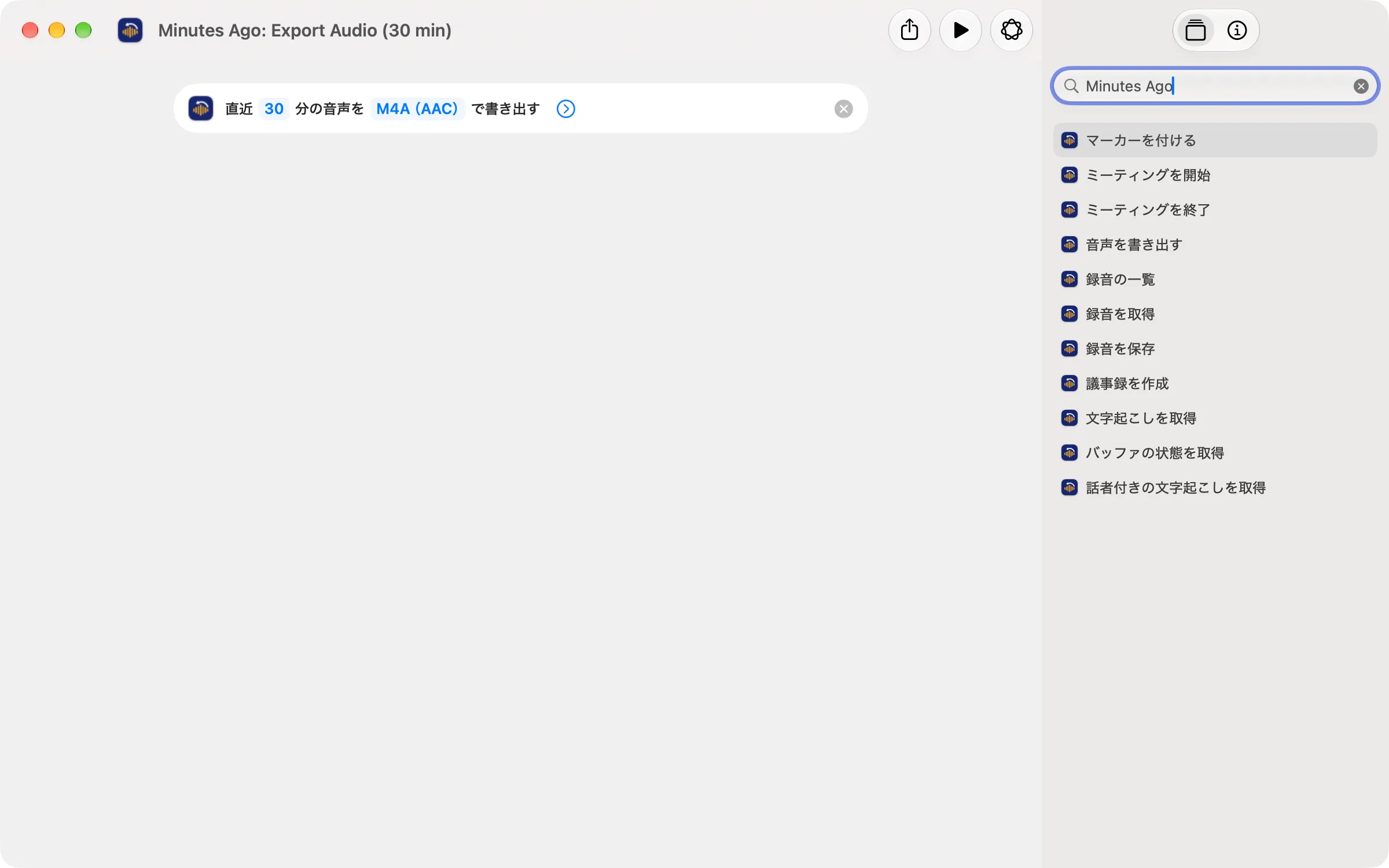
Running from Terminal (shortcuts run)
shortcuts run runs only shortcuts in your Shortcuts library, by name. It can’t run the actions an app provides (App Shortcuts) directly.
Install shortcuts… in Settings › Agents adds the shortcuts bundled with Minutes Ago (the item appears only when the build includes them). The Shortcuts app asks about each one; click Add Shortcut for the ones you want. Each bundled shortcut runs one action with its default values:
Name for shortcuts run |
Action |
|---|---|
Minutes Ago: Transcript with Speakers (30 min) |
Get Transcript with Speakers (last 30 minutes, Markdown) |
Minutes Ago: Transcript (30 min) |
Get Transcript (last 30 minutes) |
Minutes Ago: Export Audio (30 min) |
Export Audio (last 30 minutes, m4a) |
Minutes Ago: Generate Minutes (30 min) |
Generate Minutes (last 30 minutes) |
Minutes Ago: Buffer Status |
Get Buffer Status |
Minutes Ago: Start Meeting |
Start Meeting (no name, no screenshots) |
Minutes Ago: Stop Meeting |
Stop Meeting (saves it) |
Minutes Ago: Save Recording (30 min) |
Save Recording (last 30 minutes) |
Minutes Ago: List Recordings |
List Recordings (20) |
Minutes Ago: Add Marker |
Add Marker (no name) |
Minutes Ago: Add Screenshot |
Add Screenshot (prints the path of the saved file) |
Minutes Ago: Pause Meeting |
Pause Meeting |
Minutes Ago: Resume Meeting |
Resume Meeting |
For other settings, make your own shortcut in the Shortcuts app:
- Create a new shortcut in the Shortcuts app and add one action, such as Get Transcript with Speakers.
- Name it (for example
MA speakers 30 min). - Run it from Terminal:
shortcuts run "Minutes Ago: Transcript with Speakers (30 min)" | cat
shortcuts run "MA speakers 30 min" | cat
shortcuts run "Minutes Ago: Export Audio (30 min)" -o ~/Desktop/- The first run asks the output question above, and
shortcuts rundoesn’t return until it is answered. - When the result is a file, such as audio, use
-oto choose where it goes.
Keys from any app
Settings › Keyboard › Keys from Any App gives eight actions a key that works whichever app is in front:
- Add Marker
- Start Meeting (starts at once with the last settings)
- Stop & Save Meeting
- Save the Last 30 Minutes
- Open Recordings & Minutes
- Spoken Language List
- Add Screenshot (the app you are in stays in front)
- Pause / Resume Meeting (pauses the meeting in progress, or resumes it when it is paused)
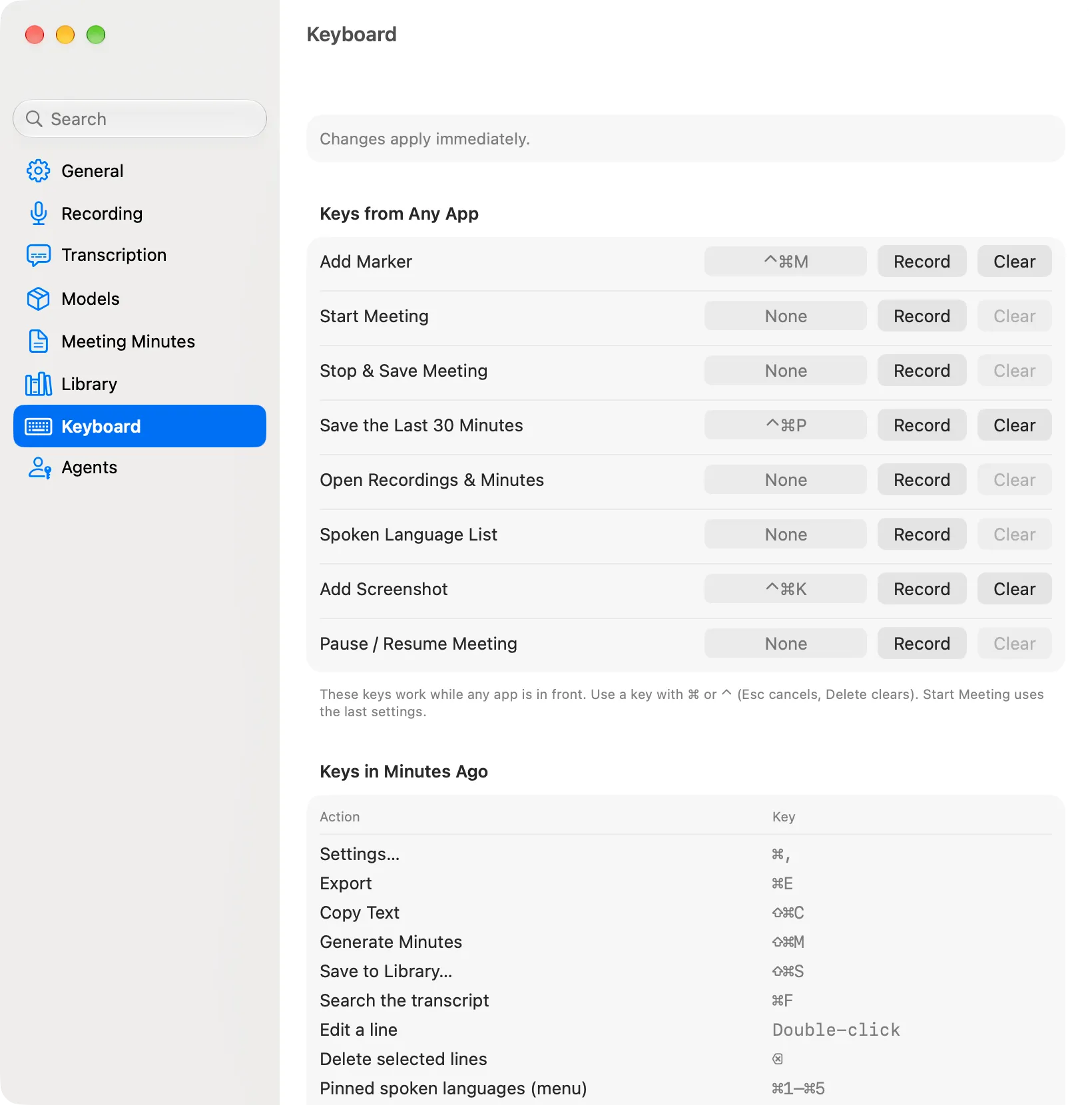
- No key is set until you choose one (a marker key you chose in an earlier version is kept). Click Record and press the key; Esc cancels, Delete clears. Clear removes it.
- The key must include ⌘ or ⌃. With ⌘, also hold ⌃, ⌥ or ⇧. Keys Minutes Ago uses in its windows (such as ⌘E) can’t be used (“Already used for …”).
- If another app already uses the key, the row says “Not available (used by another app)”, or “No key arrived. Another app may be using it.” when you record the key.
- The menu shows each key next to its item.
- Starting or saving a meeting with a key shows a short notice at the top of the screen (“Meeting started · language · app”, “Meeting saved · name”). Starting a meeting with screenshots by key never asks for the Screen Recording permission; without it the notice adds “No Screenshots (No Permission)”.
- The same pane lists the keys inside Minutes Ago (Keys in Minutes Ago), such as ⌘E Export and ⇧⌘M Generate Minutes in the Recordings & Minutes window.
- Agents, Shortcuts and the command-line tool can’t read or change these keys.
Command-line tool (direct version)
Direct-download version only. The Mac App Store version does not include it.
The direct-download version, distributed from this website, includes the command-line tool minutesago. It runs the same operations as the fourteen tools above, from Terminal or scripts.
- It is at
/Applications/Minutes Ago.app/Contents/MacOS/minutesago(if you keep the app somewhere else, at that app’sContents/MacOS/minutesago). - It works without turning on Agent access. Only processes of the same user on this Mac are accepted. No token is needed.
- On a Mac whose user name (the name of the home folder) is 17 bytes or more (UTF-8), the path of the tool’s connection point (a socket) exceeds the macOS limit, so the command-line tool can’t be used. In that case, the Command line tool section of Settings › Agents and the tool itself say so.
- If Minutes Ago isn’t running, the tool launches it and waits (
--no-launchturns this off). - The free range and free tries are the same as for agent access (above).
- Its messages are in English only.
Installing
The Command line tool section of Settings › Agents shows the tool’s path and these two commands, with buttons to copy them. Run one of them.
Add a link in /usr/local/bin (asks for your password):
sudo ln -sf "/Applications/Minutes Ago.app/Contents/MacOS/minutesago" /usr/local/bin/minutesagoOr add the folder to your PATH (no sudo):
echo 'export PATH="/Applications/Minutes Ago.app/Contents/MacOS:$PATH"' >> ~/.zshrcIn a new Terminal window, minutesago is then available. The app never changes the link or your PATH itself. minutesago --help lists the commands.
Subcommands
| Subcommand | Tool | What it does |
|---|---|---|
status |
get_buffer_status |
The range of live audio kept, recording state, tracks, the minutes engine and more |
transcript |
get_transcript |
The transcript with times |
speakers |
get_speaker_transcript |
The transcript with speakers. --format (markdown default / json / text / vtt / srt), --refresh (identify speakers again) |
export-audio |
export_audio |
Writes the audio to the export folder and prints the file paths. --format (m4a default / wav) |
minutes |
generate_minutes |
Minutes in Markdown (does not take --track) |
meeting start |
start_meeting |
Starts a meeting. --name, --screenshots <seconds> (3 / 5 / 10 / 20 / 30 / 60; 0 = none, the default), --app <bundle ID> (the app to capture; needs --screenshots), and for this meeting only --language <BCP 47>, --audio-app <bundle ID or none>, --microphone <name or none>, --preset <name> |
meeting stop |
stop_meeting |
Stops the meeting and saves it as a recording. --discard ends it without saving |
meeting pause |
pause_meeting |
Pauses the meeting: nothing is recorded and its clock stops until meeting resume (free) |
meeting resume |
resume_meeting |
Resumes the paused meeting (free) |
save |
save_recording |
Saves a range of live audio as a recording (not the export folder). --last / --start / --end, --name, `–track both |
list |
list_recordings |
Lists the saved recordings with their ids. --limit <n> (1 to 200, default 20) |
show <id> |
get_recording |
The transcript of one saved recording. --format (markdown default / text / json / vtt / srt), --no-markers |
marker add |
add_marker |
Adds a marker now. --name |
screenshot add |
add_screenshot |
Takes a screenshot of the meeting’s app now and prints the saved file’s time and path (only during a meeting with screenshots, while recording; free) |
mcp |
— | Runs as a stdio MCP server (see Registering with Claude through the command-line tool, below) |
version |
— | Prints the version |
Common options:
--last <minutes>— the last so many minutes (default 30). Fortranscript,speakers,export-audio,minutesandsave.--start <ISO 8601>and an optional--end <ISO 8601>— a time range. The range rules are the same as for the tools above.--track both|microphone|app— the track (defaultboth).--json— prints the whole result (content,structuredContent,isError) as JSON.--no-launch— if Minutes Ago isn’t running, exit instead of launching it (exit code 3).--timeout <seconds>— how long to wait for the tool to finish (default 600). Minutes for a long range can take a few minutes.
By default, the tool’s result text goes to standard output and error messages go to standard error. Output that already ends with a line break (subtitles, transcripts) is written as is, so > file.vtt gives the file byte for byte.
Examples:
# The last 30 minutes of transcript (microphone only; within the free range)
minutesago transcript --last 30 --track microphone

# The transcript with speakers from 10:00 to 11:00, as JSON
minutesago speakers --start 2026-10-01T10:00:00+09:00 --end 2026-10-01T11:00:00+09:00 --format json

# Minutes for the last 60 minutes, saved to a file
minutesago minutes --last 60 > minutes.md

# A meeting in English with Teams and no microphone, for this meeting only
minutesago meeting start --name "Weekly sync" --language en-US --audio-app com.microsoft.teams2 --microphone none
minutesago meeting stop

# The latest saved recordings, and one of them as subtitles
minutesago list --limit 5
minutesago show <id> --format vtt > weekly-sync.vtt
Exit codes
So that scripts can tell what happened, the exit codes are:
| Code | Meaning |
|---|---|
0 |
Success |
1 |
Tool error (out of range, no export folder set, not recording, no meeting with screenshots, generation failed and so on; the message goes to standard error) |
3 |
Can’t connect to Minutes Ago (it couldn’t be launched, or the wait timed out) |
4 |
A license is needed (no free tries left) |
5 |
The range is outside the free range (the last 30 minutes), with no free tries left |
64 |
Invalid arguments |
70 |
Internal error (an unreadable response and so on) |
78 |
The user name is too long for the socket path (the 17-byte limit above) |
Registering with Claude through the command-line tool
Registering minutesago mcp gives Claude the fourteen tools without turning on Agent access and without a token. This is an alternative to Registering with Claude (direct version) above (HTTP); one of the two is enough. Settings › Agents › Command line tool can copy this command for Claude Code.
Claude Code:
claude mcp add minutes-ago -- "/Applications/Minutes Ago.app/Contents/MacOS/minutesago" mcpClaude Desktop (mcpServers in claude_desktop_config.json):
{
  "mcpServers": {
    "minutes-ago": {
      "command": "/Applications/Minutes Ago.app/Contents/MacOS/minutesago",
      "args": ["mcp"]
    }
  }
}
If Minutes Ago isn’t running, the first call launches it.
Uninstalling the command-line tool
- If you added the link:
sudo rm /usr/local/bin/minutesago(the link was made withsudo, so removing it needssudotoo). - If you added the folder to your PATH: remove that line from
~/.zshrc.
Deleting the app breaks the link, so the tool stops working.