Both work on the live pane of the Recordings & Minutes window, where they use the range you select, and on a saved recording, where they use the whole recording. See how to choose a range and open a recording. A recording imported from an audio file is a saved recording, so they work on it the same way.
Identify speakers
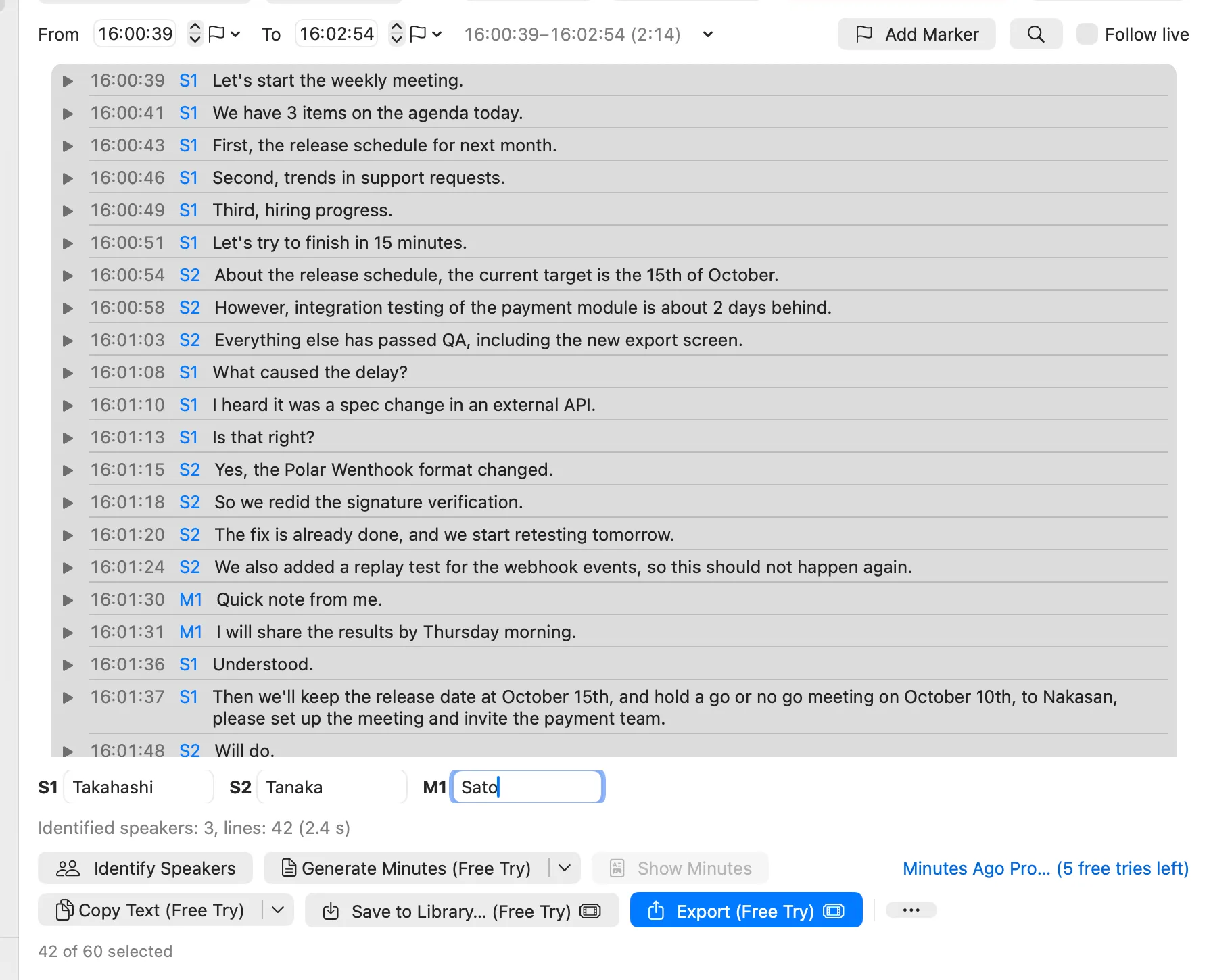
Select a range (or open a saved recording) and click Identify Speakers. Minutes Ago works out who spoke when on each track that has lines, and labels them: the speakers in the app audio (the other side) S1, S2, …, and the speakers on the microphone M1, M2, … The microphone gets a label even when only one person speaks, so with a headset you become M1. “Me” and “Others” stay only on lines without a speaker. This runs on this Mac; neither audio nor transcripts are sent anywhere. Identifying speakers and naming them are free; exports, copies and minutes that include the names use a free try until you get Pro (What counts as one free try?).
The model is downloaded the first time
The first time, the speaker model (Nemotron 3 Diarization, about 200 MB) is downloaded from Hugging Face (huggingface.co). It is a file of Core ML weights, not code that runs. No audio or transcripts are sent.
- While downloading, the window shows “Downloading the speaker model… n% (first use, about 200 MB)”, then “Loading the speaker model…”.
- You can also download it beforehand, or delete it, in Settings › Models (Downloading models). If you delete it, the next Identify Speakers downloads it again.
- On the development Mac, the download took about 46 seconds and the first load right after it about 23 seconds. Later loads are near-instant.
- The download continues if you close the window.
How long it takes
While it runs, the window shows “Identifying speakers… n%”, and when it is done, for example “Identified speakers: 2, lines: 24 (73.3 s)”. Measured on the development Mac with a synthetic meeting, a 5-minute range took 2.2 seconds and a 90-minute range 37.5 seconds (after the model was ready), for one track. With both tracks (app audio and the microphone) it takes about twice as long: the tracks are identified one after the other, with one progress bar and one result line for both.
Naming speakers
After identification, a name field for each speaker appears below the list: every speaker in the range or recording, the S speakers first, then the M speakers. Type a name in the S1 field and press Return, and the S1 lines take that name. You can also click a line’s speaker label (“Click to name this speaker”) and use Rename in the sheet that opens (“Name for S1”).
- In the live pane, renaming changes only lines in the selected range. If you click the label of a line outside the range, only that line changes. In a saved recording, it changes the whole recording (the transcript of every model it keeps), and the names are kept with it.
- Giving a speaker a name that is already in use merges the two (useful when one person was split into two labels, or got one label on each track).
- Blank names are ignored.
When the range changes
Labels are assigned per range. S1 in another range may be someone else. While a range is being transcribed again, Identify Speakers waits (“Wait until the range is transcribed again.”); when it is done, speaker labels carry over to the new lines at the same time.
- If you identify the same range again, names carry over when most of the lines under a new label had the same name before (track by track).
- If you change the range and identify again,
S1andS2(orM1andM2) may swap. Speakers you have named keep their names. - Microphone lines labeled
S1,S2, … before version 1.13 keep those labels until you identify speakers again. Then they becomeM1,M2, …, and the names you gave carry over.
With app audio
Each track that has lines is identified on its own, the app audio first, then the microphone (App Audio). What you get depends on the meeting:
| Meeting | Labels |
|---|---|
| A web meeting with a headset | The other side S1, S2, …; you M1 |
| In the room, with the meeting app still selected (its audio silent) | The people in the room M1, M2, M3, … |
| People in the room and others in the meeting app | The app side S1, S2, …; the room M1, M2, … |
| A web meeting heard on speakers | The other side S1, S2, …; you M1, and the other side’s voice picked up by the microphone as another speaker, such as M2 |
| The microphone only | M1, M2, … |
| A recording imported from an audio file | M1, M2, … (the file’s audio is its microphone track) |
Someone heard on both tracks gets a label on each (for example S1 and M2); Minutes Ago does not decide that they are the same person. Give both the same name to merge them. To keep the other side’s voice off the microphone, use headphones.
Generate minutes
Select a range (or open a saved recording) and click Generate Minutes (⇧⌘M). It uses the default minutes preset and the default provider in Settings › Meeting Minutes. Out of the box that is Standard and Apple Intelligence (On Device): the minutes are written on this Mac and the transcript does not leave it. If the provider can’t be used, Minutes Ago says why (for example “Apple Intelligence is turned off. Turn it on in System Settings › Apple Intelligence & Siri, or choose another provider.”).
Choosing a preset or provider for one time
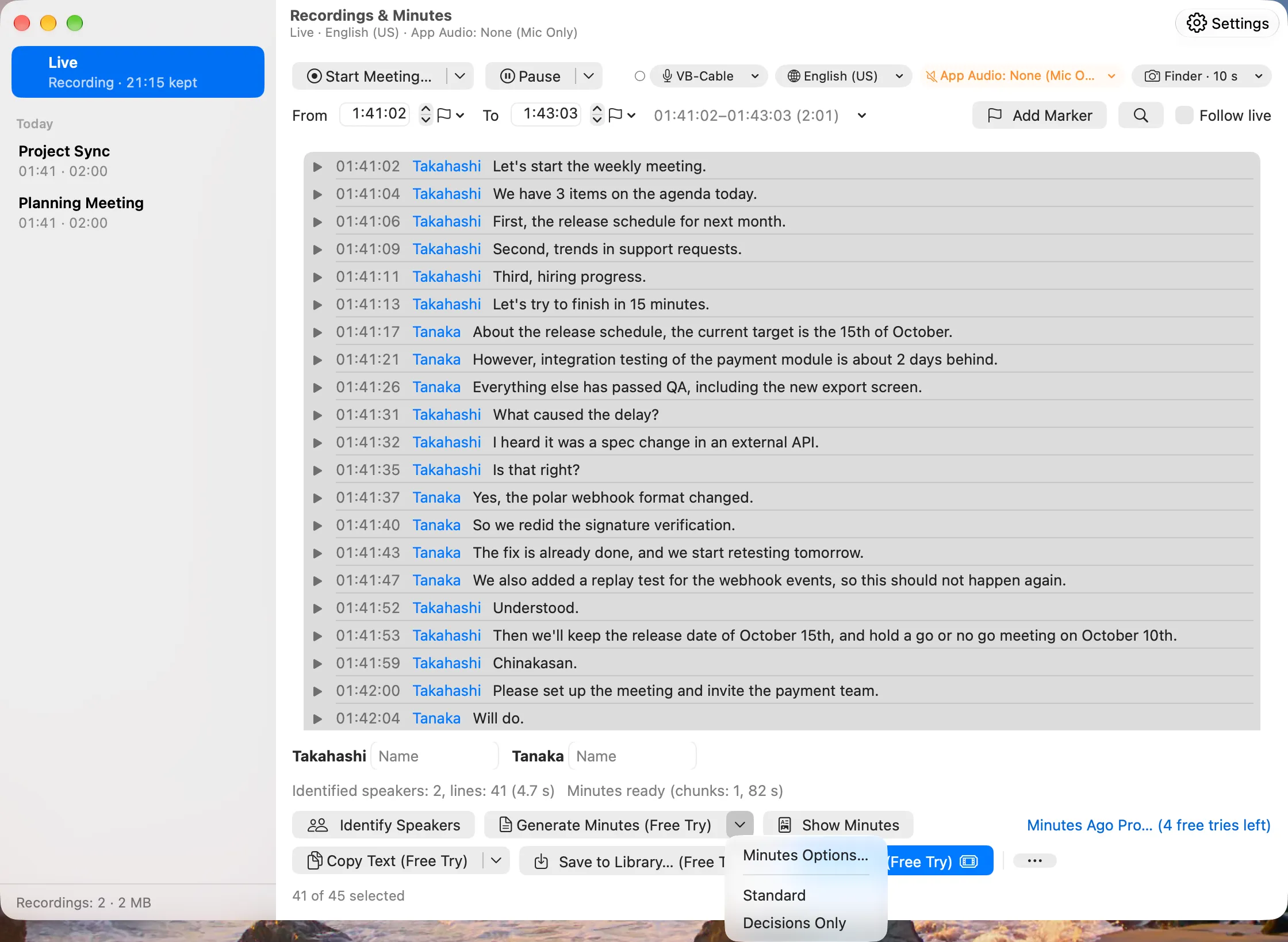
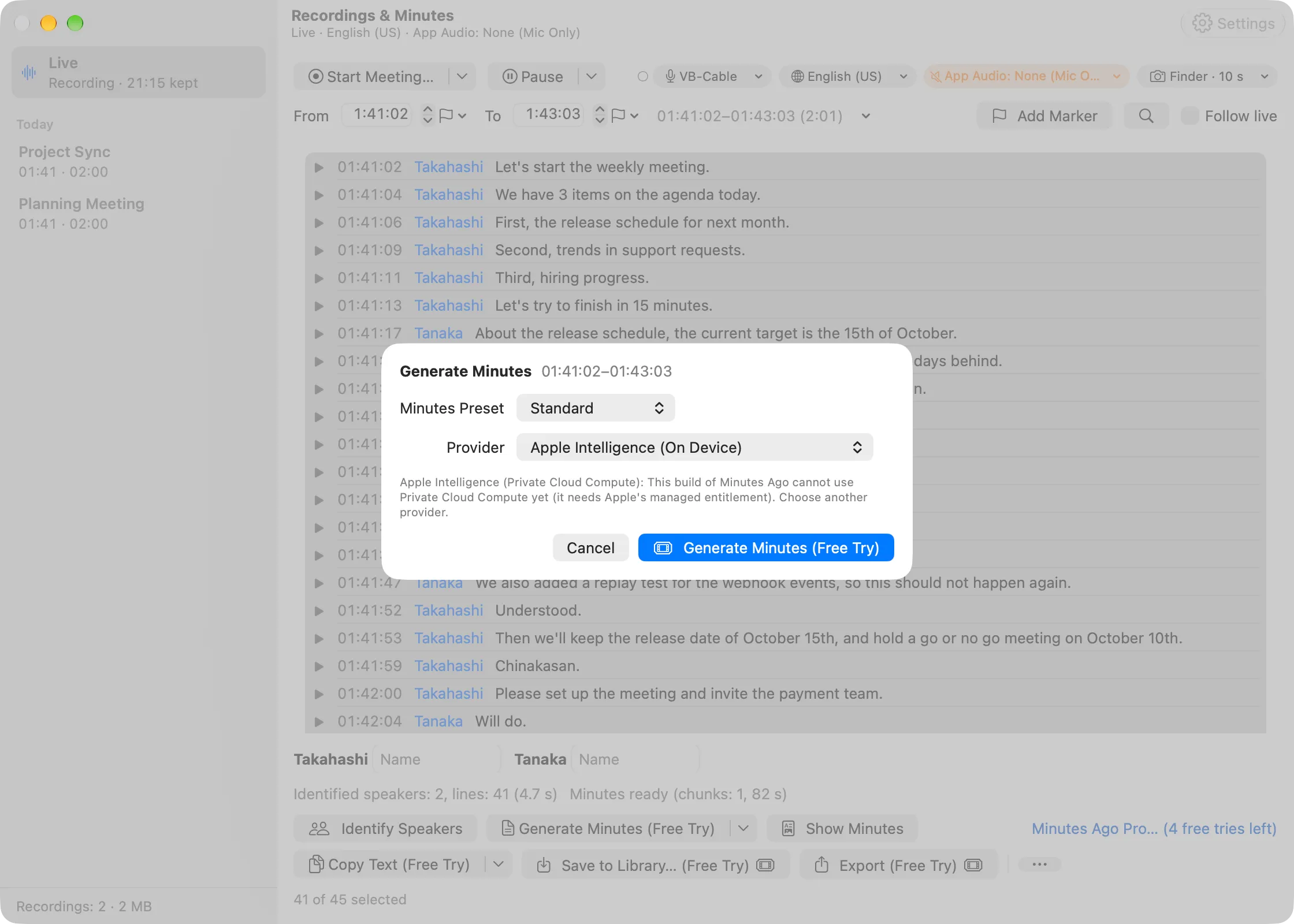
The ▾ beside Generate Minutes lists your minutes presets: choose one to generate with it and the default provider. Minutes Options… opens a sheet where you pick a minutes preset and a provider for this time only, then click Generate Minutes. Your defaults stay as they are; ⇧⌘M and the button itself always use them.
How the range is split, and how long it takes
A long range doesn’t fit into the model at once. Minutes Ago splits it into chunks, pulls decisions, action items and so on out of each chunk, and then combines them into one set of minutes.
- Chunks are split at silences longer than 30 seconds, at a character limit (derived from how much the model can take at once), and at changes of speaker. It avoids cutting in the middle of a quick back-and-forth.
- While it runs, the window shows “Reading the transcript… chunk 1 of 3”, and at the end “Writing the minutes…”. A chunk that doesn’t fit is halved and read again, so the number of chunks can grow along the way.
- Cancel stops it.
Measured on the development Mac (on-device model) with a synthetic meeting:
| Range | Time taken |
|---|---|
| 5 minutes | 25.5 s |
| 1 hour | 206.3 s |
| 90 minutes | 256.6 s |
How much the on-device model can take at once differs between Mac models.
The result sheet
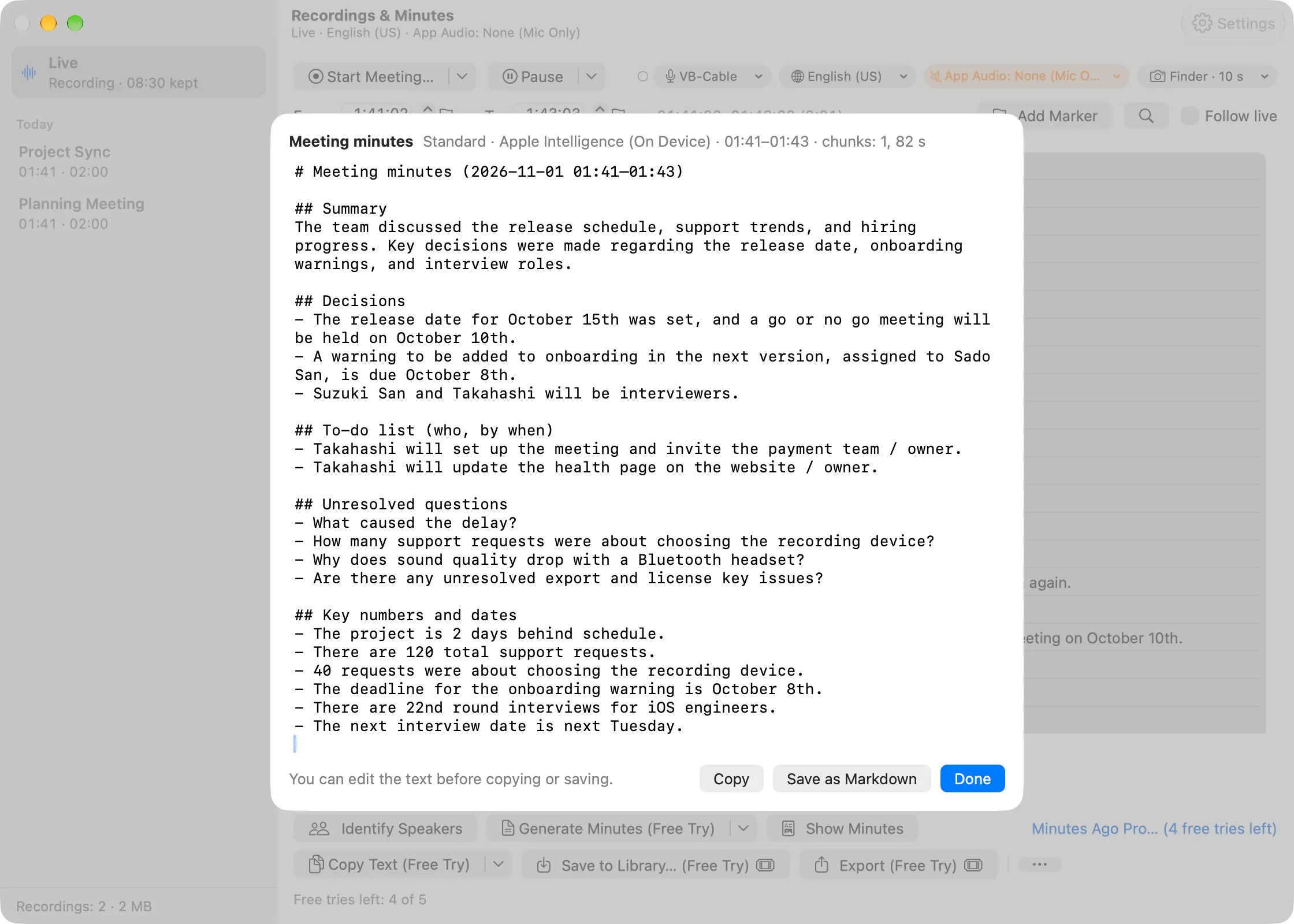
When it is done, the Meeting minutes sheet opens. Next to its title it shows the preset and provider it was made with, then the range (for example “Standard · Apple Intelligence (On Device) · …”).
- You can edit the text before copying or saving.
- Copy puts it on the clipboard; Save as Markdown saves it to your export folder as
MinutesAgo <range start> minutes.md(for a saved recording,<recording name> minutes.md). - In the live pane, minutes are not stored in the app. Show Minutes brings back the latest minutes until you quit the app.
- For a saved recording, the minutes are also kept in the recording’s folder, and Show Minutes opens them later. Generating again replaces them. If the minutes were made from another model’s transcript than the one shown now, the sheet says so, for example “Made from the Live (Apple) transcript” (A transcript for each model). Minutes made with an earlier version, before the recording was transcribed again, say “Made from the previous transcript”.
Minutes with screenshots
If the meeting has screenshots and you turn on Include screenshots in Settings › Meeting Minutes (off by default), the minutes also use the slides and figures on screen.
- With Apple Intelligence on this Mac, up to 3 screenshots per chunk are read on this Mac. Nothing leaves it.
- With a provider outside this Mac, up to 6 screenshots per chunk are sent with the transcript, after a separate confirmation that names the destination and notes that screenshots can show shared documents, chat, participants’ names and faces, and notifications.
- A chunk with no screenshot of its own gets the one that was on screen as it begins, so a still screen is not left out.
- Minutes written by agents or Shortcuts use text only.
Changing the prompt
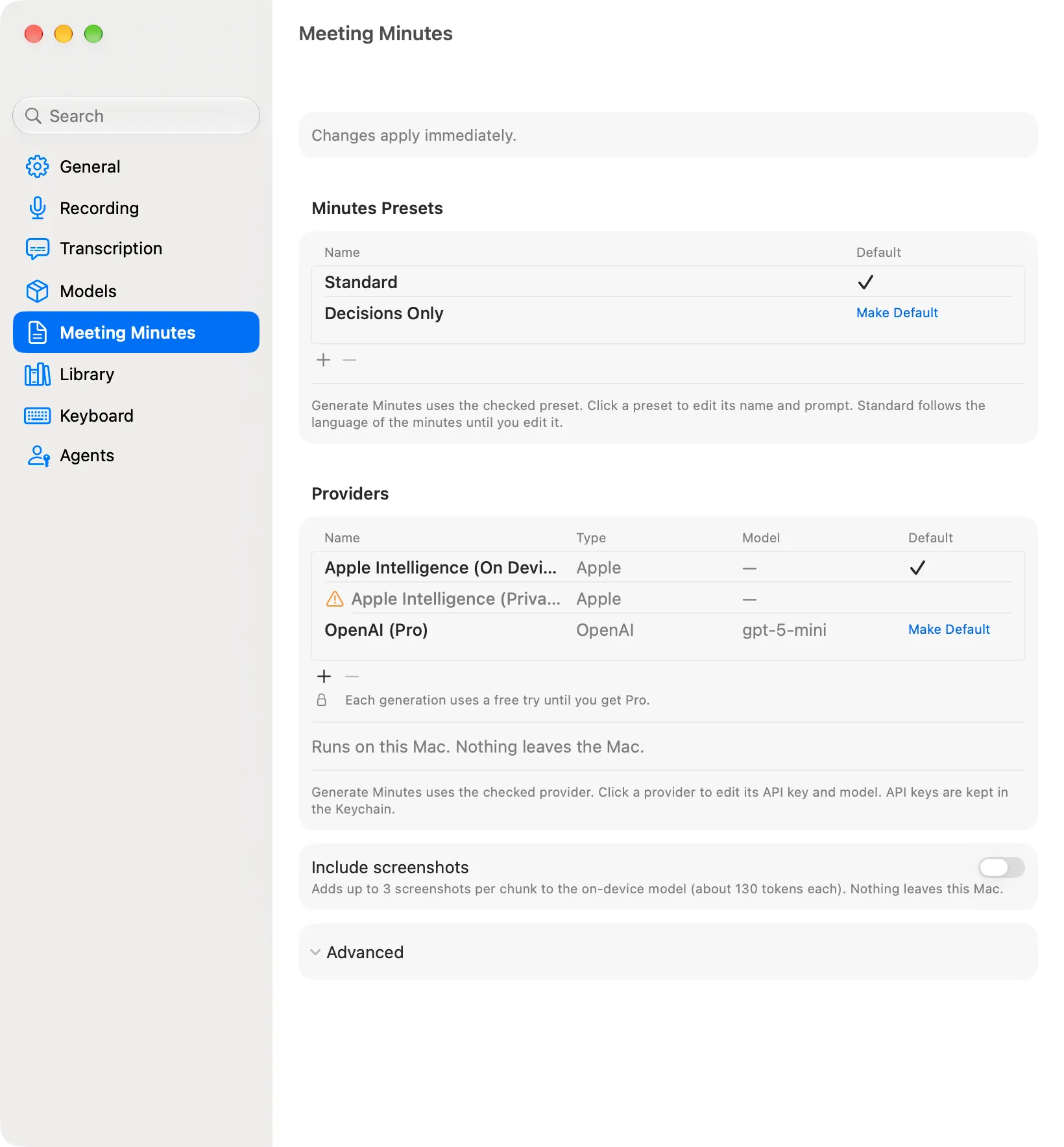
How the minutes are written is set by minutes presets: a name and a prompt each. They are listed under Minutes Presets at the top of Settings › Meeting Minutes . The prompt turns the extracted notes into minutes (the instructions for extracting the notes cannot be changed).
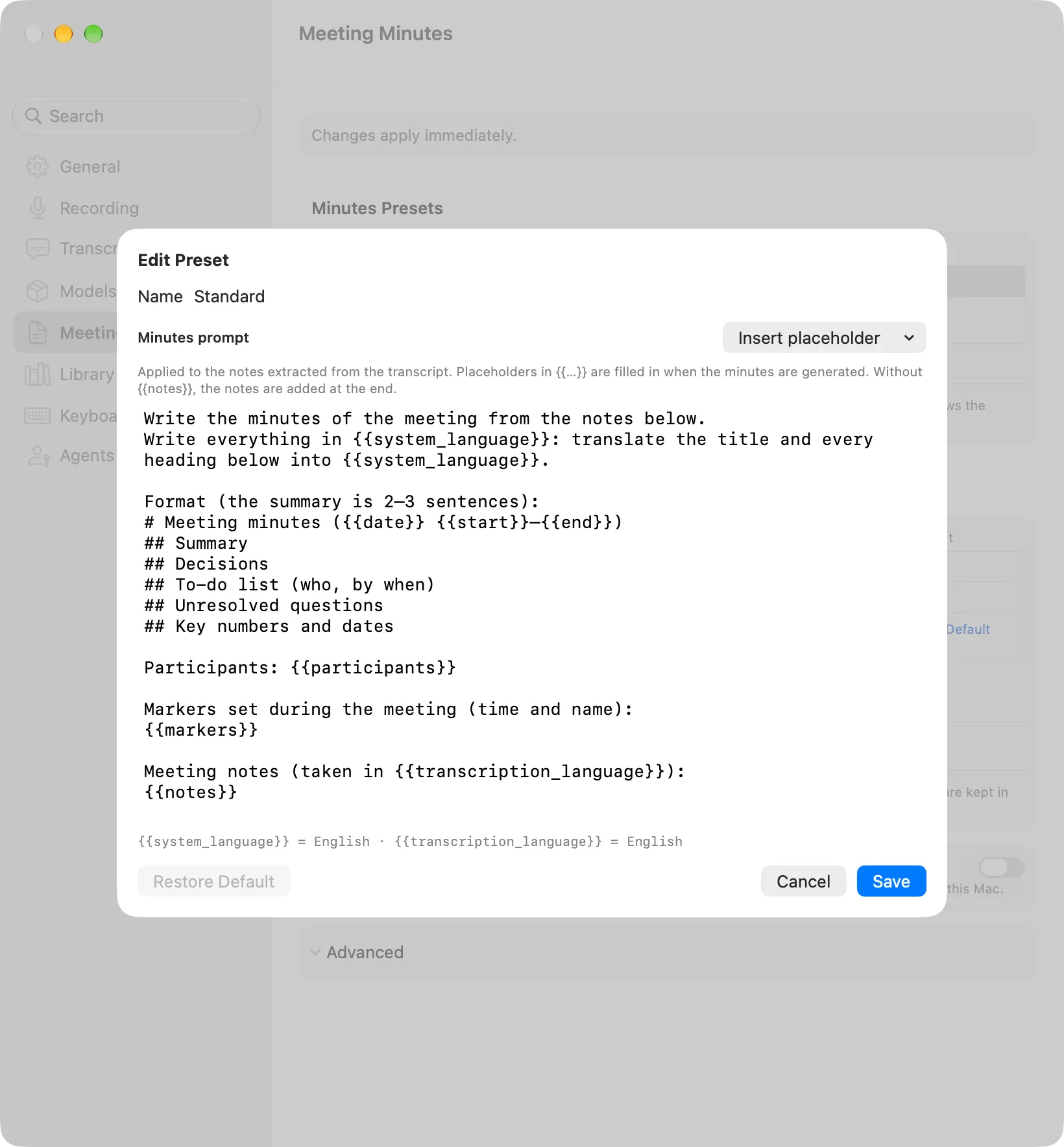
- Standard is built in. It can’t be renamed or removed, but you can edit its prompt; until you do, it follows the language of the minutes. Restore Default brings its default prompt back.
- + adds a preset (a copy of the default one). Click a preset to edit its name and prompt, then Save. − removes it; if you remove the default, Standard becomes the default.
- The preset with ✓ is the one Generate Minutes uses. Click Make Default on another to change it. For example, keep Standard for full minutes and add a short “1on1” preset.
- A prompt you wrote before 1.6 became the prompt of Standard.
- Placeholders:
{{notes}}(the extracted notes),{{date}},{{start}},{{end}},{{duration}},{{participants}},{{markers}}(the markers in the range),{{system_language}}(the language of the minutes) and{{transcription_language}}(the language of the transcript). - The Insert placeholder menu puts one at the cursor. Each item shows its current value (for the two languages) or what it stands for (such as “Date of the range” or “Markers in the range”).
{{markers}}lists the markers in the range as- HH:mm namelines (- HH:mmfor a marker without a name), or(none)when there are none (「(なし)」 when the minutes are in Japanese). It is also(none)when Include Markers is off, and for minutes generated from agents or Shortcuts. A recording imported from an audio file has no markers.- Below the prompt, a line shows the current values, for example
{{system_language}} = Japanese · {{transcription_language}} = Japanese. Language names are in English. {{system_language}}is the language of Minutes Ago’s menus and windows (the language you set for it in Settings › General › Advanced › Language & Region…, otherwise the first language of macOS). It is not limited to English and Japanese. If Apple Intelligence on this Mac can’t write that language, it becomesEnglish, and the line shows, for example, “English (this engine cannot write Ukrainian)”. Providers outside Apple are never switched to English.- If a prompt has no
{{notes}}, the notes are added at the end anyway. - Standard’s default prompt is written in English and asks for the minutes, title and headings included, in the
{{system_language}}language. Only when{{system_language}}is Japanese is the Japanese prompt the default. Both include “Markers set during the meeting (time and name):” with{{markers}}after the participants. Restore Default follows the same rule. - A prompt you have edited is used as is, even if you change the language. To have the minutes follow the language, keep
{{system_language}}in your prompt. Edited prompts don’t get new placeholders automatically; add them from Insert placeholder. - For a recording imported from an audio file, the recording starts at the file’s date (the creation date recorded in the file, else the file’s creation date, else the time you imported it), so
{{date}},{{start}}and{{end}}come from that, as for any recording.
Choosing a provider
Providers, below the presets in Settings › Meeting Minutes, lists where the minutes are written. The provider with ✓ is the one Generate Minutes uses (Make Default to change it); Minutes Options… picks another one for one time.
| Provider | What is sent | Status |
|---|---|---|
| Apple Intelligence (On Device) | Nothing. Runs on this Mac | Built in. The default |
| Apple Intelligence (Private Cloud Compute) | The transcript text of the selected range or the recording (including one imported from an audio file), not audio, to Apple | In preparation. Listed but greyed out with the reason in the current build |
| OpenAI / Anthropic / Google Gemini | The same transcript text, to that company, with your API key | Add with + |
| OpenAI-compatible (Custom) | The same transcript text, to the server you specify (it can be a server on this Mac) | Add with + |
Providers outside this Mac show “(Pro)” until you get Pro (“(License)” in the direct version), and each generation with them uses a free try. Generate on This Mac (Free) is offered instead. Audio is never sent to any provider.
Adding a provider
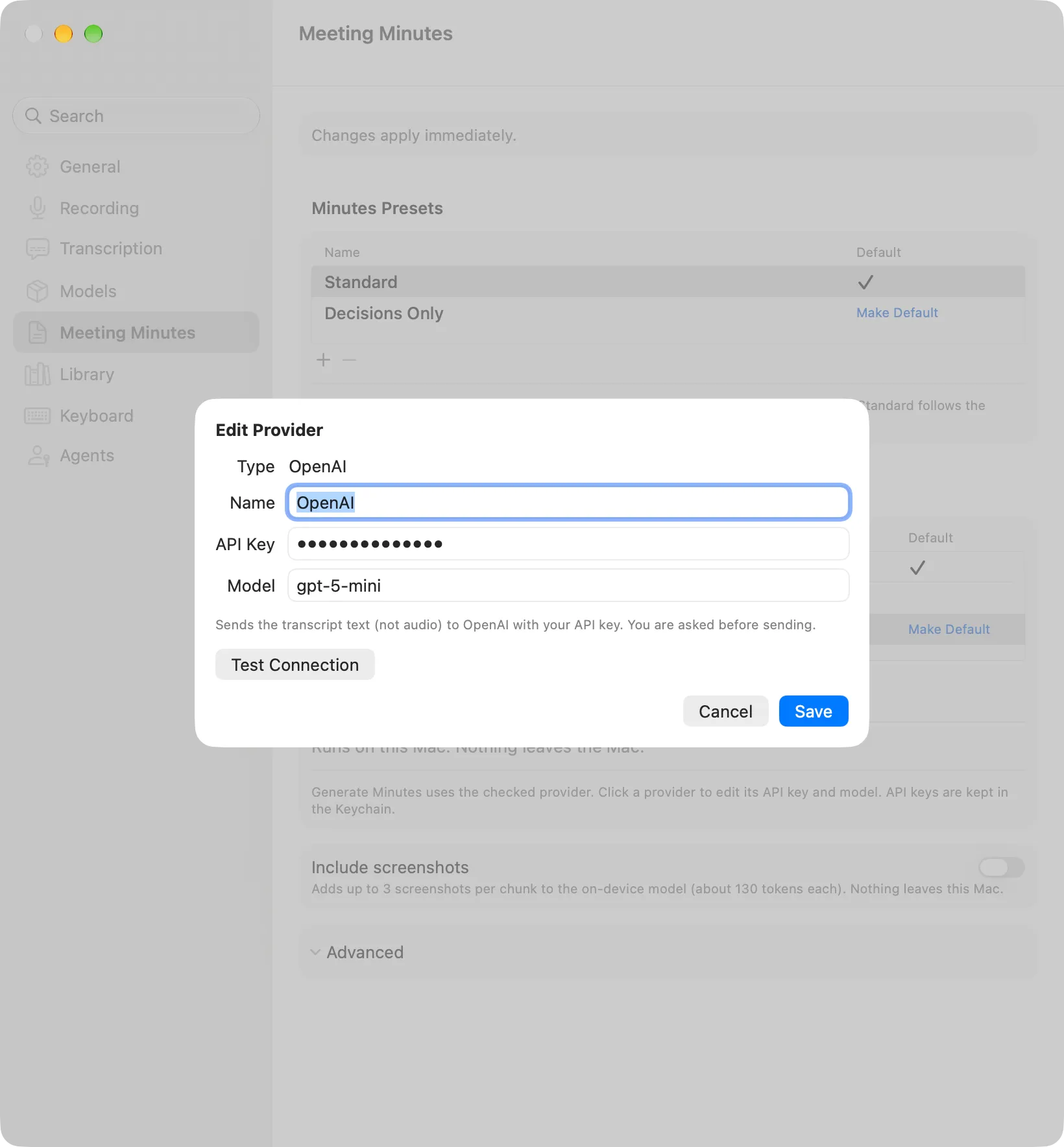
Click + and choose the type. Click a provider to edit it, then Save.
- OpenAI, Anthropic, Google Gemini — enter your API Key and the Model name. The address is fixed for each company.
- OpenAI-compatible (Custom) — any server with the OpenAI Chat Completions API, for example Ollama or LM Studio on this Mac (
http://127.0.0.1…) or a cloud service (https://…). Enter its Server URL (usehttps://for a server on another machine;http://is only allowed for this Mac), the Model, and Context (tokens) (how much its model can take at once, 32000 by default; it sets the chunk size). The API key is optional for a server on this Mac. - API keys are kept in this Mac’s Keychain, one per provider. Removing a provider also removes its key.
- Test Connection sends one short request (no transcript), after the same confirmation as below, and shows for example “Connected: OpenAI answered in n s.”.
- The two Apple providers can’t be renamed or removed. A provider that can’t be used (no key, model or URL yet) is greyed out with ⚠ and the reason.
- The OpenAI-compatible server you set up in version 1.5 or earlier became a provider automatically.
How a provider handles the text is governed by your agreement with it and its policies.
Confirmation before sending
With a provider outside this Mac, a confirmation appears before minutes are generated. It names the company, for example “The transcript will be sent to OpenAI.”, and below it the address and that audio is never sent (for a server on this Mac, “Minutes Ago sends the meeting transcript to a server on this Mac (127.0.0.1:8089).”). Choose Send or Cancel. With Include screenshots on, sending with screenshots is confirmed separately (“The transcript and screenshots will be sent to OpenAI.”).
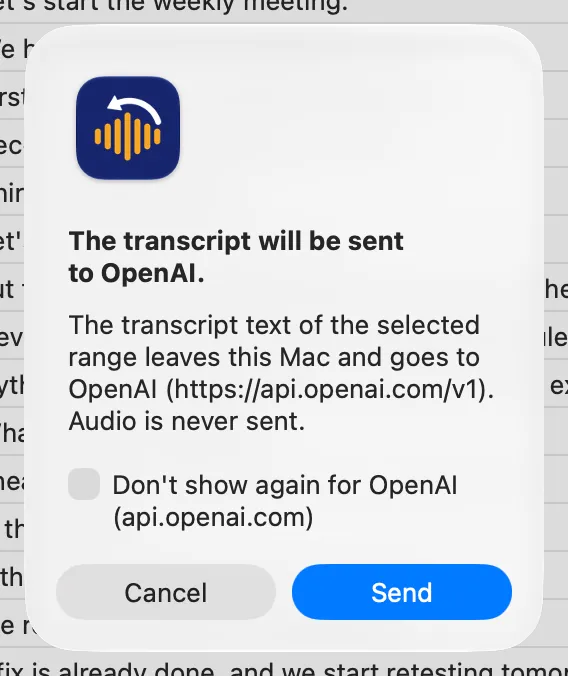
If you choose “Don’t show again for destination”, that destination is not asked about again (with screenshots, it is a separate choice). To bring the confirmation back, click Show send warnings again under Advanced in Settings › Meeting Minutes (destinations you turned it off for are listed as “Turned off for: …”). Minutes from agents with a provider outside this Mac run only for a destination you turned the question off for.
Replacement dictionary
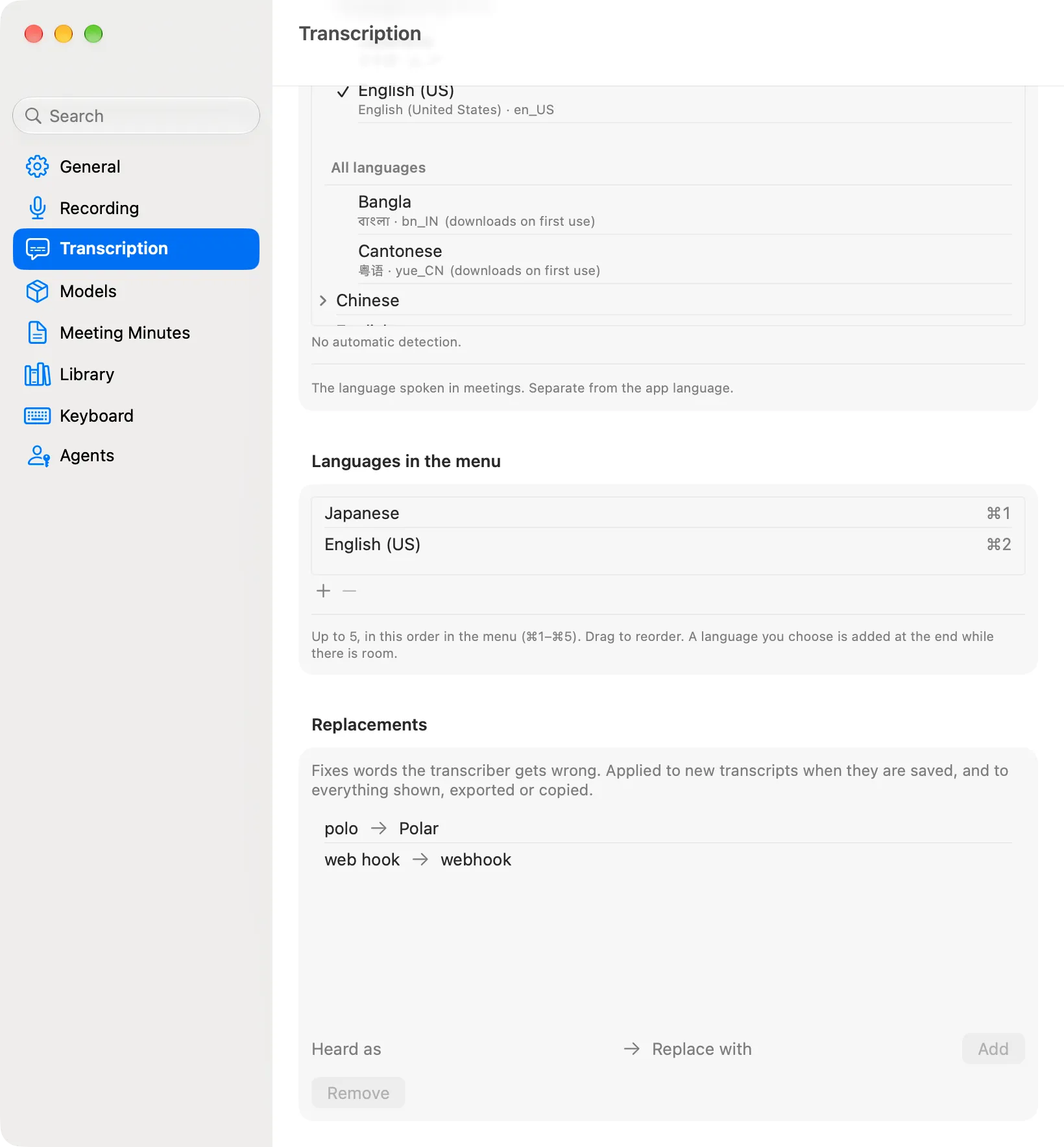
Fixes words the transcriber consistently gets wrong (company, product and people’s names, for example). It is under Replacements in Settings › Transcription; ⋯ › Replacements… in the Recordings & Minutes window opens it.
- Enter how the word appears in the transcript under Heard as, the correct spelling under Replace with, and click Add. Examples:
トラー→Polar,ウェブブック→Webhook. - Replacements apply to new transcripts when they are saved, and to everything shown, exported or copied. Fixing the dictionary later also fixes what is already kept.
- Matching is case-sensitive. When several rules match at the same place, the longer one wins.
Rules that are refused
Only rules that give the same result when applied twice are accepted. These can’t be added:
- a rule whose Heard as or Replace with is empty
- a rule whose Heard as already has a replacement
- a rule whose replacement overlaps any Heard as (one contains the other, or the end of one matches the start of the other, even by one character)
Because even a one-character overlap is refused, rules in Japanese katakana often clash. For example, with トラー → Polar in place, エンドセット → ヘッドセット can’t be added because they overlap on “ト”.
About accuracy
Transcripts, speaker labels and minutes are generated automatically by speech recognition and machine learning models, and may contain errors, omissions or statements that differ from what was said. Check them against the original audio before relying on them for important decisions.
How it works
- Transcription: Apple’s speech recognition (SpeechAnalyzer), on this Mac. Only final results are saved. When you transcribe again, Whisper large-v3-turbo, Parakeet TDT (Japanese) or Cohere Transcribe (Beta) can be used instead, also on this Mac (Transcription and Models).
- Speaker identification: Nemotron 3 Diarization (Core ML), on this Mac.
- Minutes: Apple Intelligence (on-device Foundation Models) by default.
What was measured
Measured in September 2026 on the development Mac, with a synthetic meeting. Accuracy in real meetings has not been measured yet. Expect real meetings to do worse, depending on how people speak, background noise and the microphone.
Audio used: a Japanese meeting read by two macOS text-to-speech (say) voices, Kyoko and Eddy. 2 minutes 7 seconds, 9 turns, 576 characters of reference text.
Transcription (CER: character error rate)
| Condition | CER |
|---|---|
| Streamed in real time (as in continuous recording) | 12.15% |
| Whole audio file at once | 12.3% |
| The app’s own transcription path (automated test) | 13.7–14.9% |
CER is the character-level edit distance from the reference divided by the reference length (compared after Unicode NFKC normalization, with spaces and punctuation removed). Lower is better.
The main errors were proper nouns (ポラー → トラー, オンボーディング → ボンボーリング), how numbers were read (十月十五日 → 10月11日) and words written in Latin letters (such as Bluetooth). The replacement dictionary can fix proper nouns.
These figures are for Apple’s speech recognition. No figures are given here for Whisper large-v3-turbo, Parakeet TDT (Japanese) or Cohere Transcribe (Beta), and none of them has been measured on real meetings either.
Speaker identification: on the same synthetic meeting (two people), both speakers were found and no line spoken by one person was attributed to the wrong speaker (5-minute and 90-minute ranges). A line the transcriber merged across a change of speaker gets the speaker who talked longer.
Minutes: from a 1-hour range built by looping the synthetic meeting (274 lines, 17,283 characters), minutes were written on this Mac alone in 206.3 seconds. Transcription errors carry over into the minutes, and the on-device model can mix up numbers (in a 90-minute range, “120 last month” and “1020” appeared side by side). Fixing proper nouns with the replacement dictionary before generating also fixes them in the minutes.
Languages
- Choose the spoken language with Spoken Language in the menu (or the chip in the Recordings & Minutes window, Start Meeting…, and Settings › Transcription). Other Languages… lists every language this Mac’s speech recognition supports. Live transcription always uses Apple’s speech recognition.
- When you transcribe again, each model takes its own languages: Whisper the languages it knows, Parakeet TDT (Japanese) only Japanese, and Cohere Transcribe (Beta) 14 languages, including English and Japanese (its Chinese is Mandarin, so not Chinese (Hong Kong)). A model that can’t transcribe the spoken language is greyed out (“Not available for this language”). See Transcription models.
- Only the Japanese synthetic meeting has been measured. Accuracy in other languages has not.
- The instructions for extracting notes for the minutes are in Japanese when the transcription language is Japanese, and in English otherwise.
- The minutes are written in
{{system_language}}, the language of Minutes Ago’s menus and windows (Changing the prompt).