Minutes Ago — for Mac

Record the meeting after it happened.
Forgot to hit record? Save it afterwards. By default, neither audio nor transcripts leave this Mac.
Processed on this Mac. Kept for up to 24 hours,
then deleted automatically.
Where your data goesFor IT administrators
The day you wished you had recorded
You forgot to hit record
The meeting is over before you notice nothing was recording.
Someone joined late
You explain everything that was already decided, one more time.
It was settled in small talk
As the meeting wound down, the real decision came up. Nobody was recording.
Always on. Gone on schedule.
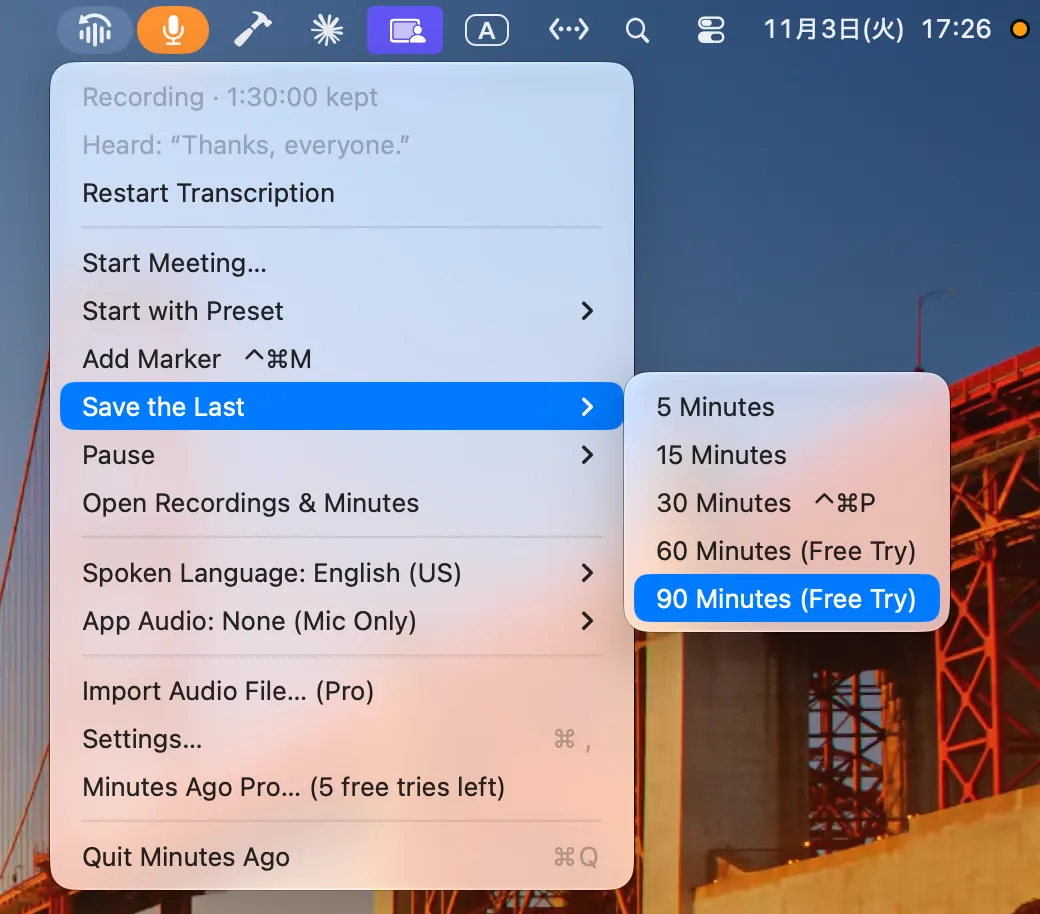
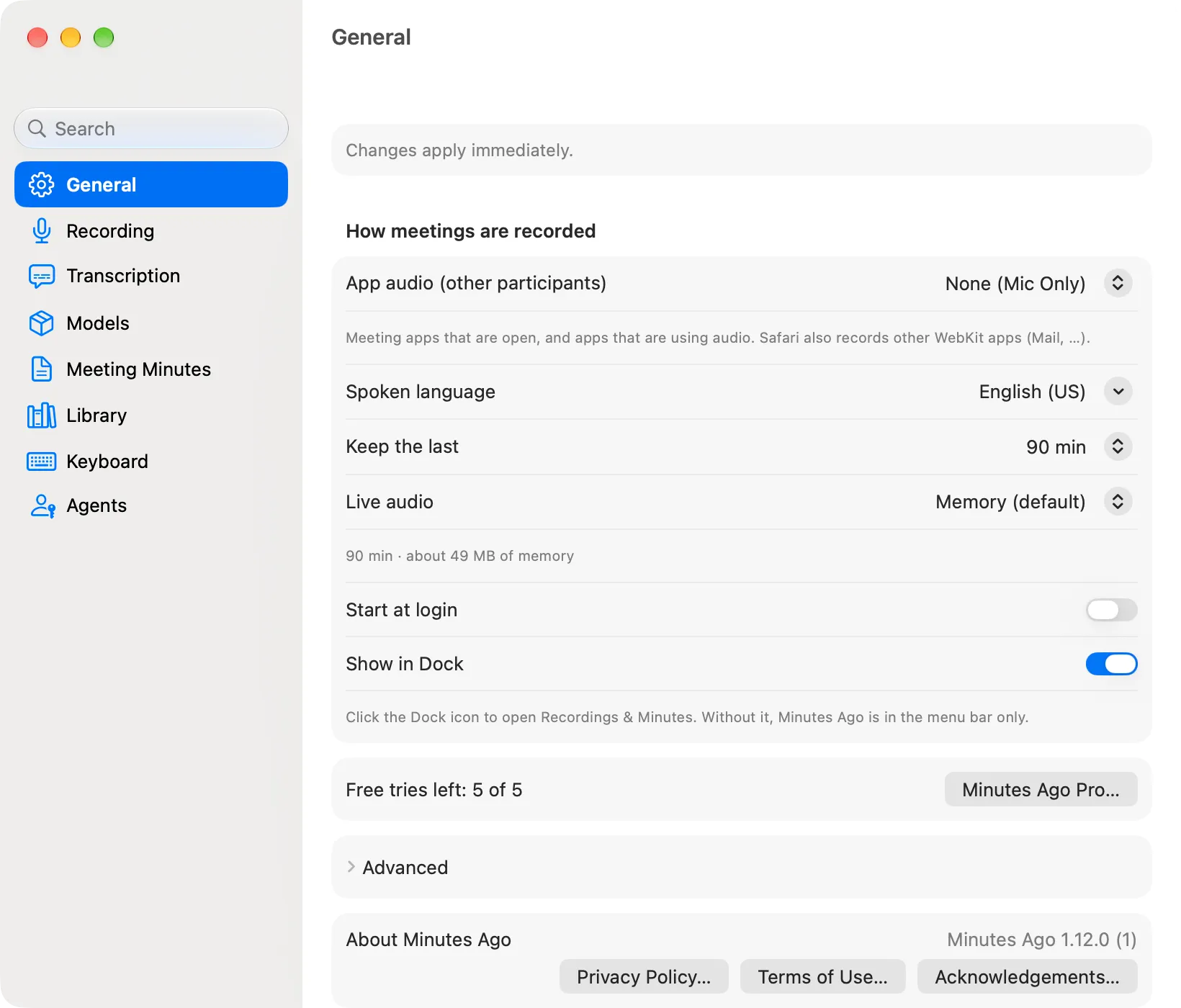
Minutes Ago always records your Mac's microphone and keeps only the retention period: anywhere from 30 minutes to 24 hours, 90 minutes by default (Keep the last, in Settings › General). Older audio and transcripts are deleted automatically.
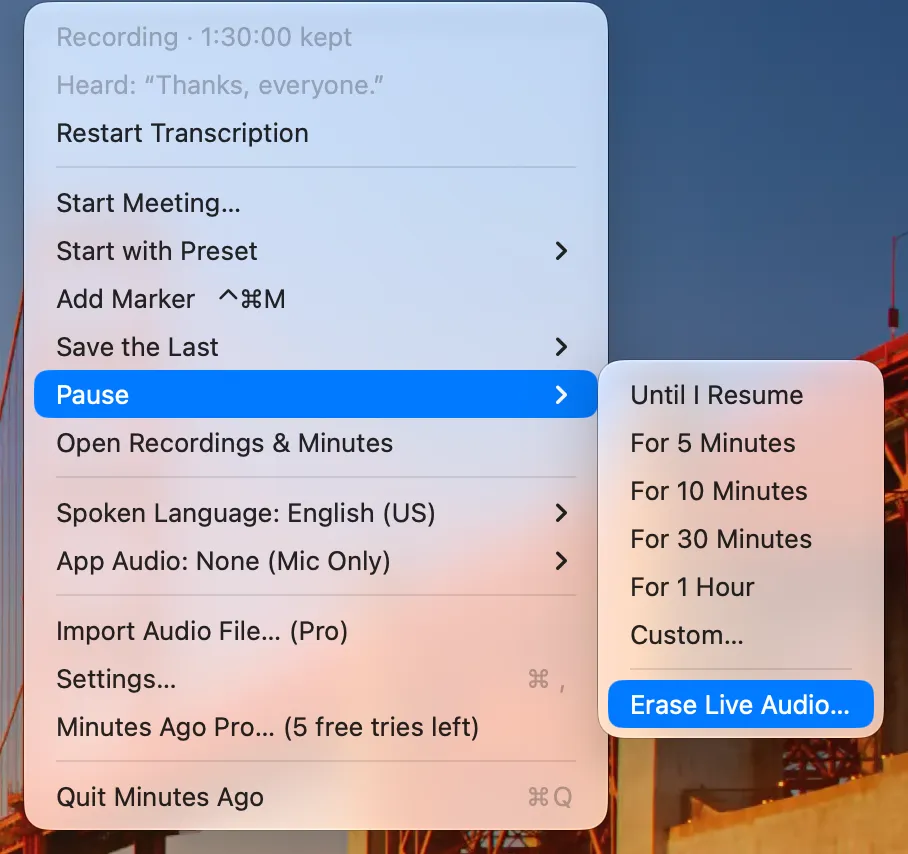
Recording starts only after you choose Start Recording in the first-run guide. While it records, the menu bar icon and macOS's microphone indicator show it. Pause ▸ in the menu, or Pause ▾ in Recordings & Minutes, pauses it at any time: until you resume, for 5, 10 or 30 minutes, for 1 hour, or for a time you set (Custom…, up to 480 minutes). A timed pause shows when recording resumes and lasts through a restart. Erase Live Audio… at the end of Pause ▸ deletes what is not saved yet, after asking first.
To keep a whole meeting, choose Start Meeting… when it begins: nothing from its start is deleted until it ends (up to 24 hours), and Stop & Save Meeting keeps it as a saved recording. Pause Meeting holds it in between: nothing is recorded and the meeting's clock stops until you resume. Saved recordings stay on this Mac until you delete them; Erase Live Audio… never touches them.
By default, the audio it keeps stays only in this Mac's memory, and nothing is written to the SSD while it records. When the app quits (including a restart of the Mac or an update), it writes that audio to the SSD once and picks it up at the next launch, so you can still go back after quitting. A crash, a forced quit or a power loss loses the audio in memory. During a meeting the audio is written to the SSD, so a crash loses at most the last 30 seconds.
One minute after the meeting
Open Recordings & Minutes from the menu and pick the part of the meeting you need. For the last few minutes, Save the Last ▸ is all it takes. A meeting you saved with Stop & Save Meeting is already there, under Recordings.
- 1
Pick the range
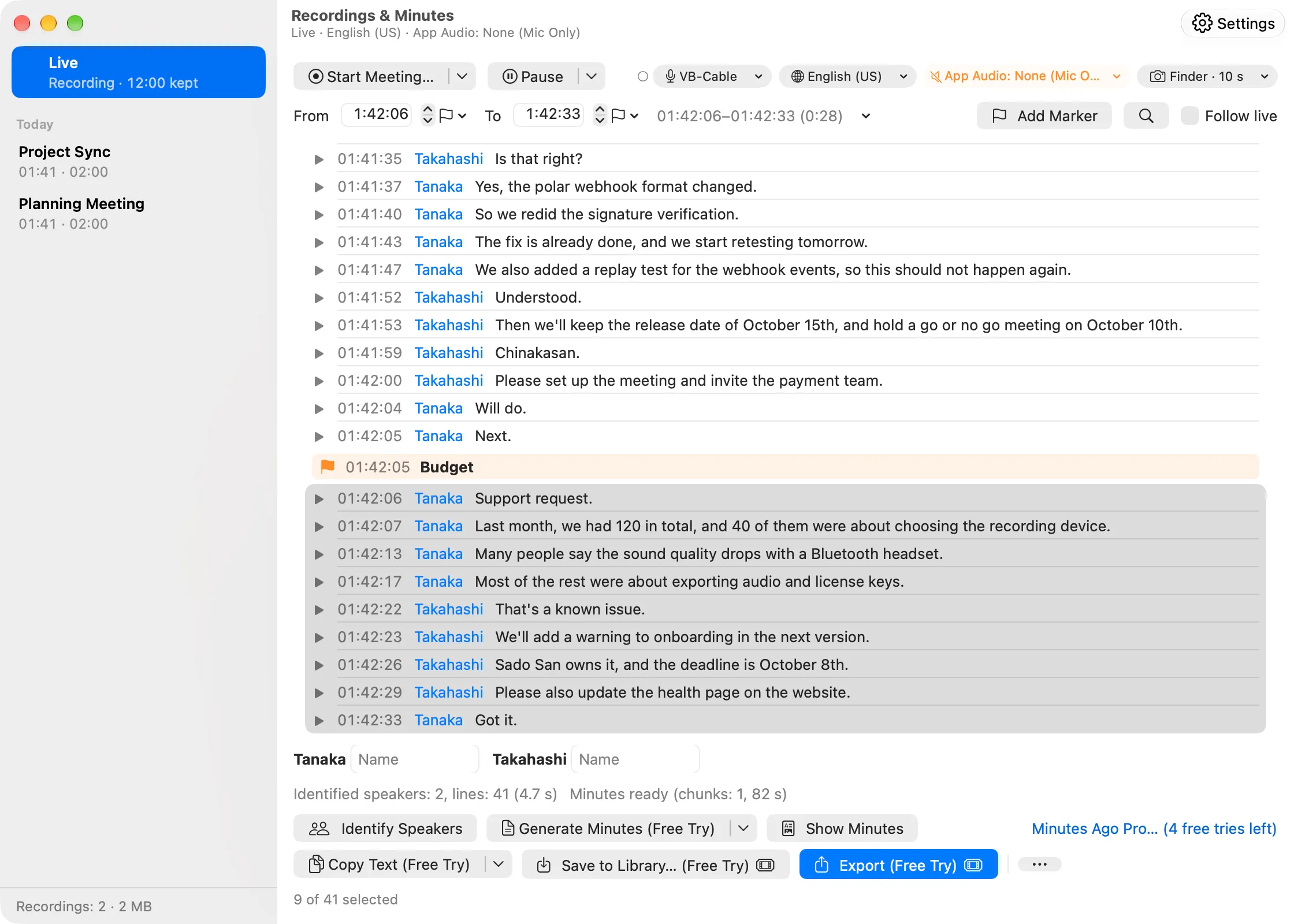
Select lines, set a start and end time, or use the ▾ for the last few minutes, this meeting or since the last marker. Press ▶ on a line to hear it.
- 2
Speakers and minutes
Identify Speakers and give them names, then Generate Minutes.
- 3
Export
Export the audio and transcript to your export folder, copy the text, or export the transcript as subtitles (WebVTT, SRT) or Markdown.
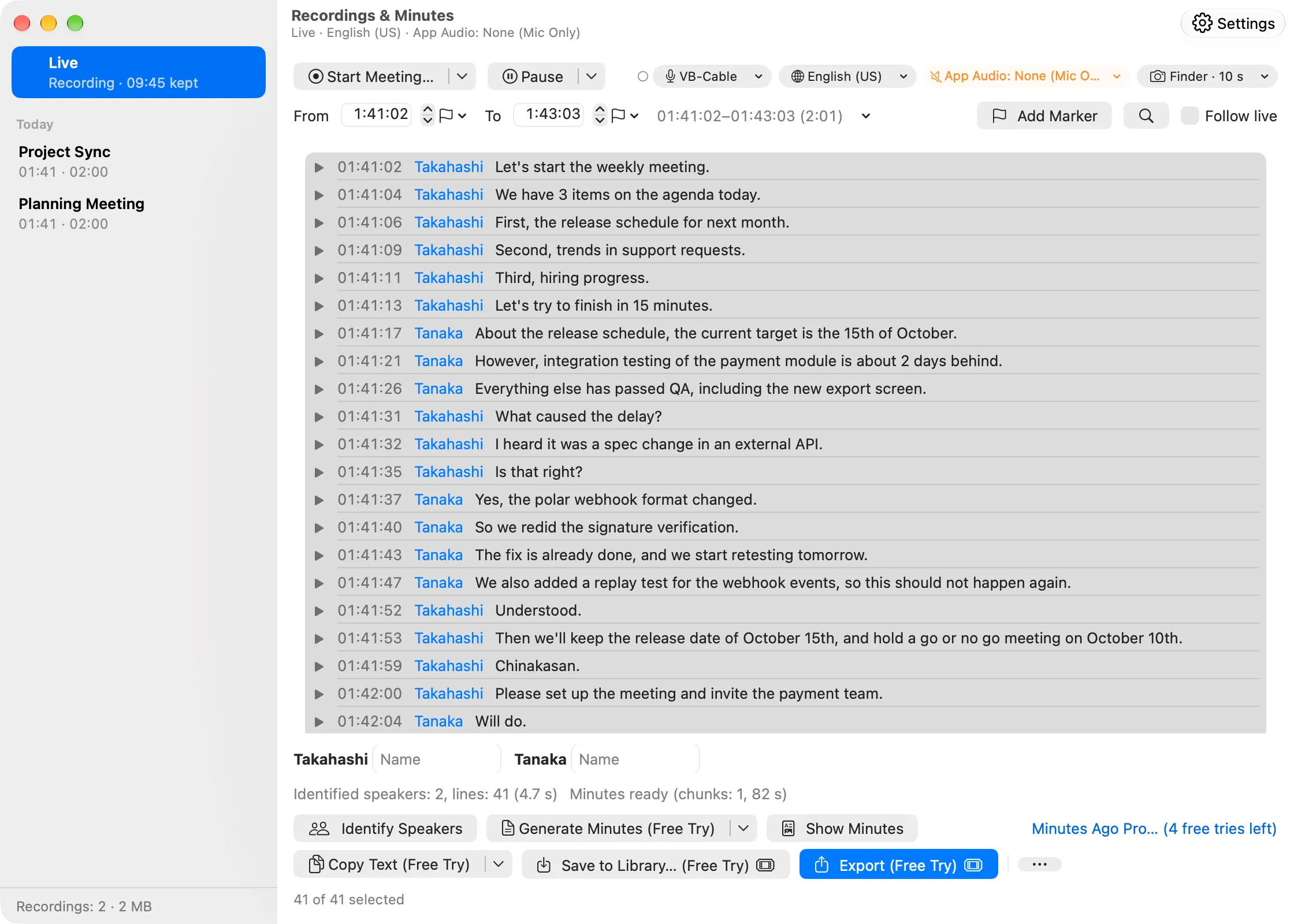
Identifying speakers and writing minutes can take a few minutes, depending on the length of the range. The first time you identify speakers, the model (about 200 MB) is downloaded first. A misheard stretch can be transcribed again with another model on this Mac (⋯ › Transcribe Again…).
What you can take out
Save it afterwards
After the meeting, save any range within the retention period (Keep the last: 30 minutes to 24 hours): audio (.m4a) and transcript (.txt, .md, .json).
Transcripts with speakers
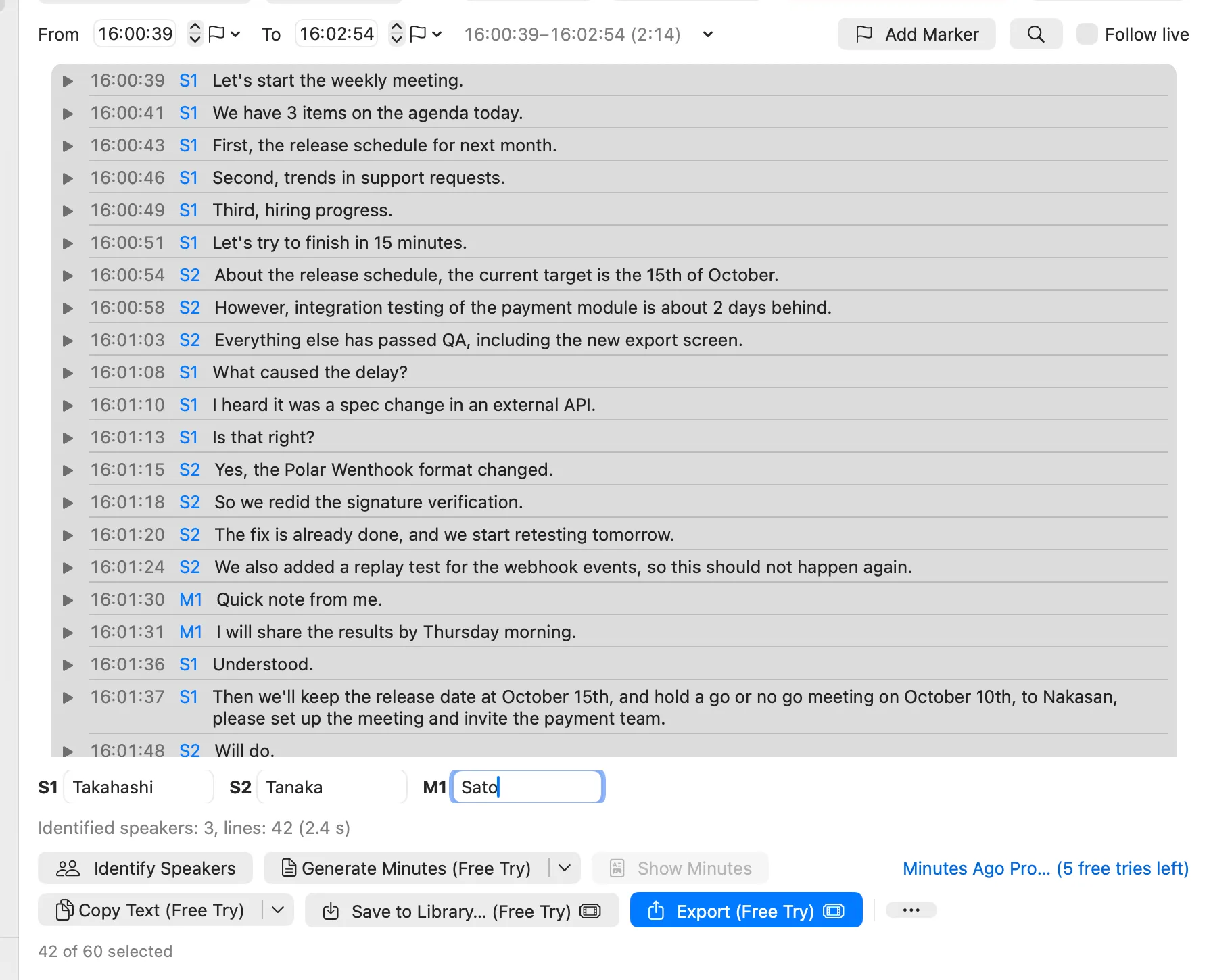
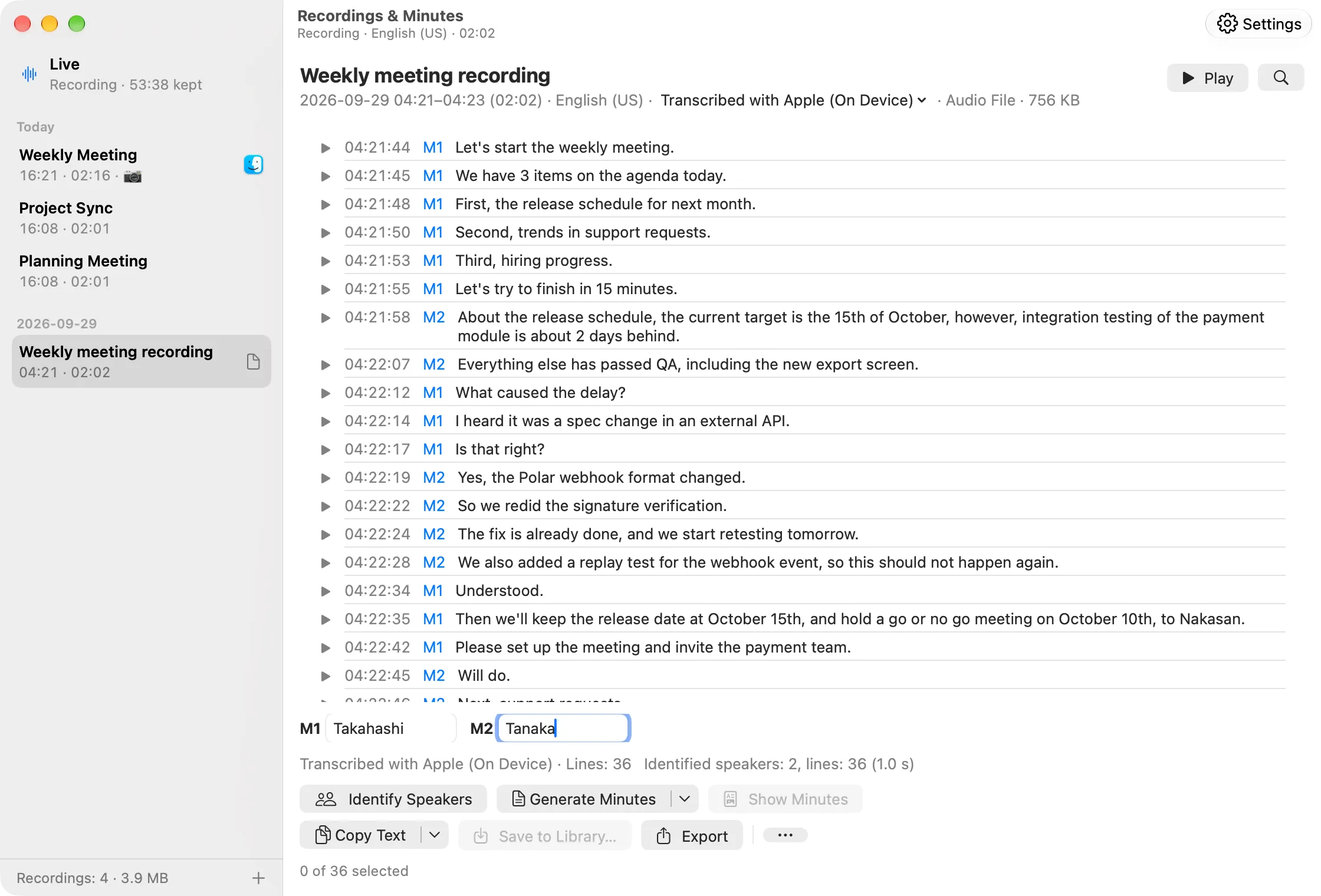
Speakers are identified on this Mac, on each track: S1, S2, … for app audio (the other participants) and M1, M2, … for your microphone. Give the labels real names.
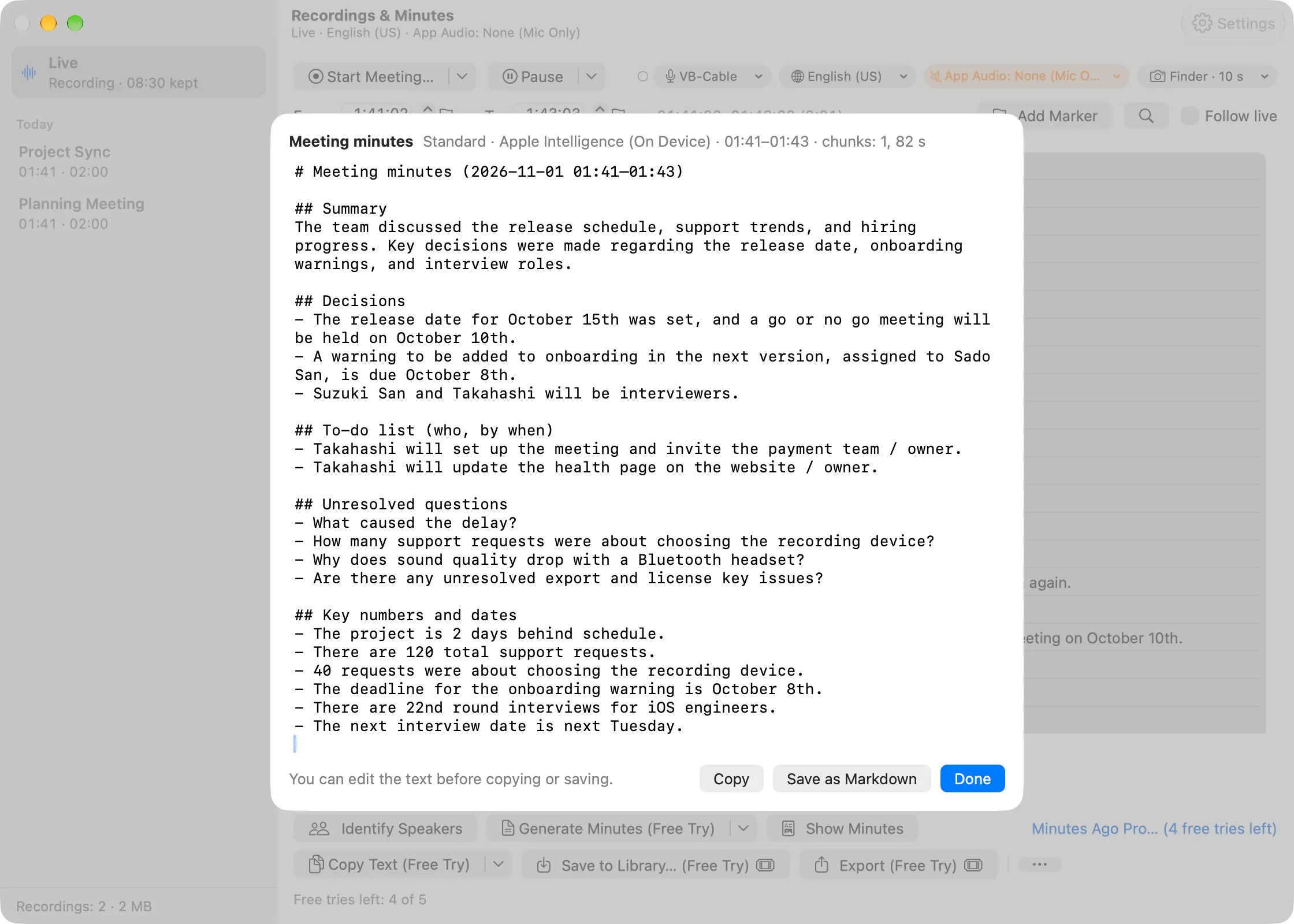
Minutes, on this Mac by default
By default, Apple Intelligence writes the minutes on this Mac. They appear on screen and become a file only when you save them. Minutes presets keep a prompt for each kind of meeting, and the ▾ beside Generate Minutes picks one for this time.
With your own API key, OpenAI, Anthropic or Google Gemini (or an OpenAI-compatible server) can write them instead. Only the transcript text is sent, never audio, after the app names the destination and asks. Guide: Speakers and Minutes
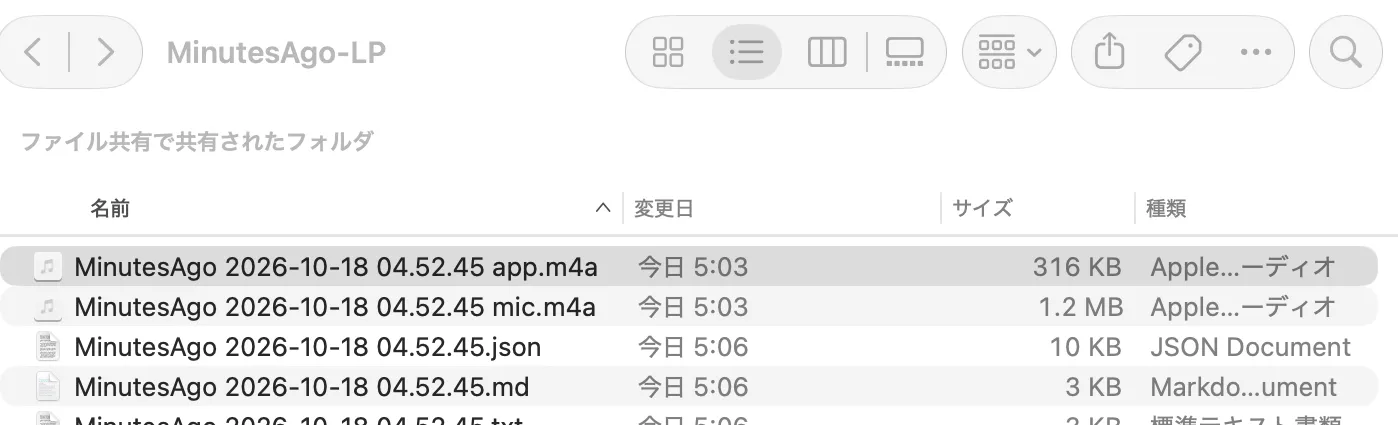
The app you choose, as a second track
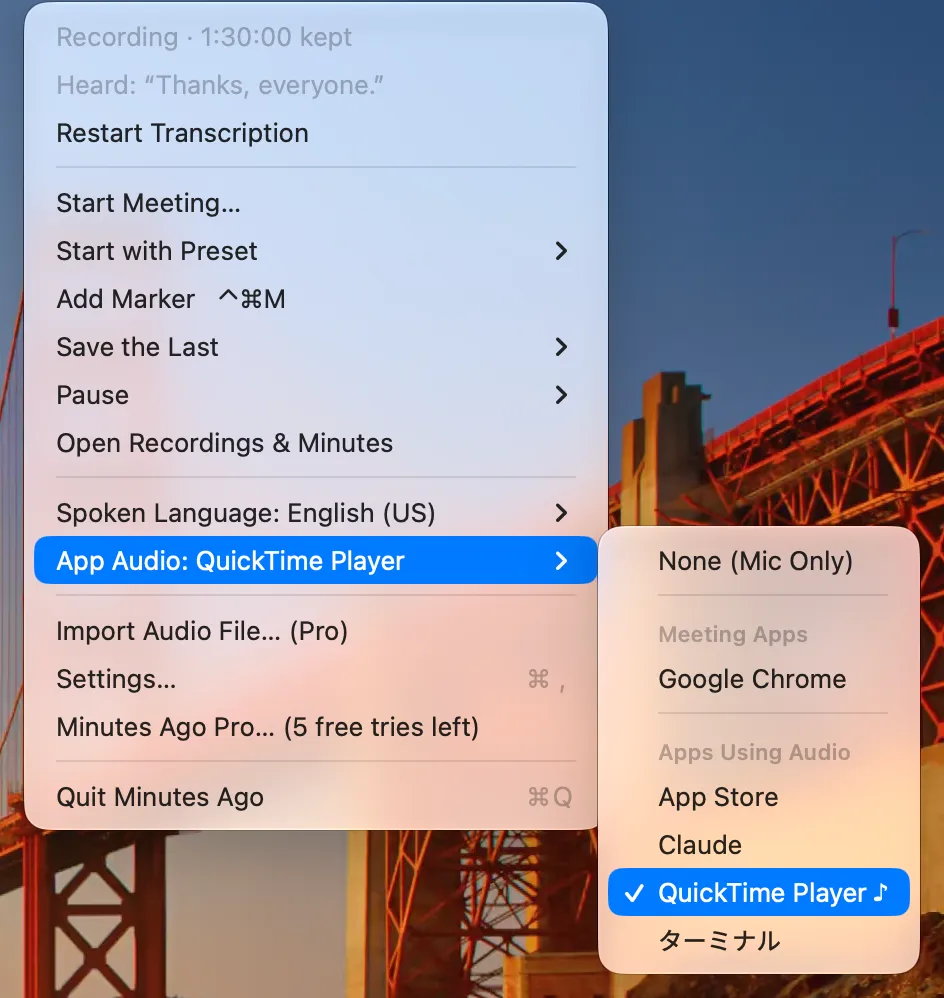
Pick your meeting app (Zoom, Teams, Safari, …) in App Audio and its audio is recorded as a second track, so the other participants are transcribed too. Audio exports as two files, microphone and app.
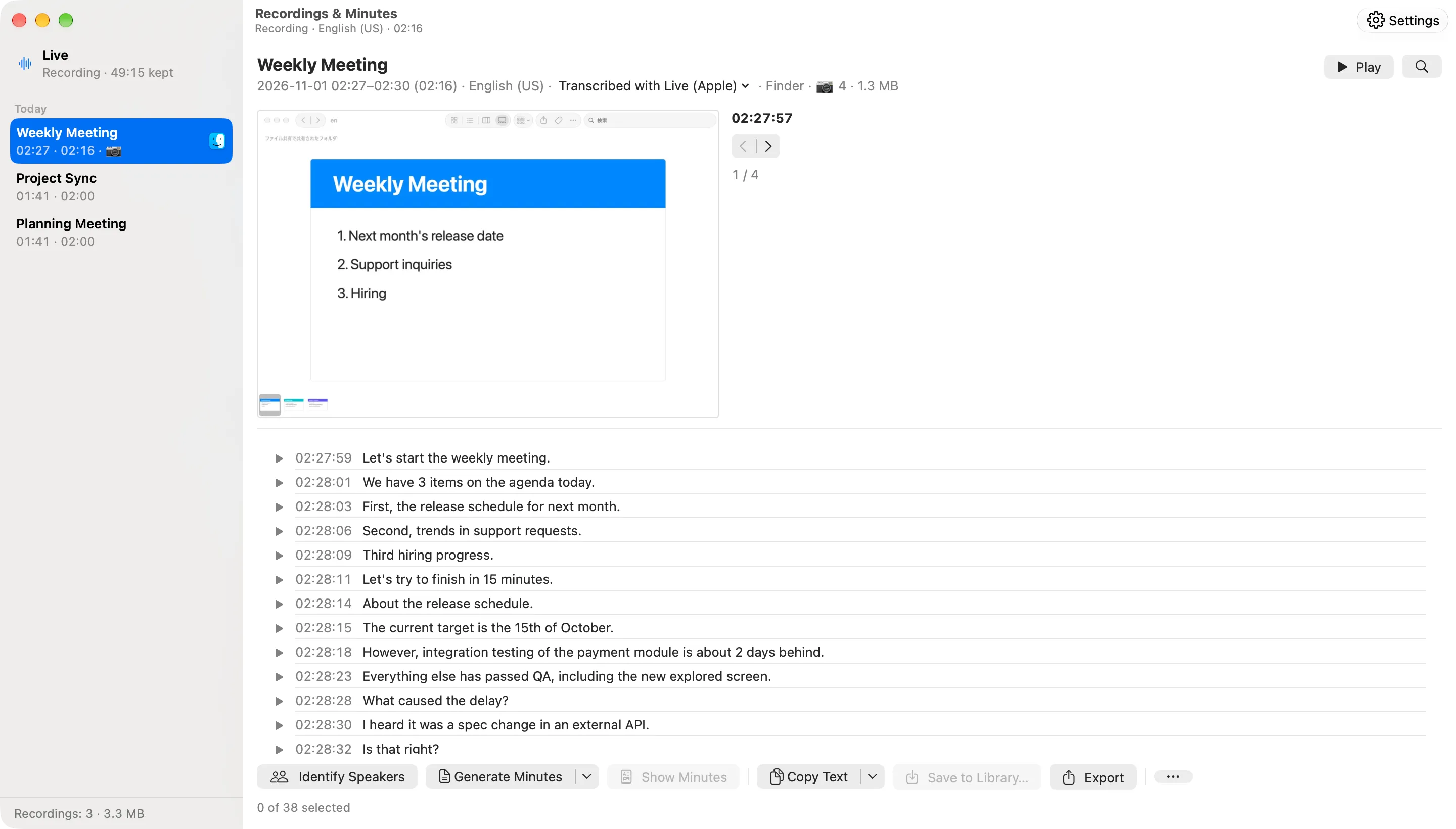
Meetings you keep
Choose Start Meeting… when a meeting begins, with its name, microphone, spoken language and app audio, and Stop & Save Meeting when it ends. The saved recording stays on this Mac until you delete it: open it to read, rename, export, identify speakers or write minutes, which are kept with it.
Presets (Settings › Recording) start the meetings you have every week in one step, and Pause Meeting holds one without ending it. Recorded in the wrong language? Transcribe Again… redoes a saved recording on this Mac with the language and model you choose, free. Saving is counted like an export.
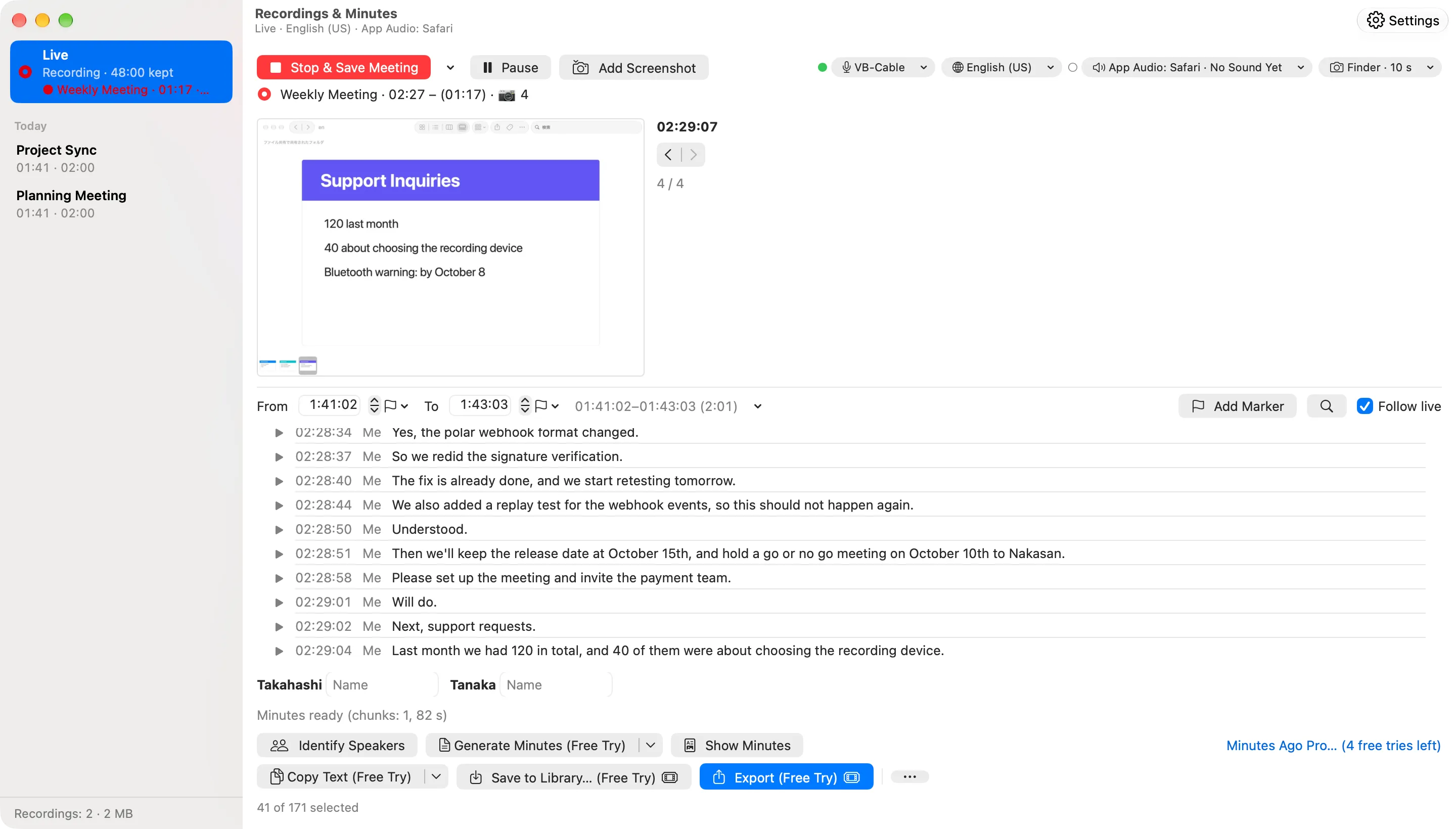
The shared screen, too
Turn on Take screenshots of in Start Meeting… and pick the meeting app and an interval (3 to 60 seconds). Only that app's window is captured, a screenshot identical to the last one is not kept, and Add Screenshot keeps the screen right now. Screenshots appear above the transcript, and Include screenshots lets the minutes use the slides on screen.
Off until you turn it on. macOS asks for the Screen Recording permission, and the menu bar icon shows a red dot while capturing. Screenshots can show names, faces and chat: tell people the screen is captured too. Right-click one › Delete Screenshot… removes it (this cannot be undone); while something must not be captured, pause the meeting.
Mark it, find it
When something matters in a meeting, add a marker from the menu, a key you set or the Shortcuts app. In Recordings & Minutes, make a range from your markers, and press ⌘F to search the transcript. Markers in the range go into exports and minutes too.
Markers are added while recording. Search and markers are free. Guide: Markers
Subtitles and Markdown
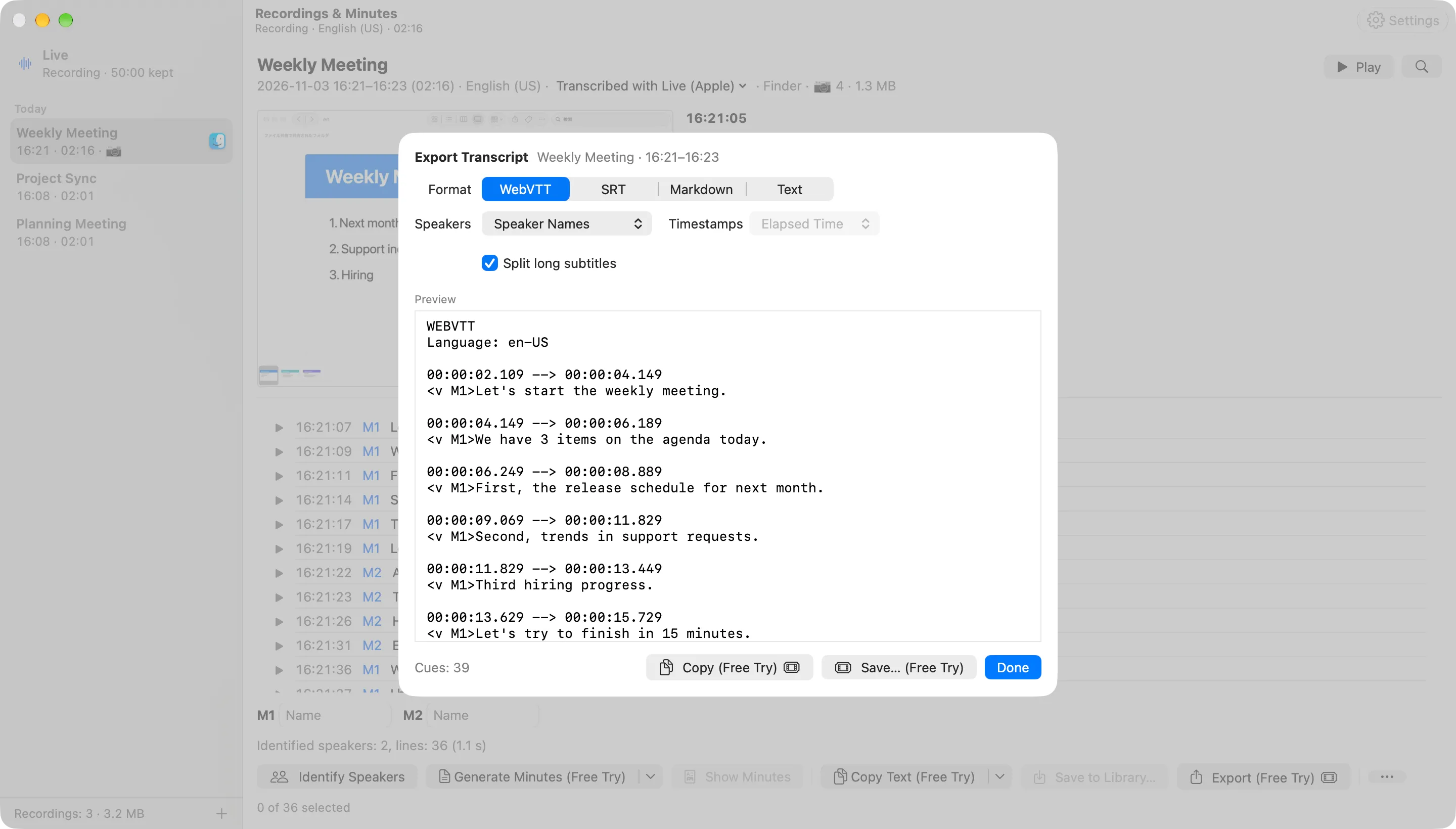
Export Transcript… in the ▾ of Copy Text writes WebVTT, SRT, Markdown (paragraphs, a list or a table) or text, with speaker names, Me and Others only, or none, and elapsed time, time of day or none, with a preview. Subtitles are timed from the start of the recording, so they line up with its exported audio.
Copy and Save… are counted like Copy Text.
Audio files, too (Pro)
Didn't record the meeting? Drop its audio or video file on Recordings & Minutes (or choose File › Import Audio File…) and it becomes a saved recording, transcribed on this Mac with the model you choose. Identify and name its speakers, write minutes and export it like any recording. The original file is only read, never changed.
A Minutes Ago Pro feature (a license in the direct version), not covered by free tries. Guide: Importing Audio Files
Transcribe again, with the model you choose
Select a range in the live pane, or open a saved recording, and choose ⋯ › Transcribe Again…: pick the spoken language and a model, and the lines are replaced everywhere (the window, Copy, Export, minutes and agents). Speakers carry over, markers are kept, and Undo brings the previous lines back for 8 seconds. A saved recording keeps a transcript for each model: switch between them with “Transcribed with …” in its header.
Every model runs on this Mac, and no audio is sent. Models are downloaded only when you choose them in Settings › Models (from Hugging Face) and can be deleted there; live transcription stays with Apple. Free; the import sheet (Pro) has the same Model menu. Guide: Transcription and Models
- Apple (On Device)
- Live transcription, as before. Its languages are managed by macOS.
- Whisper large-v3-turbo
- 1.64 GB, or 645.7 MB for its Compact version. Runs on the GPU and is ready in seconds.
- Parakeet TDT (Japanese)
- 619.1 MB. For Japanese only, and fast.
- Cohere Transcribe (Beta)
- 2.19 GB. 14 languages including English and Japanese, with punctuation. A beta: it takes about 2 minutes to load, and each line is a stretch of speech between pauses.
- 0 bytes
- of audio written to the SSD while recording (default)
- Up to ~98 MB
- written once when the app quits (90 minutes, microphone + app audio)
- ~1.6 GB / day
- written if you keep live audio on the SSD (microphone + app audio, 24 hours)
Always-on recording that leaves the SSD alone
The last 90 minutes you can go back to (by default) are kept only in this Mac's memory. Audio goes to the SSD only when you save, during a meeting, and once when the app quits (so the recent audio is there at the next launch). Always recording, without writing audio to the SSD all day.
Figures are calculated for 48 kHz audio with sound. Earlier versions (up to 1.6) wrote about 35 GB a day to the SSD with the microphone and app audio. Transcripts are still written to the app's container. Settings › General › Live audio can keep it on the SSD instead. Guide: Data and Privacy
And around it
- Play any line: every line has a ▶, and the playback bar has a seek bar, 0.5× to 3× speed (the pitch is kept) and Follow. Your microphone and the app audio play together.
- Fix a misheard line in place (double-click it), or delete lines. The audio is kept, so Transcribe Again… can bring them back.
- A settings window (Settings… ⌘,) with eight panes, including Models, and a search field. Changes apply immediately.
- Keys from any app for eight actions, such as Add Marker, Start Meeting, Pause / Resume Meeting and Save the Last 30 Minutes (Settings › Keyboard; none until you choose one).
- Spoken Language in the menu, with up to five pinned languages and the full list one step away.
- Microphone: System Default follows the Mac's default input, for example when you plug in headphones. None records only the other participants' audio, and a chip turns orange when the microphone or app audio is None.
- Speech detection (Settings › Transcription): during meetings everything is transcribed, and outside meetings you choose how quiet speech can be. A dot by the Microphone and App Audio chips shows whether speech is being transcribed.
- If transcription stops while sound keeps coming in, it restarts on its own, and Restart Transcription is in the menu. After sleep, recording starts again, and a microphone that fails to start is tried again.
- In the Dock and ⌘Tab: click the icon to open Recordings & Minutes. Prefer the menu bar only? Turn off Settings › General › Show in Dock.
The only one joining the meeting is you
The other side is picked up on your Mac, from the meeting app's audio. There is no bot to invite, and nothing is added to the meeting.
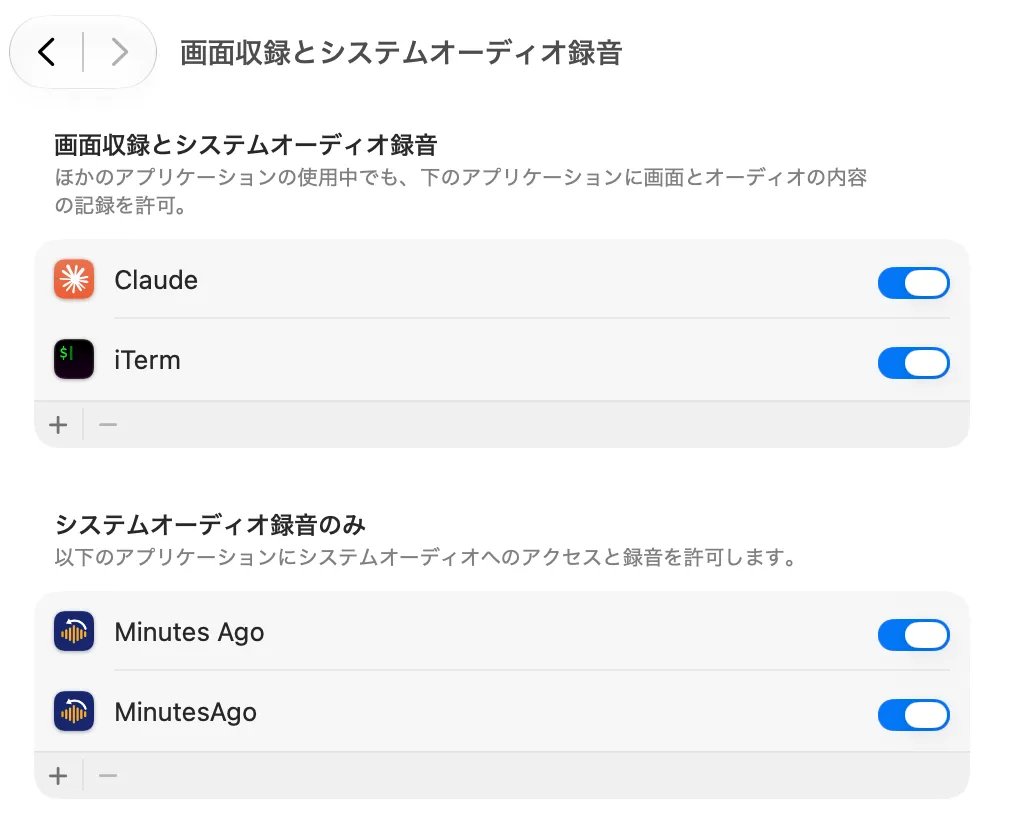
Only the app you choose in App Audio is recorded. The first time you choose one, macOS asks for permission to record system audio.
Tell people you are recording
Some countries, regions and organizations require the consent of, or notice to, everyone in a conversation before it is recorded. Tell the other participants before you record, and tell them the screen is captured too if you take screenshots. The app shows the same reminder in the first-run guide and before your first export.
Terms of Use, Article 3 (Your Responsibilities When Recording)
Where your data goes, and when it's gone
What stays on this Mac
| Data | Where it is stored | When it is deleted |
|---|---|---|
| Microphone audio and the audio of the app you choose | In the app's memory (default). When the app quits, it writes the recent audio inside the app's container and picks it up at the next launch. Inside the app's container during a meeting and when you choose the SSD in the settings | Automatically, after the retention period (30 minutes to 24 hours, 90 minutes by default). During a meeting, everything from its start is kept until it ends (up to 24 hours). Immediately with Erase Live Audio… |
| Transcripts, speaker labels and the names you give, and markers (their times and the names you give them) | Same place (an SQLite database) | With the audio, on the same schedule. Immediately with Erase Live Audio… |
| Files you export (audio, transcripts, minutes) | The folder you choose | Never deleted by the app; you manage them |
| Saved recordings (meetings you stop and save, ranges you save to the library, and audio files you import: audio, transcript (one per model if you transcribe it with other models), speaker labels and names, markers, screenshots, minutes and the name you give) | Inside the app's container (the library/ folder, one folder per recording) | Not deleted by the retention period; kept until you delete them, one by one in Recordings & Minutes or all at once with Delete All Saved Recordings… in Settings › Library. Erase Live Audio… does not delete them |
| Screenshots (JPEG images of the window of the app you choose, during a meeting, at your interval and when you choose Add Screenshot) | During a meeting, inside the app's container (the shots/ folder). When the meeting is saved, they move into that recording's folder | Deleted when you discard the meeting or choose Erase Live Audio… during it. Once saved, kept until you delete the recording |
| The audio of audio and video files you import (Pro), and their transcripts, speaker labels and names, and minutes | The file's audio, converted (AAC; a video's picture is not kept), and its transcript are kept as a saved recording inside the app's container (the library/ folder), named after the file and dated with the file's date. The original file stays where it is (the app only reads it and never changes it; it keeps neither the file itself nor its location) | The same as saved recordings (kept until you delete them). A cancelled or failed import deletes its recording; an import cut short, for example by a forced quit, may leave an audio-only recording. You manage the original file |
| Temporary audio files while transcribing again (a selected range, and transcribing with Parakeet TDT (Japanese) or Cohere Transcribe) | Inside the app's container (the tmp/ folder) | Kept only during that transcription and deleted when it ends (also when it is cancelled or fails), or at the next launch if the app quit meanwhile. Erase Live Audio… also stops transcribing a selected range again and deletes its file |
| Settings (including minutes presets, and the names, models and server URLs of AI providers) and the replacement dictionary | The app's preferences (in the container) | Same as the container (see uninstalling) |
| The API keys of external AI providers (one per provider), the agent access token | This Mac's Keychain | Can be removed in the app's settings (removing a provider also removes its API key) |
| The number of free tries used, the last confirmed purchase state | This Mac's Keychain | Only the number of free tries used and the dates are kept. They remain after the app is deleted, so that free tries are not reset |
Connections off your Mac (this is all of them)
| Connected by default | |
|---|---|
| Speech model downloads (Apple) | macOS downloads language models from Apple. No audio or transcripts are sent. |
| Speaker and transcription model downloads (Hugging Face) | The first time you identify speakers (or when you download it in Settings › Models), the speaker model (about 200 MB) is fetched from huggingface.co. Transcription models (Whisper large-v3-turbo or its Compact version, Parakeet TDT (Japanese), and Cohere Transcribe with its speech detection model, Silero VAD) are downloaded only when you choose them in Settings › Models, from fixed revisions of their Hugging Face repositories over HTTPS. They are Core ML model files (Whisper also fetches its tokenizer), not executable code, and no audio or text is sent. Like any download, your IP address and similar connection data reach that server. |
| Only when you choose it | |
| Minutes engine: Apple Private Cloud Compute (coming later) | The transcript text of the selected range or of the saved recording (including one imported from an audio file; never audio), and its screenshots if you turn on Include screenshots, is sent to Apple to write the minutes. The app asks you before sending. |
| Minutes engine: an external AI provider (OpenAI, Anthropic, Google Gemini or an OpenAI-compatible server) | Only when you set one up and generate minutes with it, the transcript text of the selected range or of the saved recording (including one imported from an audio file; never audio; with Include screenshots, its screenshots too) is sent to that provider with your own API key. The app names the destination and asks you before sending (unless you chose "Don't show again" for that destination; you can turn the question back on in settings; sending with screenshots is asked separately). Test Connection sends one short request without any transcript. |
| Agent access (off by default) | Only when you turn it on, the app gives transcripts, audio and saved recordings (including screenshots) to apps on this Mac. The App Store version doesn't listen on the network: the app's own executable, which you register with an agent, passes them on through a connection point inside the app's container that accepts only the same user's programs holding the token. The direct version listens on 127.0.0.1 on this Mac and serves apps that hold the token. The app itself sends nothing off the Mac, but an agent you connect may send that data to outside services. |
| Shortcuts | Transcripts, audio and minutes (including the transcripts of saved recordings) are passed to the shortcuts you create and run. What happens next depends on those shortcuts. |
| App Store purchase (Apple) | When you buy or restore Minutes Ago Pro, the app talks to Apple (the App Store) for the in-app purchase. No audio or transcripts are sent. |
| Direct-download version only | |
| License activation (direct version only) | When you activate a license, at the periodic check and when you deactivate this Mac, the app sends the license key, our organization and product identifiers, the activation identifier and this Mac's name (when activating) to Polar (api.polar.sh). No audio or transcripts are sent. Like any connection, your IP address and similar connection data reach that server. |
| Update check (direct version only) | When you check for updates, or about every 24 hours if you allowed automatic checks, the app sends GitHub (github.com, objects.githubusercontent.com) a request that includes the app's name and version and the version of its update component (Sparkle), and your IP address reaches GitHub. New versions are also downloaded from GitHub. No audio, transcripts, usage or Mac configuration is sent. |
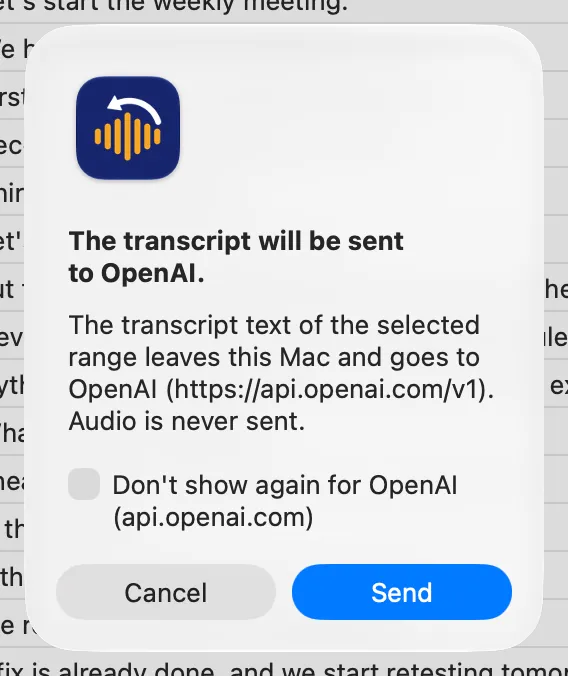
The Mac App Store version makes seven connections: the first seven rows of the table. The direct-download version makes eight: the first six rows and the two direct-only rows (items 8 and 9 in section 3 of the Privacy Policy), without the App Store purchase. We (Kurokoto Lab) receive no audio, transcripts, minutes, settings or usage data. The app has no analytics, advertising or tracking, and no accounts.Privacy Policy
Left on for 12 hours, still light
12 hours
of continuous recording, no gaps
0.013 cores
average CPU use of the app
~70 MB + audio
app memory while running, plus the audio it keeps: up to ~98 MB for 90 minutes (~49 MB with the microphone only)
0 bytes
of audio written to the SSD while recording (default)
Measured in September 2026 on the development Mac, playing synthetic meeting audio. The 12 hours are a continuous-run test with transcription. CPU and memory come from a microphone-only transcription test of about 2 hours, and do not include macOS's speech recognition process (0.012 cores on average). The ~70 MB was measured when audio was kept on the SSD (up to 1.6); now the audio it keeps is added on top (the same estimate shown under Live audio in the settings: microphone + app audio, the upper bound with sound). The 0 bytes is for audio while recording; transcripts are written to the SSD. These figures are for recording with live transcription; transcribing again with a downloaded model is not included.
Pull it into Claude or Shortcuts
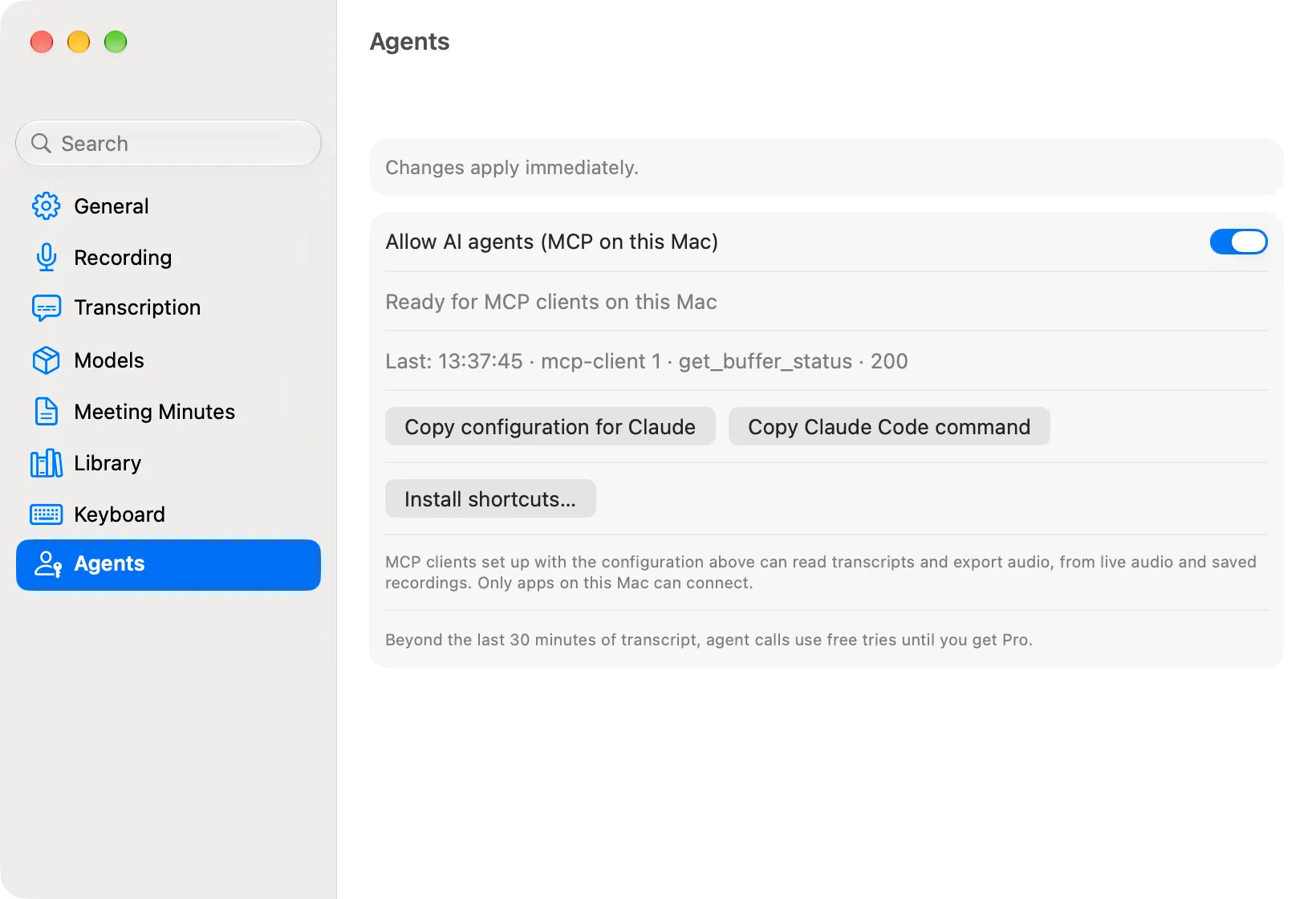
AI agents on this Mac (for example Claude) and Shortcuts can take out transcripts, transcripts with speakers (also as WebVTT or SRT subtitles), audio and minutes, start, pause and stop meetings, add markers and screenshots, and read saved recordings. This is an advanced feature.
- Off by default. It runs only after you turn on Allow AI agents in Settings › Agents.
- Only apps on this Mac can connect. The App Store version listens on no network port; the direct version listens on 127.0.0.1 only.
- Connections need a token, stored in this Mac's Keychain. In the App Store version, the app reads it itself, so it never appears in your configuration.
- Turn it off in Settings › Agents at any time. In the direct version, regenerate the token there too (Advanced).
Technical details (MCP)
Off by default. Even when on, only apps on this Mac can connect.
App Store version: the MCP client starts the app's own executable as a stdio MCP server named minutes-ago (/Applications/MinutesAgo.app/Contents/MacOS/MinutesAgo mcp), which relays to the app through a socket in its container while agent access is on
Direct version: http://127.0.0.1:48151/mcp (a Streamable HTTP MCP server named minutes-ago)
Tools (the same fourteen operations are also available to Shortcuts through App Intents):
get_buffer_status— the time range kept and the recording stateget_transcript— timestamped transcriptget_speaker_transcript— transcript with speakers (Markdown, JSON, text, WebVTT or SRT)export_audio— export audiogenerate_minutes— write minutesstart_meeting/stop_meeting— start a meeting (optionally with its own spoken language, app audio, microphone or preset), stop and save or discard itpause_meeting/resume_meeting— pause the meeting (nothing is recorded and its clock stops) and resume itsave_recording— save a range as a recordinglist_recordings/get_recording— list saved recordings, read one (with the list of transcripts it keeps per model)add_marker— add a markeradd_screenshot— keep a screenshot now, during a meeting with screenshots (returns the file's path)
Agents never bring up the Screen Recording permission. Copy configuration for Claude in Settings › Agents gives you the JSON to register. For step-by-step setup, see Guide: Agents and Shortcuts.
Good to know first
- Requires macOS 27 and a Mac with Apple silicon.
- Minutes require Apple Intelligence. Without it, recording, transcription, export and speaker identification still work.
- The first time you identify speakers, the model (about 200 MB) is downloaded.
- The models for Transcribe Again are optional downloads in Settings › Models: Whisper large-v3-turbo (1.64 GB) or its Compact version (645.7 MB), Parakeet TDT (Japanese) (619.1 MB) and Cohere Transcribe (Beta) (2.19 GB). Whisper runs on the GPU and is ready in seconds (switched to the Neural Engine under Advanced in Settings, its first optimization can take 10 minutes or more and over 75 GB of free disk space). Parakeet TDT is for Japanese only, and Cohere Transcribe is a beta that takes about 2 minutes to load.
- Transcription and speaker identification have been checked with synthetic meeting audio. Accuracy in real meetings has not been measured yet, with any of the models. Transcripts may contain errors; check the original audio (▶ on the line) before important decisions.
- Writing minutes with Apple Private Cloud Compute is coming later; it is listed in Settings › Meeting Minutes but can't be chosen yet.
- Minutes from OpenAI, Anthropic or Google Gemini use your own API key with that company, and its terms and privacy policy apply to what it receives.
- Screenshots need macOS's Screen Recording permission. It is asked only when you start a meeting with screenshots yourself, from the menu or the window.
- By default, the audio it keeps is held in memory. A crash, a forced quit or a power loss loses it (quitting, restarting and updating do not). During a meeting the audio is written to the SSD, so at most the last 30 seconds are lost.
- The Mac App Store version is a free download. Taking out more than the last 30 minutes, speaker names and a few other things need Minutes Ago Pro, a one-time purchase (Pricing).
Pricing
Saving, copying and minutes on this Mac for the last 30 minutes are free forever, even with app audio. Older audio, speaker names and agents can be tried 5 times, and Minutes Ago Pro (one purchase, no subscription) removes the limit.
Free download
Free forever
No time limit. No limit on how many times.
- Recording never stops, and retention follows your setting (30 minutes to 24 hours).
- Save, copy and write minutes on this Mac for the last 30 minutes, app audio included, as often as you like.
- Recordings & Minutes shows everything kept. A button shows (Free Try) only when using it now would take a free try.
- Identifying and naming speakers, the replacement dictionary, minutes presets, and choosing an app in App Audio.
- Meetings (including pausing them), screenshots (including Add Screenshot), markers and search.
- Transcribe Again with any model on this Mac (Whisper, Parakeet TDT, Cohere Transcribe), downloading models, a transcript for each model, playing back any line, and editing or deleting lines.
- Saved recordings: reading, copying, exporting, on-device minutes and Transcribe Again (speaker names added after saving use one try, once). Saving one is counted like an export.
In-app purchase · one-time
Minutes Ago Pro
¥3,000 launch beta price (tax included)
Regular price ¥4,800 (tax included). These are the Japanese App Store prices; prices differ by country or region, and the price shown in the App Store applies. The beta price's end date will be announced later.
- Take out anything older than 30 minutes, up to everything kept.
- Exports, copies and minutes with speaker names.
- Minutes from providers outside this Mac (OpenAI, Anthropic, Google Gemini, an OpenAI-compatible server; Apple Private Cloud Compute is coming later).
- Taking things out through agents. Buffer status and the last 30 minutes of transcript stay free.
- Importing audio files (each becomes a saved recording). Not covered by free tries.
No subscription. Beta buyers also get free updates through 1.x.
5 free tries
Before you buy, anything Pro unlocks in the recording can be taken out 5 times in total. One operation counts once, only when it succeeds, and the app shows how many are left before you use one. When they run out, everything free stays free. Free tries are for taking things out of the recording only. Importing audio files isn't covered: it works only with Minutes Ago Pro (a license in the direct version).
A direct-download version (with a command-line tool) is in preparation; its license will be sold separately from the App Store version, in US dollars ($19.99 at the launch beta price, then $29.99). Purchases do not carry over between the App Store and direct-download versions.
For IT administrators
- Where data is stored
- Transcripts and settings are kept in the app's container,
~/Library/Containers/com.kurokoto.minutesago/, and so are saved recordings (including those imported from audio files, until the user deletes them), meeting screenshots, and the models the user downloads (the speaker model of about 200 MB, and transcription models of 619.1 MB to 2.19 GB each, only those chosen in Settings › Models, where they can be deleted). The API keys of minutes providers, the agent access token and the number of free tries used are kept in the Keychain. Recent audio is kept in the app's memory by default, and written inside the container when the app quits, during a meeting, or when the user chooses the SSD in the settings. While it is in memory, a crash, a forced quit or a power loss loses the kept audio (quitting, restarting and updating do not). Exported files go to the folder the user chooses. - Uninstalling
- Moving the app to the Trash may leave its container behind. To remove everything, run Erase Live Audio… (in Pause ▸ in the menu) and Delete All Saved Recordings… (Settings › Library) before deleting the app, or delete the container too. Exported files stay in the user's folder.
- Permissions
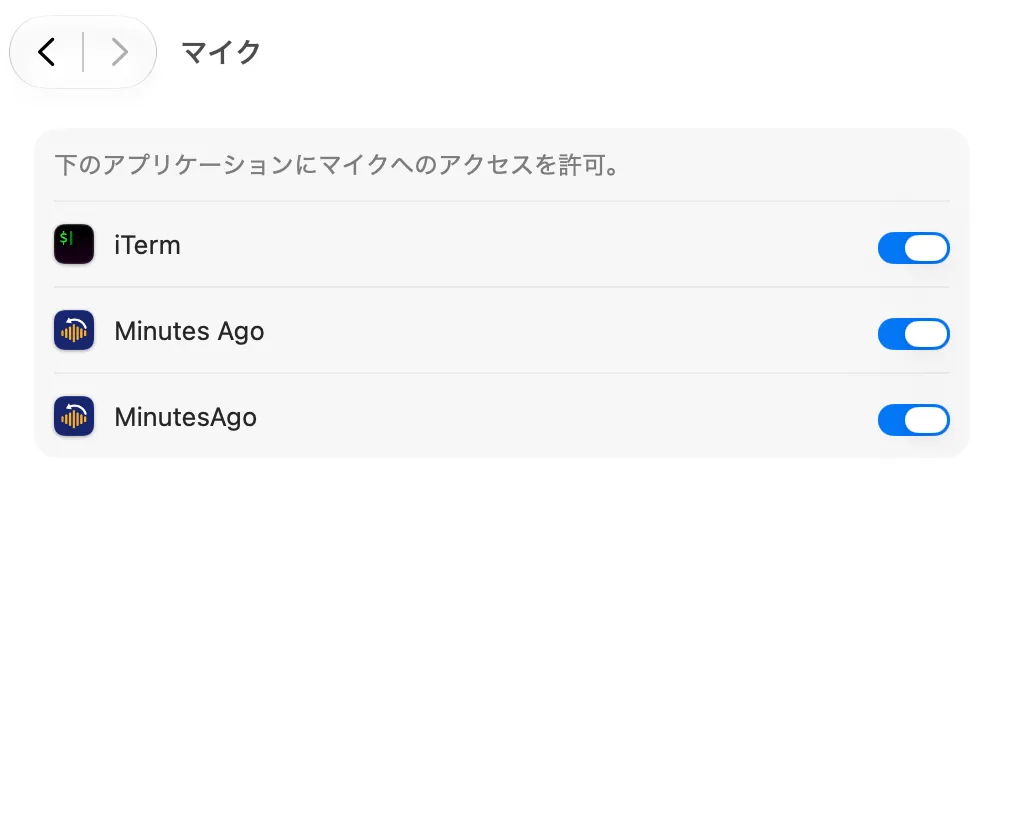
- Microphone. System audio recording is requested only when the user chooses an app in App Audio, and only that app's audio is recorded. Screen Recording only when the user starts a meeting with screenshots from the menu or the Start Meeting window (never from agents or keys), and only that app's window is captured. All of them can be withdrawn at any time in System Settings › Privacy & Security. Keys from any app are none until the user records one, and need no Accessibility or Input Monitoring permission. Start at login is off by default.
- Network
- Only the connections listed above: seven for the Mac App Store version, eight for the direct-download version. No analytics, advertising or tracking, and no accounts.
- Provider
- Kurokoto Lab (Yuji Kuroko)
〒150-0021 東京都渋谷区恵比寿西2丁目4番8号 ウィンド恵比寿ビル8F (Tokyo, Japan)
[email protected]
FAQ
Are the other participants in an online meeting transcribed too? Can I keep them separate from my microphone?
Yes. Choose your meeting app in App Audio and its audio is recorded as a second track, so the other participants are transcribed too. On export, audio comes as two files (microphone and app) and the transcript as one, with you as "Me" and the others as "Others". After Identify Speakers, the lines are labelled S1, S2, … for app audio and M1, M2, … for the microphone, and you can name them.
Does a bot join the meeting?
No. The audio is picked up on your Mac, so nothing is invited and no participant is added. Telling the others that you are recording is up to you.
What leaves this Mac? What do you receive?
Only the connections in the table above: seven for the Mac App Store version, eight for the direct-download version. Even with a minutes provider outside this Mac (OpenAI, Anthropic, Google Gemini or a server you specify), only transcript text is sent (and screenshots, if you include them), never audio. We receive no audio, transcripts, minutes, settings or usage data. Crash reports may reach us through Apple only if you agreed to "Share with app developers" in macOS.
It's always recording. Does it wear out my SSD?
By default, the audio it keeps stays only in this Mac's memory, so no audio is written to the SSD while it records. Audio goes to the SSD only when you save, during a meeting, and once when the app quits (up to about 98 MB for 90 minutes of microphone + app audio). If you choose the SSD in Settings › General › Live audio, a crash or a power loss loses at most 30 seconds, and in return about 1.6 GB a day is written to the SSD with the microphone and app audio (earlier versions wrote about 35 GB under the same conditions). Transcripts are still written to the app's container.
How accurate is the transcription?
Transcription uses Apple's on-device speech recognition (SpeechAnalyzer). It has been checked with synthetic meeting audio; accuracy in real meetings has not been measured yet. Words it tends to mishear can be fixed with the replacement dictionary, a line can be fixed by hand, and a range or a saved recording can be transcribed again with another model (their accuracy in real meetings has not been measured either). Test conditions and results are in the guide, under About accuracy.
Can I transcribe again with a different model?
Yes. Select a range in the live pane or open a saved recording, choose ⋯ › Transcribe Again…, and pick the spoken language and a model: Apple (On Device), Whisper large-v3-turbo (1.64 GB) or its Compact version (645.7 MB), Parakeet TDT (Japanese) (619.1 MB, Japanese only) or Cohere Transcribe (Beta) (2.19 GB, 14 languages including English and Japanese). Download the models you want in Settings › Models; they run on this Mac and no audio is sent. A saved recording keeps one transcript per model, and you can switch between them from “Transcribed with …” in its header. For 8 seconds afterwards, Undo brings the previous lines back. Transcribing again and downloading models are free; the import sheet (Minutes Ago Pro) has the same Model menu. Live transcription stays with Apple. Guide: Transcription and Models
Which macOS permissions does it ask for? Can I withdraw them?
Microphone, system audio recording only when you use app audio, and Screen Recording only when you start a meeting with screenshots. All of them can be withdrawn at any time in System Settings › Privacy & Security.
Can minutes be written by an outside LLM?
Yes. In Settings › Meeting Minutes › Providers, add OpenAI, Anthropic or Google Gemini with your API key and a model name, or an OpenAI-compatible server (such as Ollama or LM Studio) with its URL. API keys are kept in the Keychain, one per provider. Only the transcript text is sent, never audio, and the app names the destination and asks you first. Each generation with a provider outside this Mac uses a free try until you get Pro.
Can I transcribe an audio file of a meeting I didn't record?
Yes, with Minutes Ago Pro (a license in the direct version). Drop an audio or video file (such as m4a, mp3, wav, mp4 or mov) on Recordings & Minutes, or choose Import Audio File… (in the File menu with ⌘O, in the menu, or with + at the bottom of the left pane), and pick the spoken language and the model. The file becomes a saved recording named after it and dated with the file's date, transcribed on this Mac. Then you can identify and name speakers (M1, M2, …), write minutes and export it like any recording; the original file is only read, never changed. This feature is not covered by the 5 free tries and can't be used before you buy. Guide: Importing Audio Files
Can I keep a whole meeting?
Yes. Choose Start Meeting… in the menu when it begins and Stop & Save Meeting when it ends. While a meeting runs, nothing from its start is deleted by the retention period (up to 24 hours), and quitting asks whether to save it first. The saved recording stays on this Mac until you delete it, with its audio, transcript, markers, screenshots and minutes, and Erase Live Audio… does not touch it. Saving is counted like an export: free within the last 30 minutes without speaker names (app audio included), otherwise it uses a free try. Guide: Saving, Recordings & Minutes
Can it capture the slides shared in a video call?
Yes, if you turn on Take screenshots of when you start a meeting. Minutes Ago captures only the window of the app you choose, every 3 to 60 seconds, keeps a screenshot only when it differs from the last one, and Add Screenshot keeps the screen right now. It needs macOS's Screen Recording permission, and the menu bar icon shows a red dot while capturing. With Include screenshots on, the minutes can use them (on this Mac nothing leaves it; a provider outside the Mac is asked about separately). Screenshots and Add Screenshot are free. Screenshots can show names, faces and chat, so tell the other participants.
Can I mark the moments I want to come back to, and search what was said?
Yes. While recording, add a marker with Add Marker in the menu, a key you choose in Settings › Keyboard (works whichever app you are using; none by default), the Add Marker action in the Shortcuts app, or Add Marker in Recordings & Minutes. Right-click a marker to make a range such as To Next Marker or From Here to Now; markers in the range also go into copied text, exported files and minutes. Press ⌘F to search the transcript; upper and lower case, full-width and half-width characters, and hiragana and katakana are treated as the same. Markers and search are free. Guide: Markers
Can I listen to what was said?
Yes. Every line in Recordings & Minutes has a ▶ (or right-click › Play from Here), in the live pane and in saved recordings. The playback bar under the list has a seek bar, a speed from 0.5× to 3× that keeps the pitch, and Follow, which keeps the line being played in view; Space plays and pauses. Your microphone and the app audio play together, and in the live pane you can go back as far as the audio is kept. Use headphones: played through the built-in speaker, the sound can be picked up and transcribed again as “Me”. Playing is free. Guide: Playing lines
Can I pause recording, or a meeting?
Yes. Pause ▸ in the menu or Pause ▾ in Recordings & Minutes pauses recording until you resume, for 5, 10 or 30 minutes, for 1 hour, or for a time you set (Custom…, up to 480 minutes); a timed pause lasts through a restart. During a meeting, Pause Meeting (in the menu, the meeting bar, a key you set, Shortcuts or an agent) records nothing and stops the meeting's clock until you resume, and it stays paused after a restart; the saved recording gets “Meeting paused” and “Meeting resumed” markers. Pausing is free.
Can I export subtitles (WebVTT, SRT)?
Yes. Copy Text ▾ › Export Transcript… opens a sheet for WebVTT, SRT, Markdown (paragraphs, a list or a table) or text, with a choice of speakers and timestamps and a preview; Copy as WebVTT, Copy as SRT and Copy as Markdown in the same ▾ copy at once with your last choices. Subtitles are timed from the start of the recording, so they line up with its exported audio. Copy and Save… are counted like Copy Text.
How much does it cost? Is it a one-time purchase?
The app is a free download from the Mac App Store. Saving, copying and minutes on this Mac for the last 30 minutes are free forever, with no limit on how many times. Minutes Ago Pro is a one-time in-app purchase with no subscription: ¥4,800 in the Japanese App Store (tax included), and ¥3,000 at the launch beta price. The beta price's end date will be announced later, and beta buyers also get free updates through 1.x. Prices differ by country or region; the price shown in the App Store applies. The direct-download version's license is sold separately, in US dollars ($19.99 at the launch beta price, then $29.99). Pricing
What counts as one free try?
One export, copy, minutes generation or agent request that goes beyond the free range: older than 30 minutes, with speaker names, or with a minutes engine outside this Mac (app audio within the last 30 minutes is free). It counts once however many of these it includes, and only when it succeeds; cancelling or a failure does not use one. The app shows how many are left before you use one. Saving a meeting or a range as a recording counts like an export. Exports from a saved recording are free, except speaker names added after saving, which use one try once. Viewing Recordings & Minutes, playing lines, identifying speakers, naming them, editing or deleting lines, copying or saving minutes you already generated, meetings (including pausing them), screenshots, markers, Transcribe Again with any model and downloading models do not count. You have 5 in total; when they run out, the free range stays as it is. Transcribing audio files never counts (free tries don't cover it; it needs Minutes Ago Pro or, in the direct version, a license).
Can I use agent access for free?
Yes, within the same limits as the app. Turning it on, getting the buffer status and reading the last 30 minutes of transcript (app audio included, without speaker names) are free and do not count. Older transcripts, transcripts with speakers, audio export, minutes and saving a recording each use a free try until you get Pro. Starting, pausing and resuming a meeting (or stopping it without saving), adding markers and screenshots, and listing saved recordings are free. The response tells the agent how many are left; with none left, or for a range the free version can't take out, the tool returns an error instead of quietly shortening the range.
Is there a command-line (CLI) or direct-download version?
A direct-download version, with a command-line tool, is in preparation. Its license will be sold separately from the App Store version, in US dollars ($19.99 at the launch beta price, then $29.99). Purchases do not carry over between the App Store version and the direct-download version.
Record the meeting after it happened.
Questions: [email protected]