While Minutes Ago records, Apple’s speech recognition transcribes on this Mac. Afterwards you can transcribe a range, a saved recording or an audio file again with another model, such as Whisper large-v3-turbo, Parakeet TDT (Japanese) or Cohere Transcribe (Beta). Every model runs on this Mac: no audio is sent anywhere. The other models are downloaded first, in Settings › Models.
Transcription while recording
Live transcription (while recording) always uses Apple’s speech recognition (SpeechAnalyzer), in the spoken language you choose (Languages). It is on while Transcribe while recording is on in Settings › Transcription (on by default). The other models are only for transcribing again.
Speech detection
To save power, speech recognition skips what it hears as silence, and quiet speech could be skipped too. Two settings in Settings › Transcription decide how much is transcribed:
- Always transcribe during meetings (on by default) — during a meeting, everything is transcribed, whatever the volume.
- Speech detection — outside meetings (and during meetings when the setting above is off):
| Choice | What it does |
|---|---|
| Always Transcribe | Takes in everything. Uses the most power |
| More Sensitive | Also transcribes quieter speech |
| Standard (default) | Skips what it hears as silence to save power; quiet speech may be skipped too. The same as before 1.8.3 |
| Power Saving | Skips the most, to use the least power |
The input level dot
In the live pane of the Recordings & Minutes window, a small dot to the left of the microphone chip and the App Audio chip shows what happens to that track now. Hold the pointer over it for the details (with the level in dB).
| Dot | Meaning |
|---|---|
| Green, filled | Being transcribed |
| Orange, half filled | Quiet: may not be transcribed (try More Sensitive or Always Transcribe) |
| Grey, empty | No sound |
| Grey, slashed | Transcription is off (or the meeting is paused) |
The dot is not shown for a track set to None, nor in the menu.

When transcription stops
If sound keeps coming in but no lines appear for a while, or speech recognition stops reading the audio, Minutes Ago restarts transcription on its own: first for that track, then for both. Recording goes on throughout. Music or background noise that simply has no words in it does not count as stopped.
- If it still doesn’t come back, the menu shows the orange line “Transcription has stopped (since 10:03)” with Resume Transcription.
- While recording, the menu always has Restart Transcription: it makes the live transcription of both tracks again now, and recording goes on without a gap. Use it when lines you expect don’t appear.
- If transcription can’t start at all, it tries again by itself, at growing intervals (from 15 seconds up to every 5 minutes).
Transcription models
| Model | Languages | Download | Notes |
|---|---|---|---|
| Apple (On Device) | The languages of this Mac’s speech recognition | Managed by macOS (each language’s model is downloaded the first time you use it) | Used while recording, and can be chosen for transcribing again |
| Whisper large-v3-turbo | The languages Whisper supports (choose the spoken language) | 1.64 GB | Runs on the GPU and is ready in seconds. You can switch it to the Neural Engine under Advanced (Downloading models) |
| Whisper large-v3-turbo (Compact) | Same as above | 645.7 MB | A compressed version of the same model |
| Parakeet TDT (Japanese) | Japanese only | 619.1 MB | Fast: an hour of audio in about 30 seconds on a recent Mac. Optimized the first time (about 2 minutes) |
| Cohere Transcribe (Beta) | 14 languages: English, French, German, Spanish, Italian, Portuguese, Dutch, Polish, Greek, Arabic, Japanese, Chinese, Korean, Vietnamese | 2.19 GB (with the speech detection model, Silero VAD, about 1 MB) | With punctuation. Runs on the GPU: about 2 minutes to load, then about 6 minutes per hour of audio on each track. Gives no times of its own, so each line is a stretch of speech between pauses. Its Chinese is Mandarin, so it isn’t offered for Chinese (Hong Kong) (Cantonese in Apple’s speech recognition) |
- Every model runs on this Mac, and audio and transcripts are never sent. Downloading a model sends no audio or transcripts either; like any download, your IP address reaches Hugging Face (Data and Privacy).
- A model can only transcribe its languages. For another spoken language it is greyed out, with “Not available for this language” (for example “Parakeet TDT (Japanese) — Not available for this language”).
- The language is the spoken language you choose; models don’t detect it on their own.
- Cohere Transcribe stays loaded for 10 minutes after use, so another run in that time doesn’t wait for it to load. After that, or after a restart of the app, it loads again (Loading the model… (about 2 minutes)).
- The times above were measured on the development Mac (Apple M6, 16 GB). They differ between Macs and with what else is running. Accuracy in real meetings has not been measured for any model (About accuracy).
Downloading models
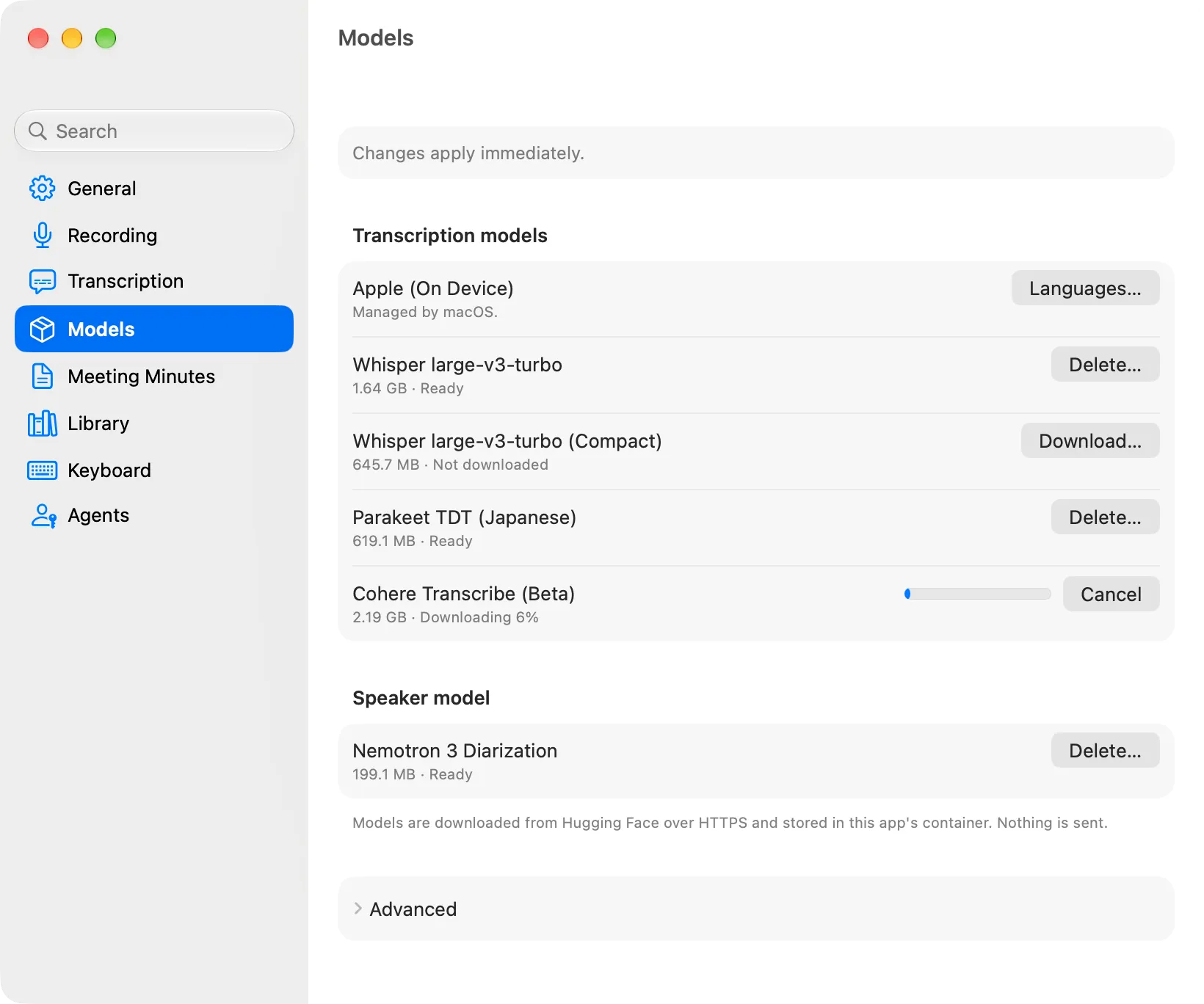
Settings › Models lists the models with their size and state, and is where they are downloaded and deleted. Models are downloaded from Hugging Face over HTTPS, only from this pane, and stored in the app’s container. Nothing is sent.
- Transcription models — first Apple (On Device), “Managed by macOS.”, with Languages… (the list of spoken languages; Apple’s language models are downloaded by macOS). Then Whisper large-v3-turbo, Whisper large-v3-turbo (Compact), Parakeet TDT (Japanese) and Cohere Transcribe (Beta).
- Speaker model — Nemotron 3 Diarization (199.1 MB), used by Identify Speakers. Identify Speakers still downloads it by itself the first time; here you can download it beforehand or delete it.
Each row shows the size and one of these states:
| State | Meaning |
|---|---|
| Not downloaded | Download… is shown |
| Partly downloaded (size) | A download was cancelled or the app quit. Download… continues from where it stopped; Delete… removes what was downloaded |
| Downloading n% | Cancel stops it (transcription models) |
| Optimizing for this Mac… | After the download, the model is prepared for this Mac once. Whisper takes seconds on the GPU (on the Neural Engine: “Optimizing for this Mac… (can take 10 minutes or more on the Neural Engine)”). Parakeet TDT (Japanese) shows “Optimizing for this Mac… (first time only, up to 15 minutes)” and takes about 2 minutes; Cohere Transcribe shows “Optimizing for this Mac… (about 2 minutes)”, its first load on the GPU |
| Downloaded (optimizes on first use) | Downloaded but not optimized yet (for example if optimizing was interrupted). The first transcription with it does it |
| Ready | Can be used |
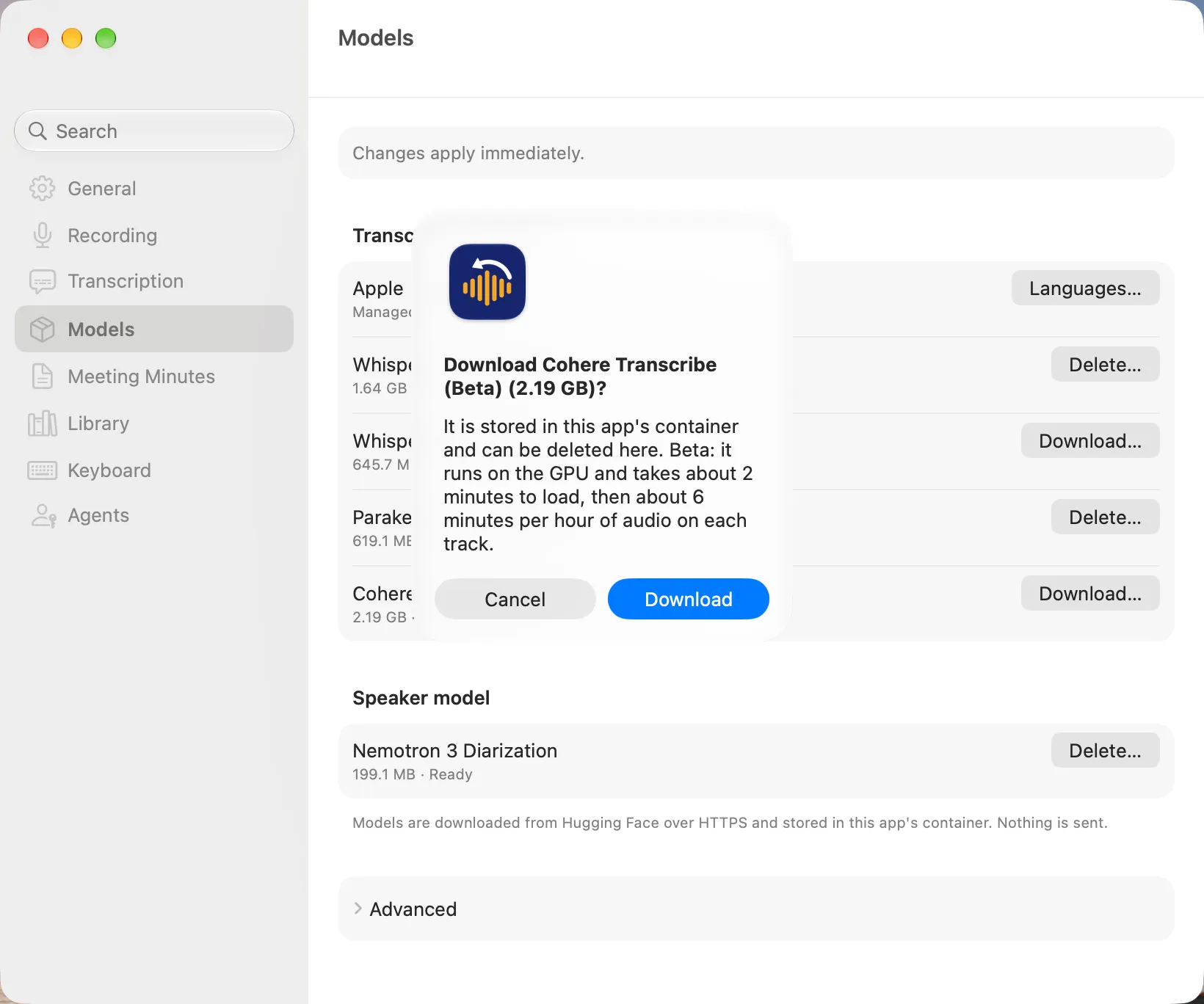
- Download… asks first, with the size: “Download Whisper large-v3-turbo (1.64 GB)?” — “It is stored in this app’s container and can be deleted here.” For Cohere Transcribe it adds “Beta: it runs on the GPU and takes about 2 minutes to load, then about 6 minutes per hour of audio on each track.”
- Delete… asks “Delete “…”?” — “You can download it again here.” Deleting Cohere Transcribe keeps the speech detection model (about 1 MB).
- While a transcription runs, Download… and Delete… of the transcription models are greyed out (“Wait until the other transcription is done.”); while speakers are being identified, those of the speaker model are (“Wait until the speakers are identified.”).
- If a download fails, the row says why: “Not enough free space on this Mac.”, “Couldn’t download the model. Check the network and try again.” or “Hugging Face is busy. Try again later.” If optimizing fails: “Couldn’t optimize the model. Download it again or delete it and try again.”
- Optimizing is done once. It may be needed again after an update.
Advanced › Run Whisper on: GPU (default) or Neural Engine. Hovering over the row shows “The GPU gets ready in seconds. The Neural Engine uses less memory.” The note below it says “Neural Engine: the first optimization can take 10 minutes or more and over 75 GB of free disk space.” When you change it, the downloaded Whisper models are optimized for the new choice right away (their rows show Optimizing for this Mac…). If your Mac doesn’t have that much free disk space, keep the GPU.
Transcribe again with another model
There are three ways in. They share the same Model menu, and it remembers the model you chose last.
| Where | How | What is replaced |
|---|---|---|
| A range in the live pane | Select the range, then ⋯ › Transcribe Again… | The lines of the range, for the tracks you choose |
| A saved recording | ⋯ › Transcribe Again…, or Transcribe Again with Options… in the header’s “Transcribed with …” menu (A transcript for each model) | That model’s transcript of the recording |
| An audio or video file (Minutes Ago Pro) | Model in the import sheet | — (the recording made from the file is transcribed with it first; after that it is a saved recording, so the row above applies) |
The sheet
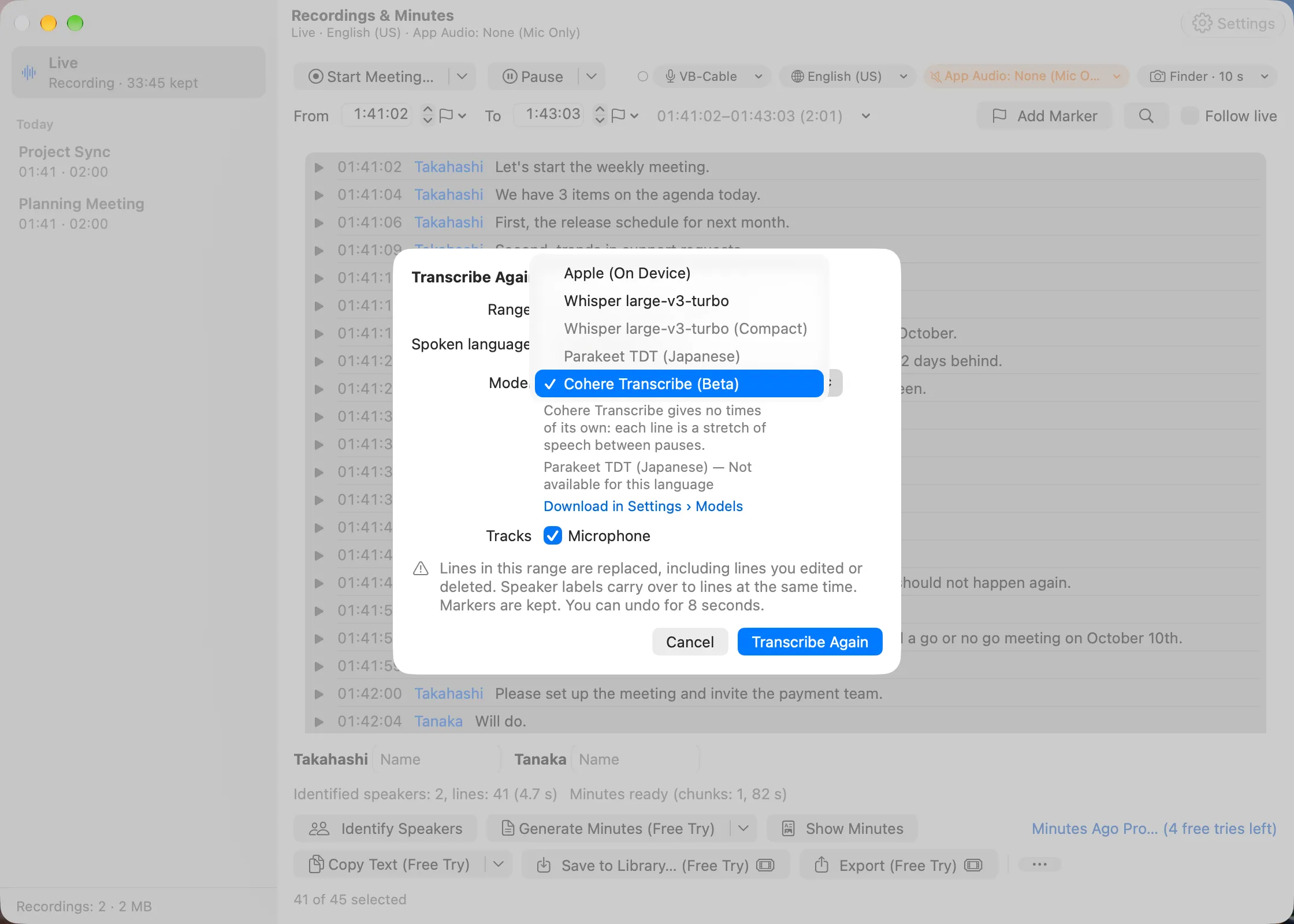
Transcribe Again… opens a sheet:
-
Range (live pane only) — for example
12:03:10–12:48:02 · 45 min. -
Spoken language — starts at the language in use now (live) or the recording’s language.
-
Model — Apple (On Device), then the other models. A model that can’t be used now is greyed out, with the reason under the menu:
- not downloaded — “Download in Settings › Models” (a link to the pane)
- not for this language — “Not available for this language”
- being optimized in Settings › Models — “Optimizing in Settings › Models”
When the chosen model hasn’t been optimized yet, the sheet says “First use optimizes the model (up to 15 minutes).” for Parakeet TDT (Japanese) and “First use optimizes the model for the Neural Engine (10 minutes or more).” for Whisper on the Neural Engine (Whisper on the GPU is ready in seconds, so there is no note). With Cohere Transcribe, it says “Cohere Transcribe gives no times of its own: each line is a stretch of speech between pauses.” If you change the language to one the chosen model can’t transcribe, the choice goes back to Apple (On Device).
-
Tracks — Microphone and App Audio, both checked when there are both.
-
What will happen (the note at the bottom), then Cancel and Transcribe Again.
While it runs, the status line shows the progress (for example “Transcribing · 40%” for a range, “Transcribing with Whisper large-v3-turbo · 40%” for a recording). With Whisper, Parakeet or Cohere, loading the model comes first (“Loading the model…”, which takes seconds for Whisper on the GPU; “Loading the model… (can take 10 minutes or more on the Neural Engine)” for Whisper on the Neural Engine, “Loading the model… (first time only, up to 15 minutes)” for Parakeet TDT and “Loading the model… (about 2 minutes)” for Cohere Transcribe). Recording and live transcription go on; only if the Mac’s speech recognition runs short of resources is live transcription paused until it is done.
A range in the live pane
- The lines of the range are replaced in the app’s data, so the window, Copy Text, exports, minutes and agents all see the new lines.
- “Lines in this range are replaced, including lines you edited or deleted. Speaker labels carry over to lines at the same time. Markers are kept. You can undo for 8 seconds.”
- The range ends at the last finished line of each track, so speech still being transcribed is left as it is. The result says where it ended, for example “Transcribed again with Whisper large-v3-turbo · Lines: 42 · up to 12:47:50”.
- Meanwhile Identify Speakers is greyed out (“Wait until the range is transcribed again.”). Erase Live Audio… stops it, and the lines are not changed.
- Live transcription goes on with Apple’s speech recognition; only the range you chose is transcribed again.
A saved recording
“The chosen model’s transcript is made again and shown. One kept for that model is replaced, including lines you edited or deleted. Tracks not chosen keep that model’s lines, or the current transcript’s when it has none, so the two can be mixed. Speaker names carry over to lines at the same time. You can undo for 8 seconds.” Markers and minutes are kept.
Undo
For 8 seconds after transcribing again from the sheet, Undo in the status line brings the previous lines back (“Restored the previous transcript”). A saved recording also gets its previous language and model back. If you edit or delete lines in between, Undo no longer restores them.
One at a time
Only one transcription runs at a time: a range, a saved recording or an imported audio file (its first transcript). While one runs, the others, and Import in the import sheet, are greyed out (“Wait until the other transcription is done.”). Transcribe Again… is also greyed out while speakers are identified or minutes are written for that range or recording, and, for a range, when Transcribe while recording is off (“Transcription is off”).
A transcript for each model
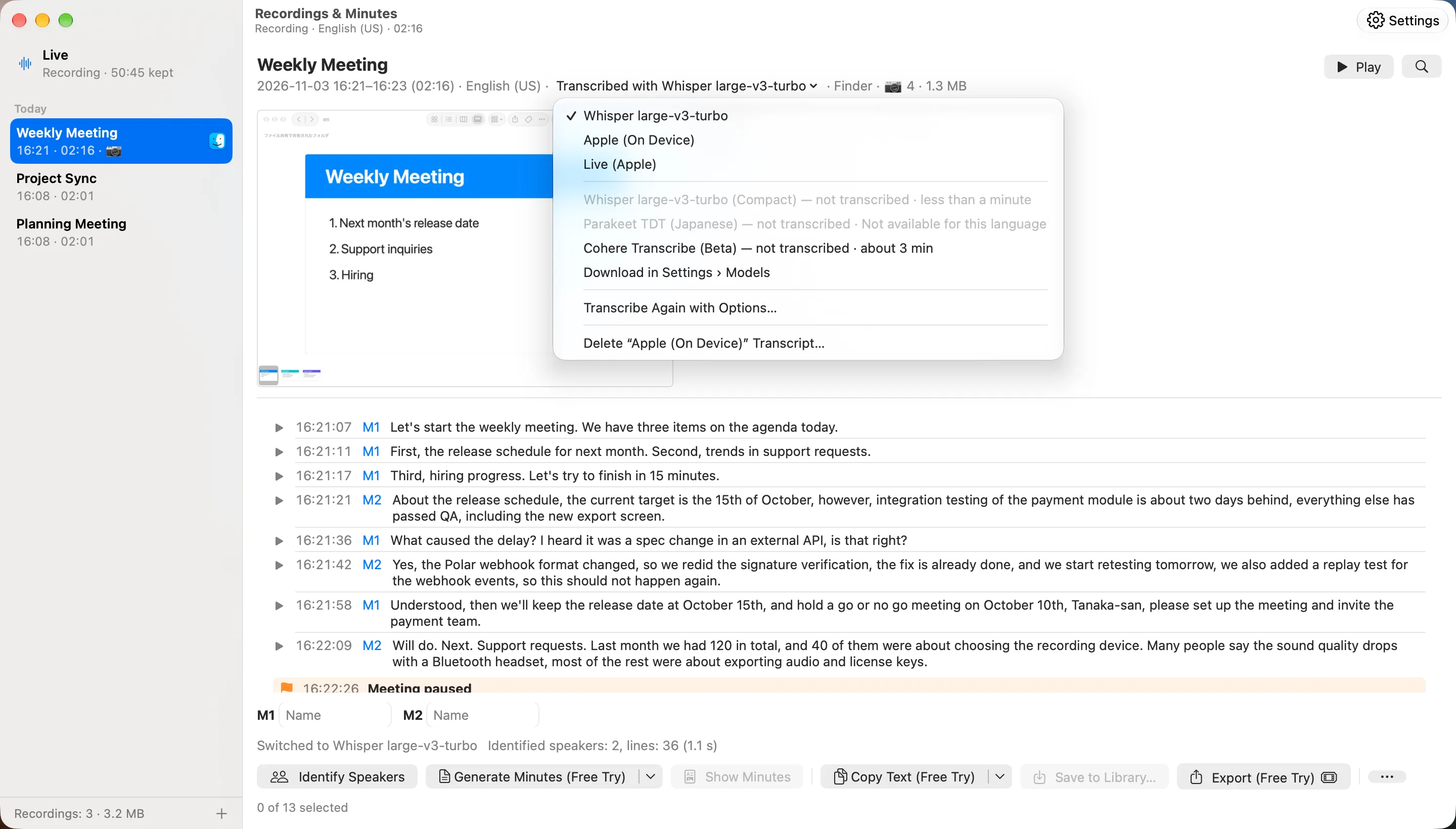
A saved recording can keep a transcript from each model. The header of the recording shows the one you see now, for example “Transcribed with Live (Apple)”, and it is a menu:
- ✓ the current transcript, then the other transcripts the recording keeps. Choose one to switch to it. “Live (Apple)” is the transcript made while recording (it was saved with the recording). “· edited” marks a transcript you changed by hand.
- The models without a transcript yet, with an estimate: “Whisper large-v3-turbo — not transcribed · about 8 min” (here, for an hour-long recording with two tracks). A model that hasn’t been optimized yet adds “+ first-use optimization (up to 15 min)” for Parakeet TDT or “+ first-use optimization (10 min or more)” for Whisper on the Neural Engine. Choose one and it starts at once, without a question, in the language of the current transcript; when it is done, the recording switches to it (“Switched to Whisper large-v3-turbo”). There is no Undo for this: switch back in the same menu. A model that is not downloaded, not for the recording’s language (“Not available for this language”) or being optimized (“Optimizing in Settings › Models”) is greyed out, and “Download in Settings › Models” opens the pane.
- Transcribe Again with Options… — the sheet, to choose the language and tracks too.
- Delete “…” Transcript… — deletes a kept transcript (not the current one, and not Live (Apple), which can’t be made again), after a question: “Its lines are deleted, including lines you edited. The audio is kept, so it can be transcribed again with this model.”
While a model transcribes, you can keep reading and editing the current transcript. If you are editing a line when it finishes, it waits: “Switching to Whisper large-v3-turbo when you finish editing…”.
How the transcripts relate:
- Edited and deleted lines belong to that model’s transcript only.
- Speaker identification and speaker names apply to all of them.
- Copy Text, exports, minutes and agents use the current transcript.
- Minutes made from another model’s transcript say so in their sheet, for example “Made from the Live (Apple) transcript”.
- All the transcripts are kept in the recording’s folder on this Mac, and deleting the recording deletes them all.
What is free
- Transcribing again with any model (a range or a saved recording), making, switching and deleting the transcripts of each model, and downloading and deleting models are free. They use no free try and have no (Free Try) or (Pro) mark.
- What you take out afterwards is counted as usual (What counts as one free try?). From the live pane, a copy, export, minutes or agent request older than 30 minutes, with speaker names or with a provider outside this Mac uses a free try until you get Pro. From a saved recording they are free (saving it was counted), except speaker names added after saving (one try, once) and minutes with a provider outside this Mac. The current transcript decides whether there are speaker names.
- Importing audio files, with whichever model, is a Minutes Ago Pro feature (a license in the direct version) and is not covered by free tries (Importing Audio Files). Once imported, the recording is a saved recording: transcribing it again with another model is free, as above.