In an online meeting, the other participants reach your Mac as the meeting app’s sound, not through the microphone. Choose the meeting app in App Audio and Minutes Ago records that app’s sound as a second track, so the other participants are in the transcript too. No bot needs to be invited, and nothing is added to the meeting on the other side.
App audio is optional. For in-person meetings, or when the microphone is enough, you don’t need it (App Audio: None (Mic Only)).
Choosing an app
- Open the meeting app (Zoom, Teams, Safari, …) and join the meeting.
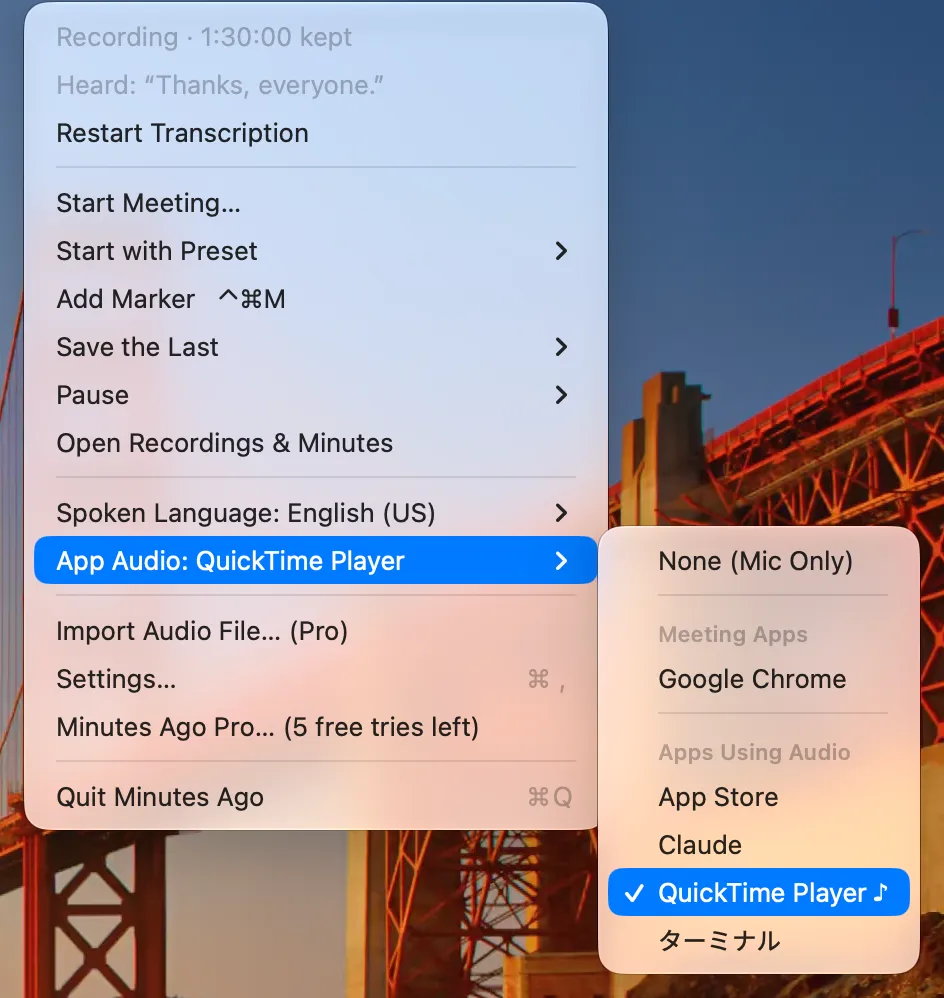
- Open App Audio ▸ in the menu. It lists Meeting Apps (meeting apps that are open) and Apps Using Audio; apps playing sound right now are marked ♪.
- Choose the meeting app.
You can choose it in the same way with the App Audio chip in the Recordings & Minutes window, in Start Meeting… (for the meeting you are starting), and under How meetings are recorded in Settings › General. They all set the same choice. Your choice is remembered when Minutes Ago restarts, and recording follows the app if it quits and is opened again. To stop, choose None (Mic Only).
If a meeting-only app (Zoom, Teams or Webex) is open while App Audio is None, the menu shows an orange line, for example “Zoom is open · Record Its Audio”; click it to choose that app.

The “System audio recording” permission
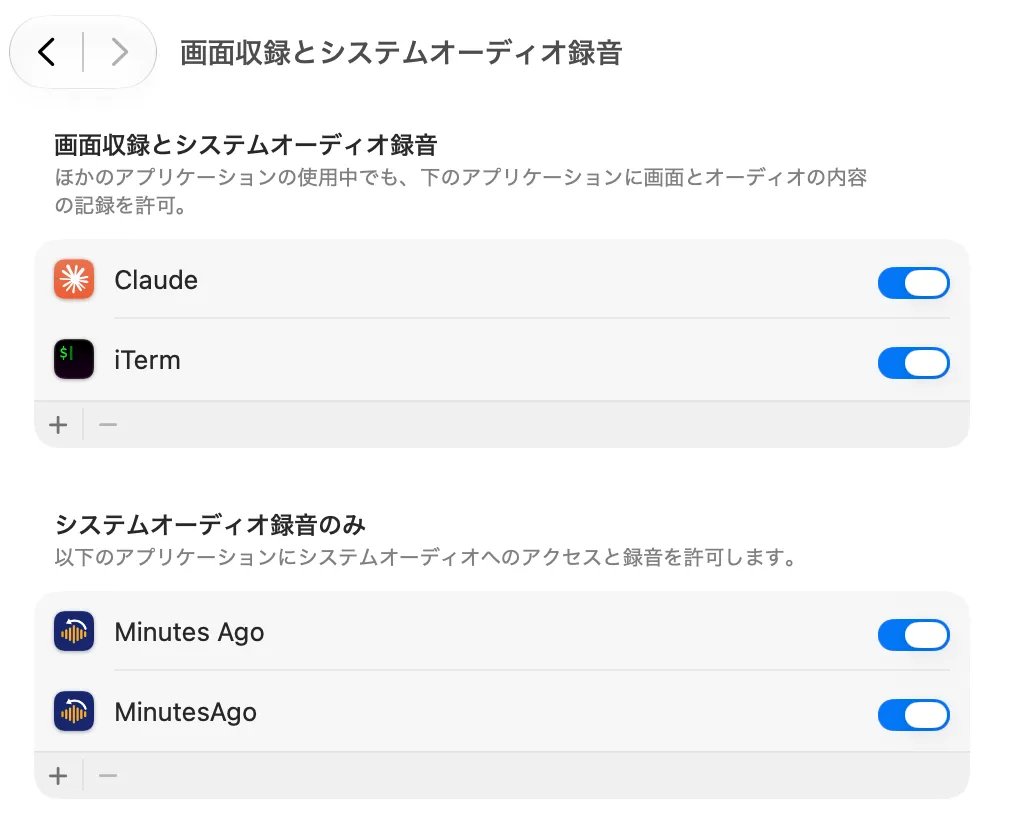
The first time you choose an app, macOS asks whether Minutes Ago may record system audio. Meanwhile App Audio ▸ shows “App Audio: … · Starting (allow “record system audio” if asked)”.
- The permission appears in System Settings › Privacy & Security › Screen & System Audio Recording, under System Audio Recording Only. It is not permission to record the screen.
- Only the app you chose is recorded.
- Turn it off there to withdraw it at any time.
Which sound is captured
Only the app you chose. Other apps’ sound is not included. Some apps, however, play sound from separate helper processes, and Minutes Ago records those as part of the chosen app.
- Safari — web page audio is played by a WebKit helper process. Choosing Safari records that helper too, so other apps that use WebKit (Mail, for example) are also recorded. The menu shows the same note.
- Chrome — Chrome’s helper processes are recorded along with it.
- For other apps, helper processes started by the chosen app are recorded along with it.
Reading the status
The App Audio item in the menu shows the app and its status. The chip in the Recordings & Minutes window shows the same choice.
| Status | Meaning |
|---|---|
| “App Audio: zoom.us ♪” | Sound is arriving |
| “App Audio: zoom.us · No Sound Yet” | No sound from the app for now (nobody is speaking, or the meeting hasn’t started). Nothing is wrong: sound is recorded as soon as it comes |
| “App Audio: zoom.us · Not Running” | The chosen app is not open. Recording starts when it is opened |
| “App Audio: zoom.us · Not Available” | It couldn’t start. The submenu shows the reason (“App Audio Not Available: …”) |
| “App Audio: None (Mic Only)” | No app is chosen |
In the Recordings & Minutes window, a long App Audio chip title (for example “App Audio: Google Chrome · No Sound Yet”) is shortened with “…”; hold the pointer over it for the full text. A small dot left of the chip shows what happens to the app’s sound now: green when it is being transcribed, orange when it is quiet and may not be transcribed, grey when there is no sound or transcription is off (The input level dot).
If the app is playing but nothing keeps arriving, Minutes Ago sets up app audio capture again on its own. It does the same when the output device changes its sample rate (for example when a headset takes over the sound). After the Mac wakes from sleep, app audio starts again even if the microphone doesn’t. If sound arrives but no lines appear, transcription restarts on its own (When transcription stops).
During a meeting, if no sound has come from the app for 30 seconds, the menu shows an orange line: “No sound from zoom.us for 30 s. Fine if nobody is talking”.
When nothing is heard
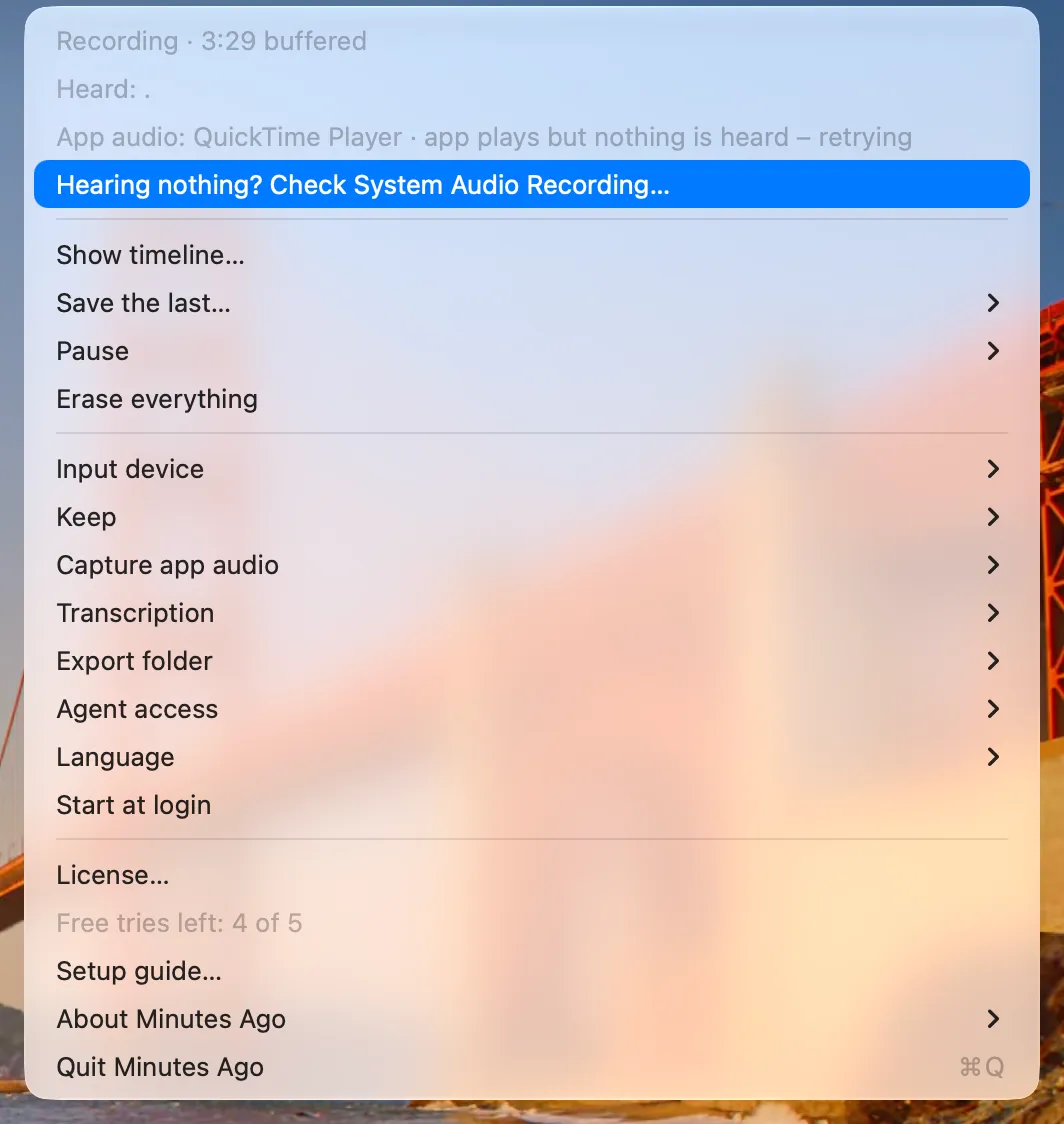
While nothing arrives from an app that is playing, App Audio ▸ shows “Hearing nothing? Check System Audio Recording…” (or “Check System Audio Recording…” if it couldn’t start). It opens System Settings; check that System Audio Recording is on for Minutes Ago. Without that permission, recording starts but only silence arrives.
Recording only the other participants (Microphone: None)
To record only the meeting app (for example, when your microphone picks up the room), set the microphone to None: in the microphone chip of the Recordings & Minutes window, in Start Meeting…, or in Settings › Recording (None (App Audio Only)).
- The chip turns orange with a slashed microphone (“No Microphone”), and the App Audio chip does the same when App Audio is None, so you can see it from across the room.
- If the microphone and App Audio are both None, nothing is recorded: the menu shows “Not Recording · Microphone and App Audio are both None” and an orange line with Use the Microphone. A meeting or a preset can’t be started with both set to None.
Exports and transcripts
App audio is stored as a track separate from the microphone, and each track is transcribed on its own.
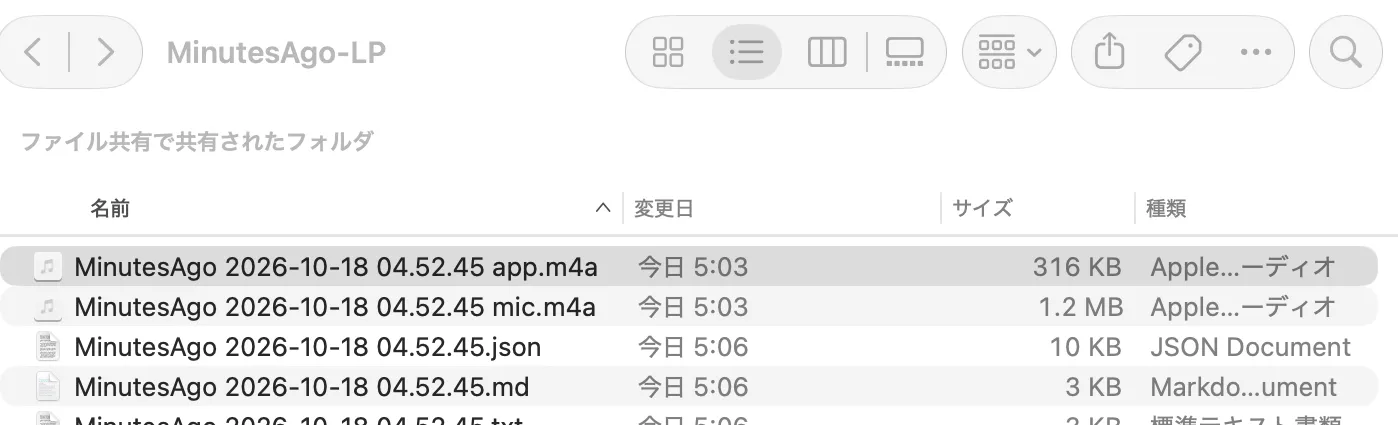
- Audio: when the range has app audio, you get two files, microphone and app (
MinutesAgo … mic.m4aandMinutesAgo … app.m4a). Both start at the start of the range and have the same length. There is no option to mix them into one. - Transcript: the lines of both tracks are merged in time order. Lines without a speaker are labeled “Me” (microphone) and “Others” (app); in the Japanese interface, 自分 and 相手. This is the same in the Recordings & Minutes window, Copy Text, transcript exports, the
.txt/.md/.jsonexports and minutes. - Speaker identification: each track is identified on its own: the app side (the others) is labeled
S1,S2, … and the microphoneM1,M2, … (with a headset, you areM1). Identifying both tracks takes about twice as long as one (With app audio). - Quiet voices: during a meeting, everything on both tracks is transcribed whatever the volume (Always transcribe during meetings, on by default), so quiet voices of the other participants are not skipped. Outside meetings, Speech detection in Settings › Transcription decides (Speech detection).
- Transcribing again: a range or a saved recording can be transcribed again with another model, with the App Audio track or both tracks (Transcribe again with another model).
What is free
Exports, copies, saved recordings and minutes on this Mac for the last 30 minutes are free even when the range includes app audio. Outputs older than 30 minutes, with speaker names or with a provider outside this Mac use a free try until you get Pro, with or without app audio (What counts as one free try?). Choosing an app and recording its audio are always free. Up to 1.8.0, outputs with app audio also used a free try, and Microphone Only (Free) was offered instead.
Known limitations
- Echo: if you listen to the meeting on speakers, the app’s sound also reaches the microphone and the same words appear on both tracks. When you identify speakers, the other side’s voice on the microphone shows up as another microphone speaker (such as
M2). There is no echo handling on the microphone side yet. - What has been tested: app audio was tested by playing synthetic speech in QuickTime Player and Safari (a 1-hour two-track recording stayed in sync). Testing in real online meetings has been limited.
- Switching output: since 1.10, Minutes Ago sets up app audio again when the output changes its sample rate (for example when a headset takes over the sound). This has not been confirmed with real headsets yet.